---
title: Maintenance and upgrades
excerpt: Keep your Tiger Cloud service up to date. Learn about minor and major migrations, maintenance windows, and updating your version of Postgres
products: [cloud]
keywords: [updates, upgrades, maintenance]
cloud_ui:
    path:
        - [services, :serviceId, operations, maintenance]
---
import SupportMatrix from "versionContent/_partials/_migrate_self_postgres_timescaledb_compatibility.mdx";
$CLOUD_LONG offers managed database $SERVICE_SHORTs that provide a stable and reliable environment for your applications. Each $SERVICE_SHORT is based on a specific version of the $PG database and the $TIMESCALE_DB extension. To ensure that you benefit from the latest features, performance and security improvements, it is important that your $SERVICE_LONG is kept up to date with the latest versions of $TIMESCALE_DB and $PG.
$CLOUD_LONG has the following upgrade policies:
-
Minor software upgrades: handled automatically, you do not need to do anything.
Upgrades are performed on your $SERVICE_LONG during a maintenance window that you define to suit your workload. You can also manually upgrade $TIMESCALE_DB.
-
Critical security upgrades: installed outside normal maintenance windows when necessary, and sometimes require a short outage.
Downtime is usually between 30 seconds and 5 minutes. $COMPANY aims to notify you by email if downtime is required, so that you can plan accordingly. However, in some cases this is not possible.
-
Major upgrades: such as a new version of $PG are performed manually by you, or automatically by $CLOUD_LONG.
After a maintenance upgrade, the DNS name remains the same. However, the IP address often changes.
If you do not manually upgrade $TIMESCALE_DB for non-critical upgrades,
$CLOUD_LONG performs upgrades automatically in the next available maintenance window. The upgrade is first applied to your standard $SERVICE_SHORTs tagged #dev, and three weeks later to those tagged #prod. Subscribe to get an email notification before your #prod $SERVICE_SHORTs are upgraded. To upgrade your #prod $SERVICE_SHORTs manually before the service window, see Service management.
Most upgrades that occur during your maintenance windows do not require any downtime. This means that there is no $SERVICE_SHORT outage during the upgrade. However, all connections and transactions in progress during the upgrade are reset. Usually, the $SERVICE_SHORT connection is automatically restored after the reset.
Some minor upgrades do require some downtime. This is usually between 30 seconds and 5 minutes. If downtime is required for an upgrade, $COMPANY endeavors to notify you by email ahead of the upgrade. However, in some cases, we might not be able to do so. Best practice is to schedule your maintenance window so that any downtime disrupts your workloads as little as possible and minimize downtime with replicas. If there are no pending upgrades available during a regular maintenance window, no changes are performed.
Free $SERVICE_SHORTs are upgraded and restarted during the maintenance window each week, if there is a new version available. Some background maintenance tasks performed at other times can also cause connection resets. When a connection reset occurs, you can immediately reconnect to your $SERVICE_SHORTs.
To track the status of maintenance events, see the $CLOUD_LONG status page.
Maintenance upgrades require up to two automatic failovers. Each failover takes less than a few seconds. $SERVICE_LONGs with $HA_REPLICAs and $READ_REPLICAs require minimal write downtime during maintenance, read-only queries keep working throughout.
During a maintenance event, services with replicas perform maintenance on each node independently. When maintenance is complete on the primary node, it is restarted:
- If the restart takes more than a minute, a replica node is promoted to primary, given that the replica has no replication lag. Maintenance now proceeds on the newly promoted replica, following the same sequence. If the newly promoted replica takes more than a minute to restart, the former primary is promoted back. In total, the process may result in up to two minutes of write downtime and two failover events.
- If the maintenance on the primary node is completed within a minute and it comes back online, the replica remains the replica.
Non-critical upgrades are available before the upgrade is performed automatically by $CLOUD_LONG. To upgrade $TIMESCALE_DB manually:
-
Connect to your service
In $CONSOLE, select the $SERVICE_SHORT you want to upgrade.
-
Upgrade $TIMESCALE_DB
Either:
- Click
SQL Editor, then runALTEREXTENSION timescaledb UPDATE. - Click
⋮, thenPauseandResumethe service.
- Click
Upgrading to a newer version of $PG allows you to take advantage of new features, enhancements, and security fixes. It also ensures that you are using a version of $PG that's compatible with the newest version of $TIMESCALE_DB, allowing you to take advantage of everything it has to offer. For more information about feature changes between versions, see the $CLOUD_LONG release notes, supported systems, and the $PG release notes.
To ensure you benefit from the latest features, optimal performance, enhanced security, and full compatibility with $TIMESCALE_DB, $CLOUD_LONG supports a defined set of $PG major versions. To reduce the maintenance burden and continue providing a high-quality managed experience, as $PG and $TIMESCALE_DB evolve, $COMPANY periodically deprecates older $PG versions.
$COMPANY provides advance notification to allow you ample time to plan and perform your upgrade. The timeline deprecation is as follows:
- Deprecation notice period begins: you receive email notification of the deprecation and the timeline for the upgrade.
- Customer self-service upgrade window: best practice is to manually upgrade to a new $PG version in this time.
- Automatic upgrade deadline: $CLOUD_LONG performs an automatic upgrade of your $SERVICE_SHORT.
Upgrading to a newer version of $PG enables you to take advantage of new features, enhancements, and security fixes. It also ensures that you are using a version of $PG that's compatible with the newest version of $TIMESCALE_DB.
For a smooth upgrade experience, make sure you:
- Plan ahead: upgrades cause downtime, so ideally perform an upgrade during a low traffic time.
- Run a test upgrade: fork your $SERVICE_SHORT, then try out the upgrade on the fork before running it on your production system. This gives you a good idea of what happens during the upgrade, and how long it might take.
- Keep a copy of your $SERVICE_SHORT: if you're worried about losing your data, fork your $SERVICE_SHORT without upgrading, and keep this duplicate of your $SERVICE_SHORT. To reduce cost, you can immediately pause this fork and only pay for storage until you are comfortable deleting it after the upgrade is complete.
$SERVICE_LONGs with replicas cannot be upgraded. To upgrade a service with a replica, you must first delete the replica and then upgrade the service.
The following table shows you the compatible versions of $PG and $TIMESCALE_DB.
For more information about feature changes between versions, see the $PG release notes and $TIMESCALE_DB release notes.
Your $SERVICE_LONG is unavailable until the upgrade is complete. This can take up to 20 minutes. Best practice is to test on a fork first, so you can estimate how long the upgrade will take.
To upgrade your $SERVICE_SHORT to a newer version of $PG:
-
Connect to your service
In $CONSOLE, select the $SERVICE_SHORT you want to upgrade.
-
Disable $HA_REPLICAs
- Click
Operations>High Availability, then clickChange configuaration. - Select
Non-production (No replica), then clickChange configuration.
- Click
-
Disable $READ_REPLICAs
- Click
Operations>Read scaling, then click the trash icon next to all replica sets.
- Click
-
Upgrade $PG
- Click
Operations>Service Upgrades. - Click
Upgrade service, then confirm that you are ready to start the upgrade.
Your $SERVICE_LONG is unavailable until the upgrade is complete. This normally takes up to 20 minutes. However, it can take longer if you have a large or complex $SERVICE_SHORT.
When the upgrade is finished, your service automatically resumes normal operations. If the upgrade is unsuccessful, the service returns to the state it was in before you started the upgrade.
- Click
-
Enable $HA_REPLICAs and replace your $READ_REPLICAs
If you do not manually upgrade your $SERVICE_SHORTs within the customer self-service upgrade window, $CLOUD_LONG performs an automatic upgrade. Automatic upgrades can result in downtime, best practice is to manually upgrade your $SERVICE_SHORTs during a low-traffic period for your application.
During an automatic upgrade:
- Any configured $HA_REPLICAs or $READ_REPLICAs are temporarily removed.
- The primary $SERVICE_SHORT is upgraded.
- $HA_REPLICA_CAPs and $READ_REPLICAs are added back to the $SERVICE_SHORT.
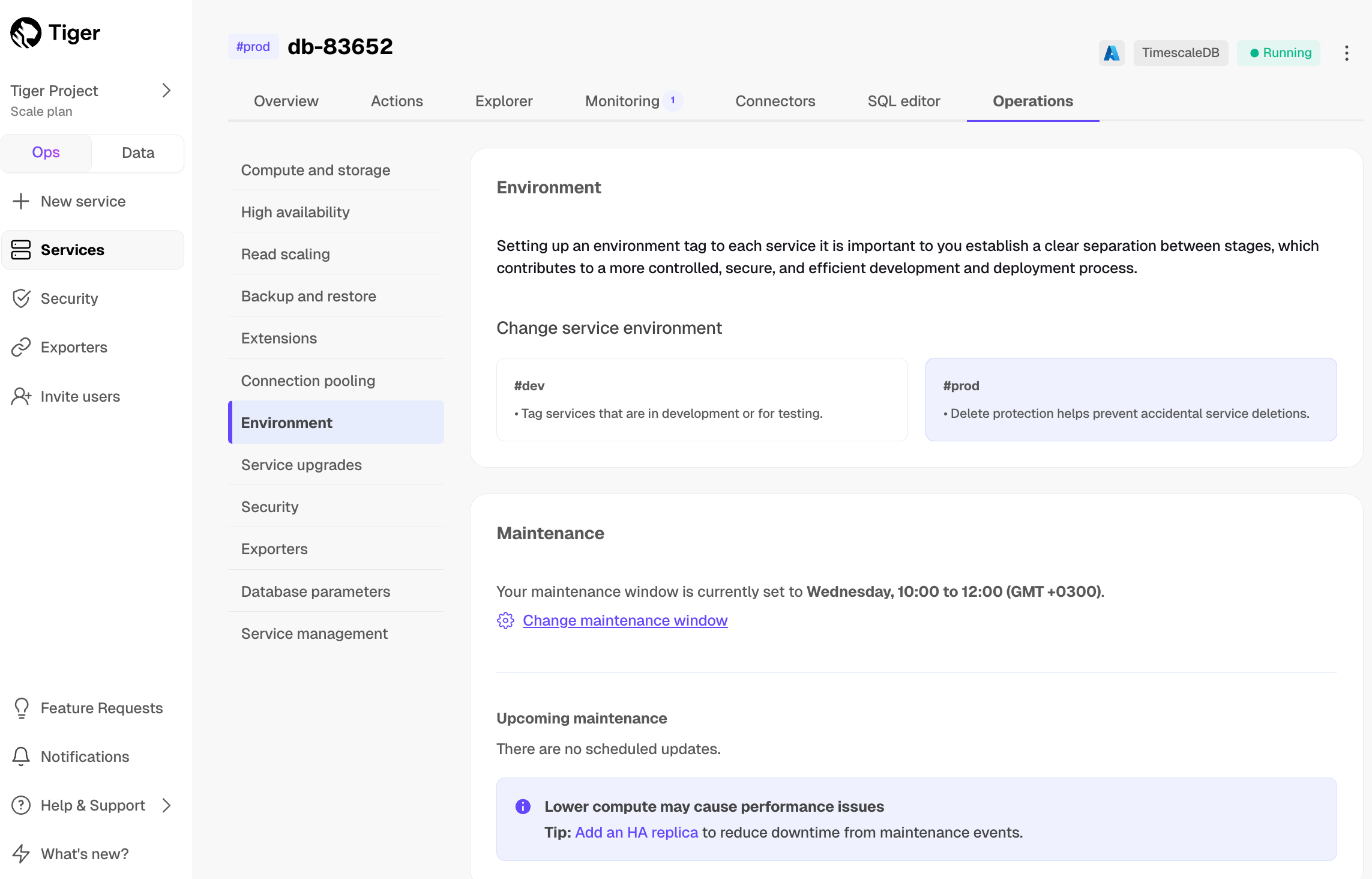
When you are considering your maintenance window schedule, best practice is to choose a day and time that usually has very low activity, such as during the early hours of the morning, or over the weekend. This helps minimize the impact of a short service interruption. Alternatively, you might prefer to have your maintenance window occur during office hours, so that you can monitor your system during the upgrade.
To change your maintenance window:
-
Connect to your service
In $CONSOLE, select the $SERVICE_SHORT you want to manage.
-
Set your maintenance window
- Click
Operations>Environment, then clickChange maintenance window. - Select the maintence window start time, then click
Apply.
Maintenance windows can run for up to four hours.
- Click