import NotAvailableFreePlan from "versionContent/_partials/_not-available-in-free-plan.mdx";
-
Check your $SERVICE_SHORT is running correctly
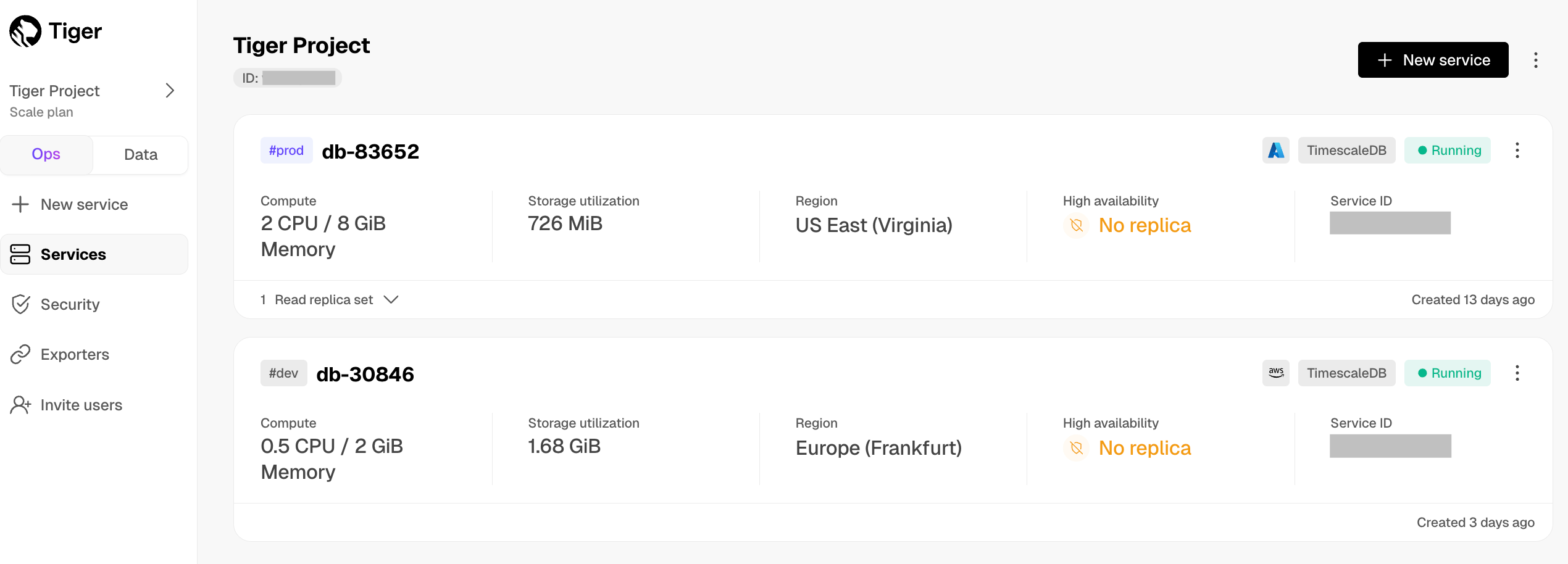
In $CONSOLE, check that your $SERVICE_SHORT is marked as
Running. -
Connect to your $SERVICE_SHORT
Connect using data mode or SQL editor in $CONSOLE, or psql in the command line:
-
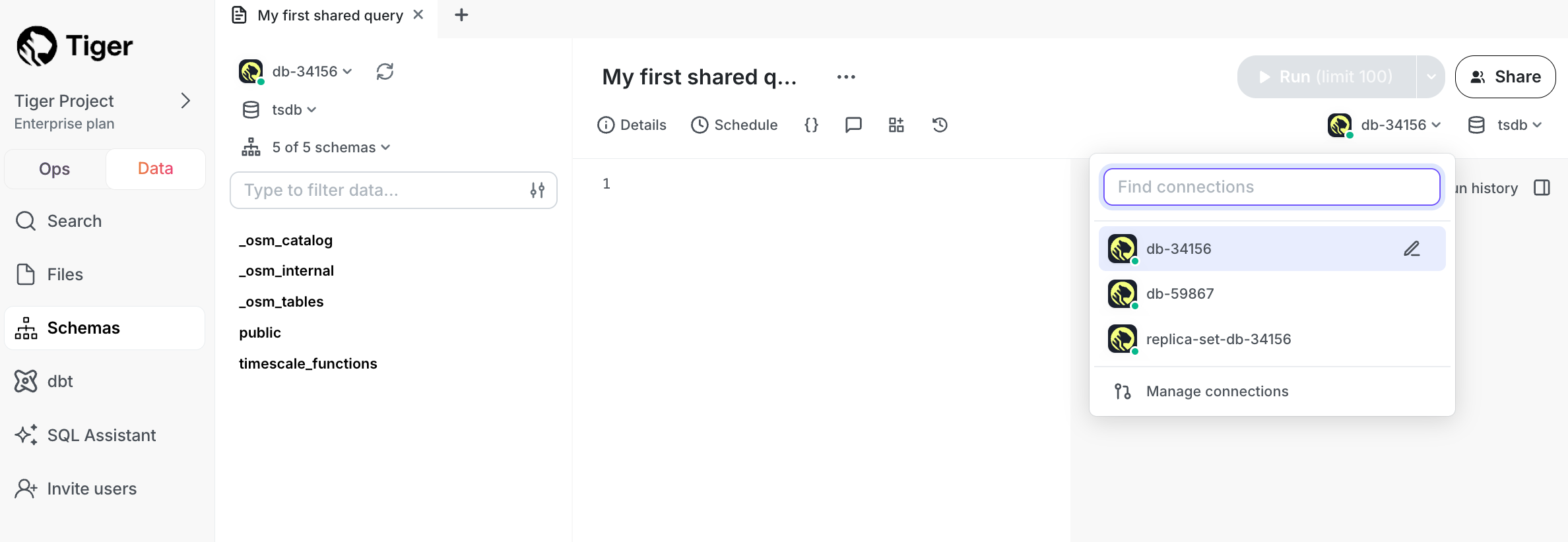
In $CONSOLE, toggle
Data. -
Select your $SERVICE_SHORT in the connection drop-down in the top right.
-
Run a test query:
SELECT CURRENT_DATE;
This query gives you the current date, you have successfully connected to your $SERVICE_SHORT.
And that is it, you are up and running. Enjoy developing with $COMPANY.
-
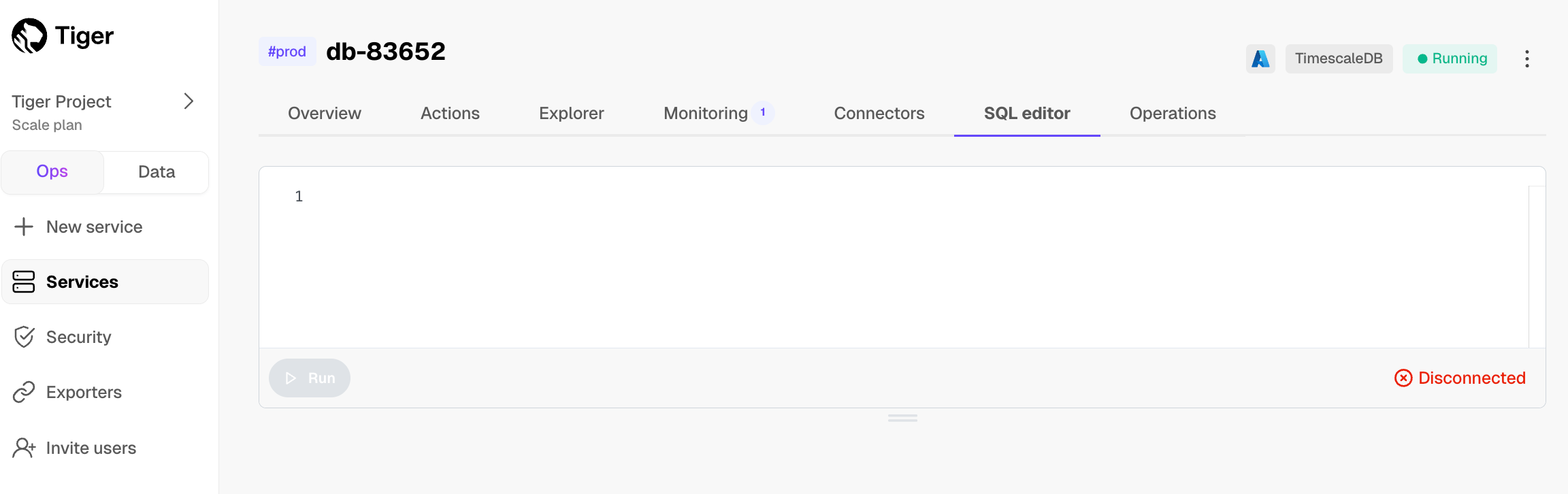
In $CONSOLE, select your $SERVICE_SHORT.
-
Click
SQL editor. -
Run a test query:
SELECT CURRENT_DATE;
This query gives you the current date, you have successfully connected to your $SERVICE_SHORT.
And that is it, you are up and running. Enjoy developing with $COMPANY.
-
Install psql.
-
Run the following command in the terminal using the service URL from the config file you have saved during service creation:
psql "<your-service-url>" -
Run a test query:
SELECT CURRENT_DATE;
This query returns the current date. You have successfully connected to your $SERVICE_SHORT.
And that is it, you are up and running. Enjoy developing with $COMPANY.
-
Quick recap. You:
- Manage your $SERVICE_SHORTs in the $OPS_MODE in $CONSOLE: add $READ_REPLICAs and enable high availability, compress data into the $COLUMNSTORE, change parameters, and so on.
- Analyze your data in the $DATA_MODE in $CONSOLE: write queries with autocomplete, save them in folders, share them, create charts/dashboards, and much more.
- Store configuration and security information in your config file.