XDR and HDR brightness upscaling
The XDR/HDR upscaling feature lets you to increase your display's brightness beyond the standard 100% limit (which corresponds to the maximum SDR - Standard Dynamic Range - brightness of your display).
Note
The article is partially updated (work in progress) and might contain outdated information which reflects older app versions and does not take into account UI changes and newer upscaling methods added.
Warning
Some of the features described in this entry require a Pro license.
The feature is compatible with the following Macs:
- Works on Apple Silcion and Intel Macs, depending on the upscaling method used.
- Any internal or external Apple XDR display (Pro Display XDR, built-in Retina XDR Display of new generation MacBook Pros)
- Any HDR capable third party display in HDR mode
In case of third party HDR displays, at least a VESA DisplayHDR 600 or equivalent is recommended for meaningful results (works best on newer display techs - mini-LED etc).

The app supports the following hardware and software assisted upscaling methods (in the order of superiority):
-
Hardware - native XDR brightness upscaling - works with Apple XDR displays only (built-in or external), third party HDR displays are not supported. Unlocks the entire brightness range with no strings attached - no clipped or overblown HDR videos, full native sliders compatibility, no extra CPU/GPU usage. Works both on Apple Silicon and Intel Macs (the latter with an external Pro XDR Display). To activate the feature, select
BetterDisplay XDRunder theXDR Presetmenu under the display's app menu block. Set up auto-activation for a particular display underSettings>Displays. -
Software - color table XDR/HDR brightness upscaling - This method manipulates the display's color table (gamma table and EOTF - this affects how color component intensity levels are converted to optical information) in a way that normal desktop SDR content luminance values are extended beyond the SDR range, reaching into the HDR luminance range. Due to technical constraints this method causes clipped HDR content - HDR videos extending beyond SDR brightness levels will be capped at max SDR brightness. Works only on Apple Silicon Macs. Requires HDR to be enabled (on third party displays) and
Color table adjustmentsoption to be enabled under the display's settings to work. -
Software - metal XDR/HDR brightness upscaling - activated when native XDR or (the default) software upscaling methods are unavailable. Works on Intel Macs too with external HDR or XDR displays. Might cause overblown HDR content (depending on the GPU used and desktop composition details). Requires HDR to be enabled (on third party displays) and
Color table adjustmentsoption to be disabled under the display's settings to work.
You can simply adjust the display brightness as usual - when the feature is properly configured, the brightness range should extend to the upscaled maximum brightness.
The brightness can be adjusted using the following methods:
- Application brightness slider
- Native Apple Keyboard brightness keys
- Custom keyboard shortcuts
Important: to use the native Apple Keyboard brightness screens, you need to set up Accessibility permissions to the app under System Settings (this is not required when solely native XDR upscaling is configured and used).
If you are using an XDR or a third party HDR display in HDR mode, brightness upscaling is enabled by default on Apple Silicon Macs (via the color table method).
Note
If you are using an Intel Mac, you'll need to make some configuration changes to enable Metal upscaling. If you are using an XDR display, you might want to activate native XDR upscaling instead of the default upscaling. Read the details later on how to configure these!
If your third party (non-Apple) HDR display is not in HDR mode, you need to enable HDR by clicking the Enable HDR:
If the feature is properly accessible, you can simply use the keyboard brightness controls and the slider as usual - the brightness range is automatically extended. You can confirm this by having a visibly brighter display or (for software upscaling methods) by looking at the brightness percentage shown in the slider which should reach beyond 100% (for native XDR upscaling the scale maxes out at 100%):

🚧 Under construction
You can manually enable/disable the feature (if available) under :gear (Settings) > Displays:


Note: the setting is worded slightly differently for XDR and third party HDR displays.
🚧 Under construction
The XDR/HDR upscaling feature does not use any special hacks or undocumented APIs and does not circumvent any protection (software or hardware) put into place by Apple to protect the display against any kind of damage (head, overvoltage etc). In XDR upscale mode, the app simply presents the screen as a bright HDR image which in compliance with how the display was made to work. Apple's displays have built-in heat sensors and protections and they are designed to withstand even direct exposure to sunlight. You can use the feature with a complete peace of mind.
The XDR upscaling feature has an impact on battery life - for a small amount of perceived brightness increase more and more extra juice is needed as brightness goes up. This is not an issue when the system is connected to a power source, however when on Battery, please keep in mind that using the feature will draw more power than usual, so use the feature accordingly. This is (most probably) the sole reason why Apple does not allow the XDR screen's brightness to set beyond 500 nits as a standard macOS feature.
If the feature is not working as expected, there are some things to check.
- XDR/HDR upscaling requires Pro. If Pro is not activated and the trial period is over, upscaling will stop working.
- The feature is compatible with Apple Silicon Macs only so it won't work on Intel.
- Not all Apple made displays support upscaling - you need an Apple XDR display (built-in or external). Studio Display is not compatible.
- Third party HDR displays must be in HDR mode for the feature to work.
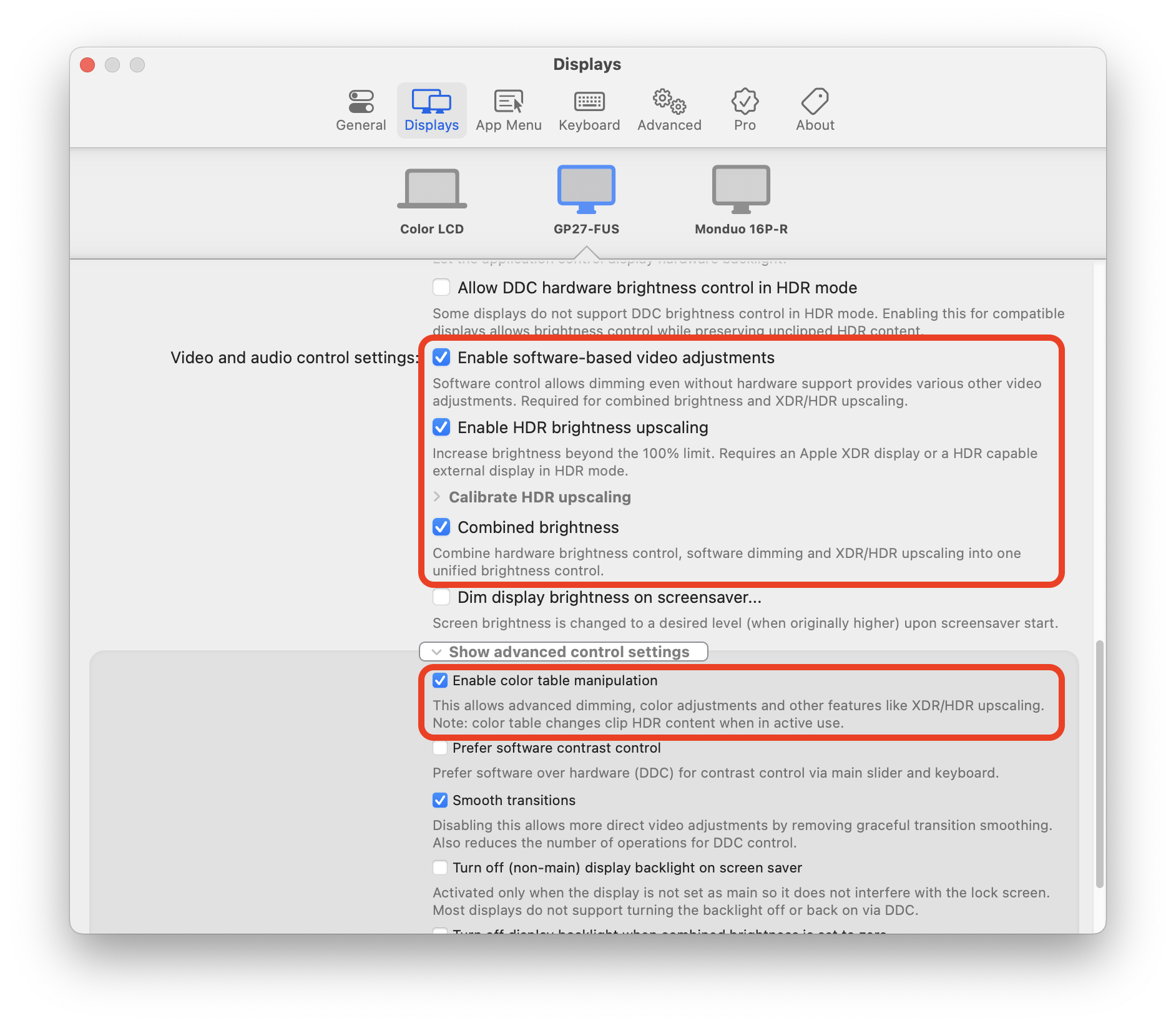
The following settings need to be enabled for the feature to work and be easily accessible:
- The feature must be enabled (this is the default setting) for it to work.
- For the feature to be easily accessible,
Combined brightnessmust be enabled under the display inSettings>Displays(this is the default setting). - For the feature to work,
software-based video adjustmentsmust be enabled, as well ascolor table manipulation(these are all enabled by default).
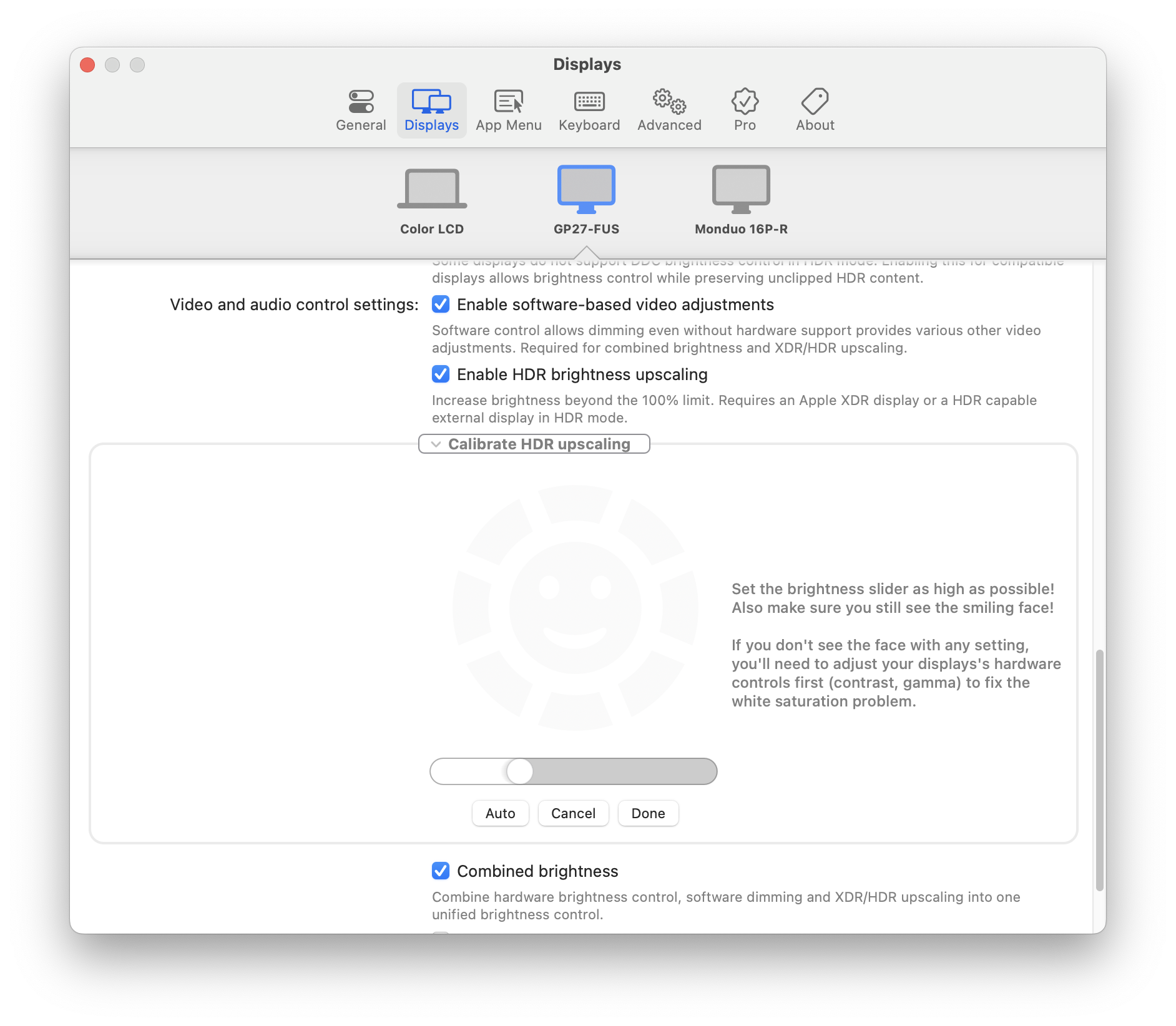
For third party display the app tries to automatically calibrate HDR upscaling to match the peak HDR brightness levels reported by the display. However this might not be accurate at all times. If you feel the app is not utilizing all the brightness headroom available with your display, you can manually calibrate the upscaling levels under Settings > Displays > Calibrate HDR upscaling.

During calibration a slider and a control image appears which will help you in the calibration process - the goal of calibration is to maximize brightness while avoiding white saturation crush.
For added accuracy, you can check your white saturation levels using relevant display test patterns.
On XDR displays manual calibration is not available as the reported brightness levels are always accurate and the app dynamically recalculates the possible upscaling levels based on the available EDR headroom whenever panel brightness is changed (in this regard BetterDisplay is superior to some other upscaling implementations out there).
The app automatically disables the built-in ambient light sensor while XDR upscaling is actively used to prevent brightness to return to non-upscaled levels and re-enables it when the brightness is at or below 100% and the sensor was originally enabled.
Despite the above, it is best to generally disable the ambient light sensor when XDR upscaling is used for Apple screens to avoid sudden CPU usage bumps on various unrelated applications every time the ambient light sensor changes brightness (it may do so constantly due to changing environmental factors, like moving clouds etc).
Technical details: when XDR upscaling is enabled, the app puts the display into Enhanced Dynamic Range - EDR - mode. This is normal and it happens every time a HDR content is rendered on an Apple display. However macOS has a unique feature - in EDR mode the OS sends notifications to all running applications that can potentially present HDR content on screen (Safari, etc) every time the XDR display's brightness level changes. The goal of the notification is to ask every app to update the tone-mapping of all on-screen content (a brightness level change modifies the current maximum SDR luminance, thus changing the amount of extra brightness headroom available for any HDR content to present beyond the maximum SDR brightness - the headroom is the luminance range between the current maximum SDR brightness - determined by the display brightness setting, usually 500 nits max - and the peak brightness of the display - typically 1600 nits max for the Liquid Retina XDR display). This however is a resource-intensive process, so these notifications tend to cause CPU spikes for all affected apps. This is why it is generally best to disable the ambient light sensor (which generates a lot of these notifications by frequently tinkering brightness just a little bit) when consuming HDR content or when XDR upscaling is enabled.
BetterDisplay allows you to disable EDR mode even when XDR upscaling is enabled. For this you need to uncheck Enable Continuous XDR upscaling readiness under Settings > Advanced. This will however make transition to upscaled brightness somewhat slow and choppy as the display needs to be put to EDR mode all the time and the brightness headroom must ramp-up properly for the upscaling feature to work with its full potential.

The app offers multiple brightness control methods.
- Software - color table manipulation - this must be enabled for the XDR/HDR upscale feature to work
- Software - overlay dimming (this is used when color table manipulation is disabled) - this method is incompatible with XDR/HDR upscaling
- Hardware - Apple control (for Apple displays) - this is not required, but is compatible with XDR upscaling and it is advised to have this turned on
- Hardware - DDC brightness control (for third-party displays) - most third party HDR displays do not support DDC brightness in HDR mode properly. So while HDR upscaling is compatible with DDC brightness control, by default the app disables DDC brightness in HDR mode.
- Combined brightness control - when both hardware (Apple or DDC) and software brightness control is enabled, combined brightness control can be enabled as well (this is the default setting). With combined brightness control the app attempts to provide the widest range of brightness/dimming control form zero (full black) to the maximum upscaled brightness via a single slider and via keyboard control.
If both hardware and software brightness controls are enabled while combined brightness is disabled, the app in certain situations shows multiple brightness sliders (separately for hardware and for software) depending on how the sliders are set up.
Note: The app signifies the current brightness control setting by varying brightness (sun) icons in the slider.
The brightness range (brightness percentage limits) change depending on the active brightness control method.
🚧 Under construction
🚧 Under construction
🚧 Under construction
🚧 Under construction
Due to technical reasons XDR/HDR upscaling (or color table based dimming) when active, on-screen HDR content is clipped at max SDR brightness. Because of this, if you are watching HDR content, you should set the display's brightness in a way that upscaling (and dimming) does not take effect.
This is not a serious limitation as watching HDR content makes sense only if the display's brightness is properly set up anyway. For external displays it is generally recommended to have the panel brightness at 100% (most displays do not allow changing brightness in HDR mode) and HDR upscaling off. For Apple XDR displays it is recommended to set the display brightness around 75%-100% (75% might produce better results as gives more dynamic range for HDR content, but 100% is fine, this will make the SDR range of the image appear brighter).
The brightness slider clearly indicates when HDR content appears unclipped. If the combined brightness slider is shown, the slider will snap to a "Min HW" and "Max HW" value - these represent the low and high boundaries of the slider that uses solely hardware brightness control - in this range HDR content shows unclipped:


When the software based slider is used, you need to set the brightness slider to the 100% Neutral position to enjoy proper HDR content:

By default, on Apple XDR displays the app uses the combined slider for upscaling and HDR displays in HDR mode use a non-combined, software-only slider (as most third party HDR capable displays don't properly support DDC brightness in HDR mode - this can be overwritten however as some do provide proper support).
When using keyboard controls, it might be difficult to discern whether the current brightness settings induce HDR clipping or not. To help with this, BetterDisplay has two features:
- Intermediate keyboard/OSD step at neutral settings
- Extra OSD icon for dimming and upscaling
These settings can be enabled/disabled under Settings > Advanced:
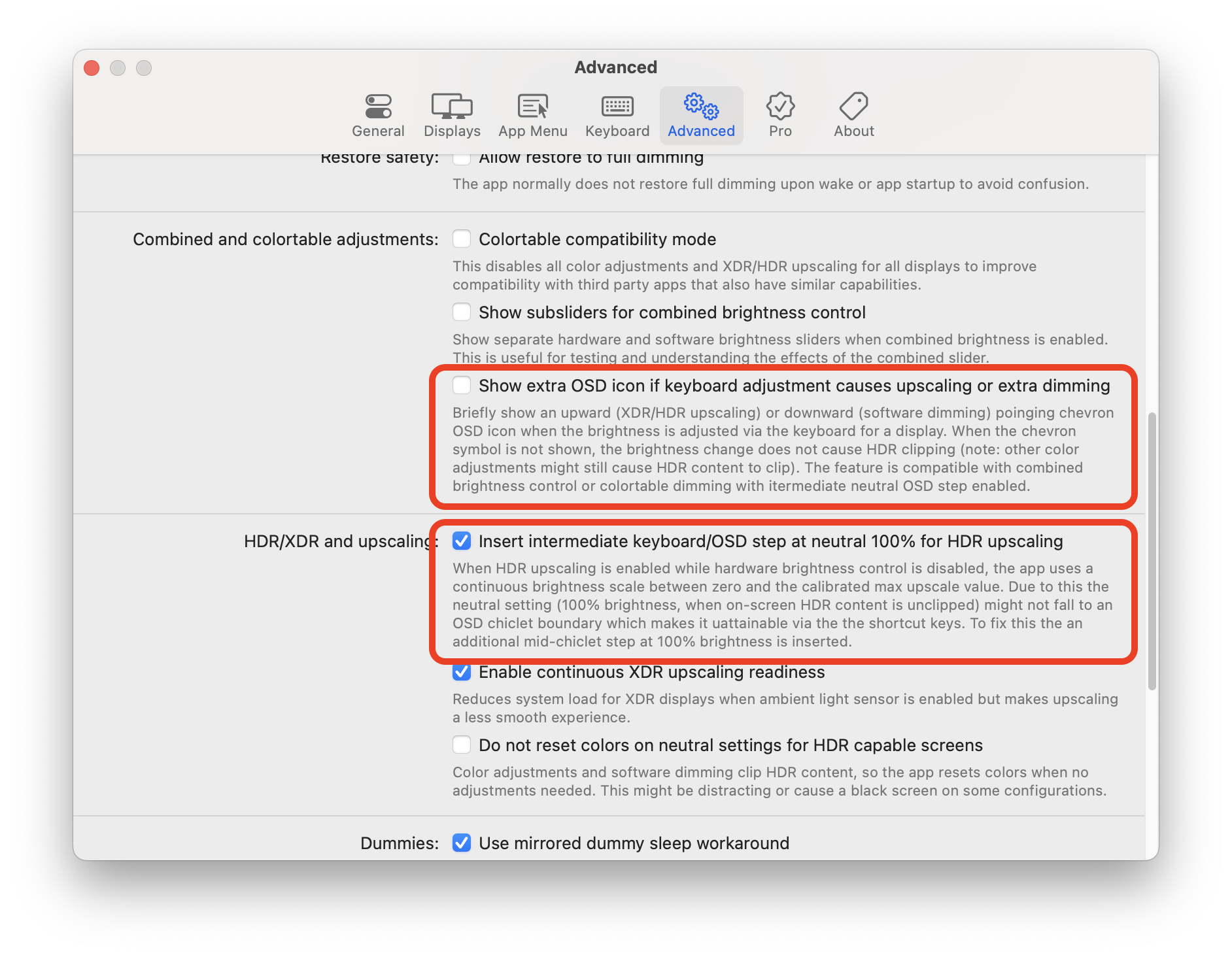
When HDR upscaling is enabled while hardware brightness control is disabled, the app uses a continuous brightness scale between zero and the calibrated max upscale value. Due to this the neutral setting (100% brightness, when on-screen HDR content is unclipped) might not fall to an OSD chiclet boundary which makes it attainable via the the shortcut keys. To fix this the an additional mid-chiclet step at 100% brightness is inserted when this option is enabled (this is the default).
With this setting enabled (by default it is disabled), the app briefly show an upward (XDR/HDR upscaling) or downward (software dimming) pointing chevron OSD icon when the brightness is adjusted via the keyboard for a display. When the chevron symbol is not shown, the brightness change does not cause HDR clipping (note: other color adjustments might still cause HDR content to clip). The feature is compatible with combined brightness control or colortable dimming with intermediate neutral OSD step enabled.

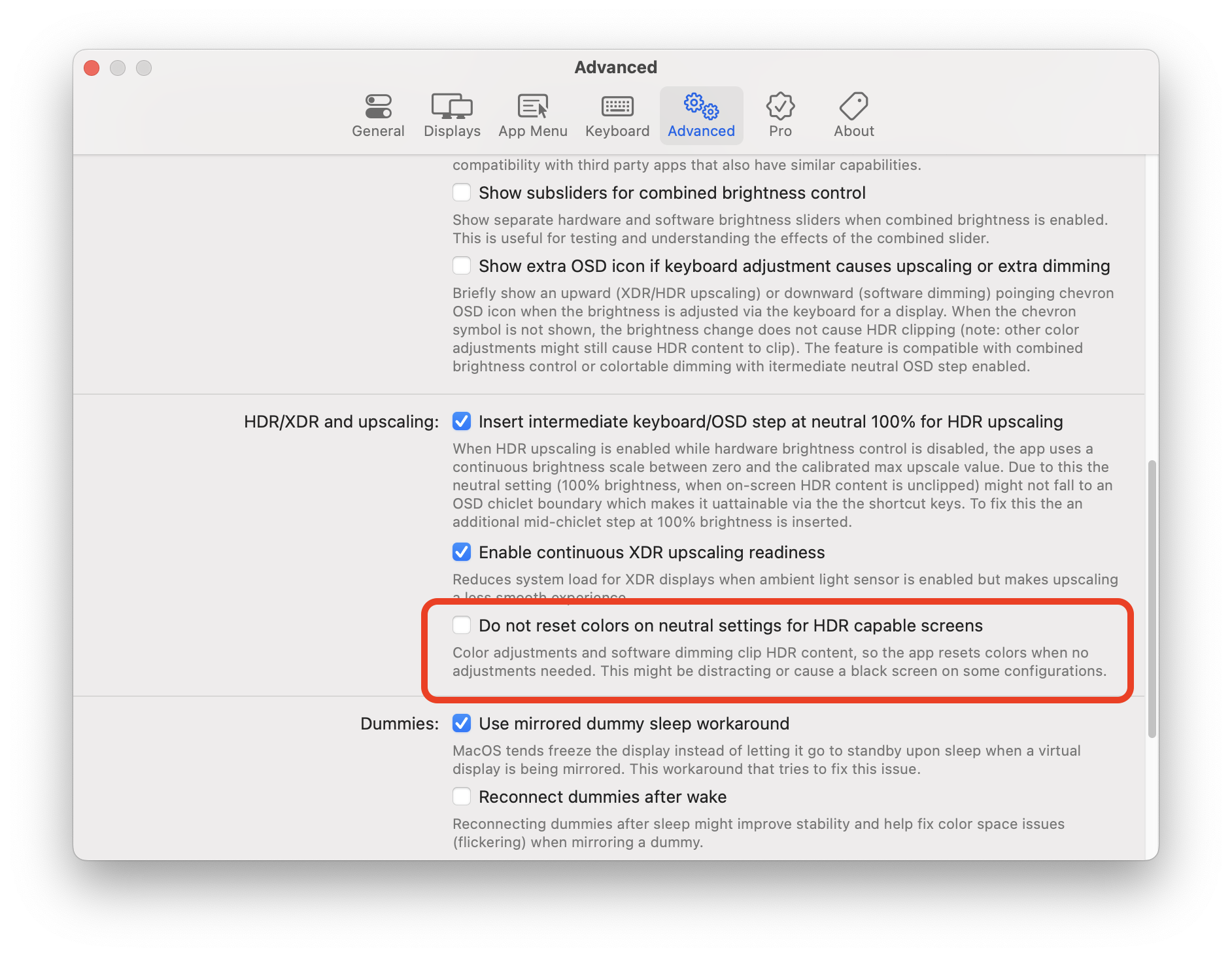
When the app restores neutral settings so HDR content is not clipped, there might be a very brief flash/flicker on screen especially in multi-monitor mode (it might affect all screens). Because of this, setting neutral can be turned off under Settings > Advanced. It is best to leave this setting as default, but if HDR accuracy is not a concern, it can be safely changed.
Important note: HDR content is clipped when certain color adjustments are in place (sliders under app menu's Image Adjustments submenu) even when XDR/HDR upscaling is not utilized.