





FIBO-Edit brings the power of structured prompt generation to image editing.
Built on Fibo's foundation and of JSON-native control, FIBO-Edit delivers precise, deterministic, and fully controllable edits. No ambiguity, no surprises.
Most image editing models rely on loose, ambiguous text prompts, but not FIBO-Edit. FIBO-Edit introduces a new paradigm of structured control, operating on structured JSON inputs paired with a source image (and optionally a mask). This enables explicit, interpretable, and repeatable editing workflows optimized for professional production environments.
Developed by Bria AI, FIBO-Edit prioritizes transparency, legal safety, and granular control: ranking among the top models in open benchmarks for prompt adherence and quality.
📄 Technical report coming soon. For architecture details, see FIBO.
FIBO-Edit is natively built on Visual GenAI Language (VGL). VGL standardizes image generation by replacing vague natural language descriptions with explicit, human-machine-readable JSON. By disentangling visual elements—such as lighting, composition, style, and camera parameters—VGL transforms editing from a probabilistic guessing game into a deterministic engineering task. Fibo-Edit reads these structured blueprints to perform precise updates without prompt drift, ensuring the output matches your exact specifications.
- 2026-1-16: Fibo Edit released on Hugging Face 🎉
- 2026-1-16: Integrated with Diffusers library 🧨
- Structured JSON Control: Move beyond "prompt drift." Define edits with explicit parameters (lighting, composition, style) using a structured JSON format for deterministic results.
- Native Masking: Built-in support for mask-based editing allows you to target specific regions of an image with pixel-perfect precision, leaving the rest untouched.
- Production-Ready Architecture: At 8B parameters, the model balances high-fidelity output with the speed and efficiency required for commercial pipelines.
- Deep Customization: The lightweight architecture empowers researchers to build specialized "Edit" models for domain-specific tasks without compromising quality.
- Responsible & Licensed: Trained exclusively on fully licensed data, ensuring zero copyright infringement risks for commercial users.
Fibo Edit is available everywhere you build, either as source-code and weights, ComfyUI nodes or API endpoints.
API Endpoint:
Source-Code & Weights
- The model is open source for non-commercial use with this license
- For commercial use Click here.
Clone the repository and install dependencies:
git clone https://github.com/Bria-AI/Fibo-Edit.git
cd Fibo-Edit
uv sync
The repository supports two modes for generating structured JSON prompts:
API Mode (default): Uses Gemini as the VLM. Set your API key with export GEMINI_API_KEY="your-api-key"
Local Mode: Uses a local VLM model (briaai/FIBO-edit-prompt-to-JSON) via diffusers ModularPipelineBlocks. No API key required, runs entirely on your GPU.
# API mode (default)
uv run python scripts/example_edit.py --images photo.jpg --instructions "change the car color to green"

# Local mode
uv run python scripts/example_edit.py --vlm-mode local --vlm-model briaai/FIBO-edit-prompt-to-JSON --images photo.jpg --instructions "change the car color to green"
Note: Local VLM mode does not support mask-based editing. Use API mode (--vlm-mode api) for masked edits.
import torch
from diffusers import BriaFiboEditPipeline
from PIL import Image

from fibo_edit.edit_promptify import get_prompt

# 1. Load the pipeline
pipeline = BriaFiboEditPipeline.from_pretrained(
        "briaai/Fibo-Edit",
        torch_dtype=torch.bfloat16,
    )
pipeline.to("cuda")

# 2. Load your source image and mask
source_image = Image.open("examples/example_image.jpg")
mask_image = Image.open("examples/example_mask.jpg")

# 3. Generate structured JSON prompt using edit_promptify
# This uses a VLM to analyze the image and create a detailed structured prompt
prompt = get_prompt(image=source_image, instruction="change the car color to green", mask_image=mask_image)
# 4. Run the edit
result = pipeline(
    image=source_image,
    mask=mask_image,
    prompt=prompt,
    num_inference_steps=50
).images[0]

result.save("fibo_edit_result.png")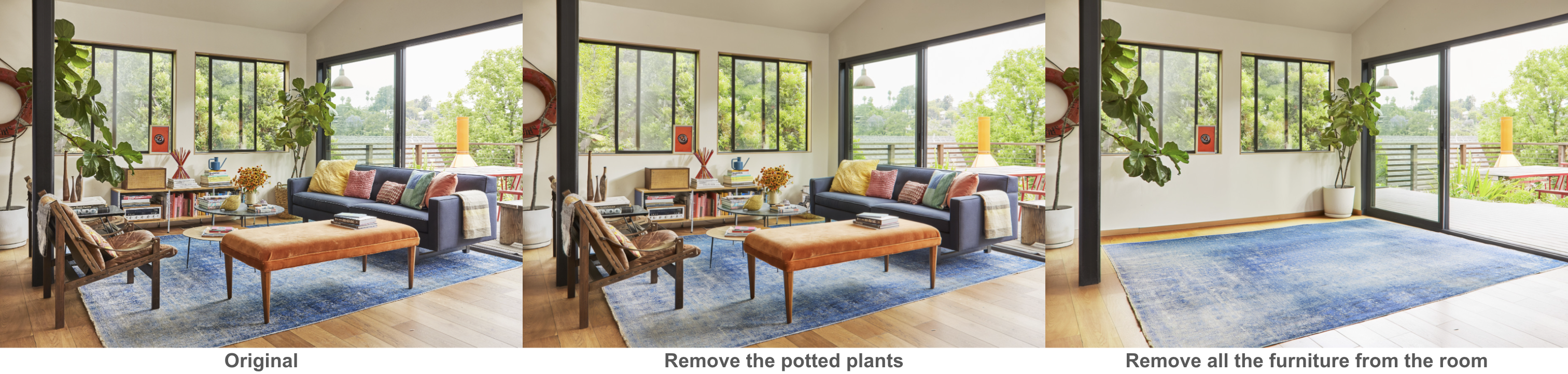
import torch
from diffusers import BriaFiboEditPipeline
from PIL import Image

from fibo_edit.edit_promptify import get_prompt

# 1. Load the pipeline
pipeline = BriaFiboEditPipeline.from_pretrained(
        "briaai/Fibo-Edit",
        torch_dtype=torch.bfloat16,
    )
pipeline.to("cuda")

# 2. Load your source image and mask
source_image = Image.open("examples/example_image.jpg")

# 3. Generate structured JSON prompt using edit_promptify
# This uses a VLM to analyze the image and create a detailed structured prompt
prompt = get_prompt(image=source_image, instruction="change the car color to green")

# 4. Run the edit
result = pipeline(
    image=source_image,
    prompt=prompt,
    num_inference_steps=50
).images[0]

result.save("fibo_edit_result.png")

|

|

|

|
Gemini Setup [optional]
FIBO supports any VLM as part of the pipeline. To use Gemini as VLM backbone for FIBO, follow these instructions:
-
Obtain a Gemini API Key
Sign up for the Google AI Studio (Gemini) and create an API key. -
Set the API Key as an Environment Variable
Store your Gemini API key in theGEMINI_API_KEYenvironment variable:export GEMINI_API_KEY=your_gemini_api_keyYou can add the above line to your
.bashrc,.zshrc, or similar shell profile for persistence.
As an alternative to the Python snippets above, you can use the provided example script:
uv run python scripts/example_edit.py --images examples/example_image.jpg --instructions "change the car color to green"# Multiple images with one instruction
uv run python scripts/example_edit.py --images a.jpg b.jpg --instructions "add sunset lighting"
# One image with multiple instructions
uv run python scripts/example_edit.py --images photo.jpg --instructions "make vintage" "add rain"
# Custom model and parameters
uv run python scripts/example_edit.py --images photo.jpg --instructions "add snow" \
--model gemini/gemini-2.5-pro --num-inference-steps 30 --guidance-scale 7.0
# With a LoRA model
uv run python scripts/example_edit.py --images photo.jpg --instructions "turn this image into an impressionist oil painting" --lora /path/to/lora--model LLM model for prompt generation (default: gemini/gemini-2.5-flash)
--images Image path(s) to edit
--instructions Edit instruction(s)
--num-inference-steps Number of inference steps (default: 50)
--guidance-scale Guidance scale (default: 5.0)
--lora Path to LoRA checkpoint
--lora-scale LoRA weight scale (default: 1.0)
Fibo-Edit supports LoRA finetuning to adapt the model to your specific editing tasks and domains.
Prepare a directory with paired input/output images and a metadata.csv file:
dataset/
├── input_image1.jpg      # Source image (before edit)
├── output_image1.jpg     # Target image (after edit)
├── input_image2.jpg
├── output_image2.jpg
└── metadata.csv
The metadata.csv must have three columns:
input_file_name,output_file_name,caption
input_image1.jpg,output_image1.jpg,"{""short_description"":""A red car"",""edit_instruction"":""Change color to red""}"
input_image2.jpg,output_image2.jpg,"{""mood"":""warm"",""edit_instruction"":""Add sunset lighting""}"Captions must be valid JSON strings. The edit_instruction key is recommended to describe the edit operation. You can include other VGL fields as needed:
Full JSON Schema
{
  "short_description": "Concise summary of the image (max 200 words)",
  "objects": [
    {
      "description": "Detailed object description",
      "location": "Position in frame (e.g., 'center', 'top-left')",
      "relationship": "Relationship to other objects",
      "relative_size": "small | medium | large",
      "shape_and_color": "Basic shape and dominant color",
      "texture": "Surface quality",
      "appearance_details": "Other visual details",
      "pose": "For humans: body position",
      "expression": "For humans: facial expression",
      "clothing": "For humans: attire description",
      "action": "For humans: current action",
      "gender": "For humans: apparent gender",
      "skin_tone_and_texture": "For humans: skin details",
      "orientation": "Positioning (e.g., 'facing left')",
      "number_of_objects": "For clusters: count"
    }
  ],
  "background_setting": "Environment description",
  "lighting": {
    "conditions": "Lighting type",
    "direction": "Light source direction",
    "shadows": "Shadow characteristics"
  },
  "aesthetics": {
    "composition": "Compositional style",
    "color_scheme": "Color palette",
    "mood_atmosphere": "Overall mood",
    "preference_score": "very low | low | medium | high | very high",
    "aesthetic_score": "very low | low | medium | high | very high"
  },
  "photographic_characteristics": {
    "depth_of_field": "DOF description",
    "focus": "Focus point",
    "camera_angle": "Camera position",
    "lens_focal_length": "Lens type"
  },
  "style_medium": "Artistic medium (e.g., 'photograph', 'oil painting')",
  "artistic_style": "Style characteristics (max 3 words)",
  "context": "General image type description",
  "text_render": [
    {
      "text": "Text content",
      "location": "Position",
      "size": "Text size",
      "color": "Text color",
      "font": "Font style"
    }
  ],
  "edit_instruction": "Imperative command for the edit"
}uv run python scripts/finetune_fibo_edit.py \
--instance_data_dir /path/to/dataset \
--output_dir /path/to/output \
--lora_rank 64 \
--train_batch_size 1 \
--gradient_accumulation_steps 4 \
--max_train_steps 1000 \
--checkpointing_steps 250 \
--learning_rate 1e-4 \
--gradient_checkpointing 1--instance_data_dir Dataset directory containing metadata.csv
--output_dir Directory to save checkpoints
--lora_rank LoRA rank, 64 recommended for most use cases (default: 128)
--max_train_steps Total training steps, 1000-2000 recommended (default: 1501)
--checkpointing_steps Save checkpoint every N steps (default: 250)
--gradient_checkpointing Enable gradient checkpointing to reduce VRAM (default: 1)
--train_batch_size Batch size per device (default: 1)
--gradient_accumulation_steps Gradient accumulation steps (default: 4)
--learning_rate Learning rate (default: 1e-4)
--resume_from_checkpoint Path to checkpoint or "latest" to resume training
See scripts/finetune_fibo_edit.py --help for all available options.
Use scripts/example_edit.py with the --lora flag to load your finetuned checkpoint:
uv run python scripts/example_edit.py \
  --images input.jpg \
  --instructions "your edit instruction" \
  --lora /path/to/output/checkpoint_1000 \
  --lora-scale 1.0
Or in Python:
from diffusers import BriaFiboEditPipeline
import torch

pipeline = BriaFiboEditPipeline.from_pretrained("briaai/Fibo-Edit", torch_dtype=torch.bfloat16)
pipeline.to("cuda")

# Load and fuse LoRA weights
pipeline.load_lora_weights("/path/to/output/checkpoint_1000")
pipeline.fuse_lora(lora_scale=1.0)

# Use the pipeline as normal
result = pipeline(image=source_image, prompt=prompt, num_inference_steps=50).images[0]- Start with
--lora_rank 64for most use cases; increase to 128 for more complex adaptations - Enable
--gradient_checkpointing 1to reduce VRAM usage (enabled by default) - Checkpoints are saved as
checkpoint_250/,checkpoint_500/, etc. - Use
--train_batch_size 1when training on variable resolution images - For multi-GPU training, use
accelerate launchwith appropriate configuration
If you have questions about this repository, feedback to share, or want to contribute directly, we welcome your issues and pull requests on GitHub. Your contributions help make FIBO better for everyone.
If you're passionate about fundamental research, we're hiring full-time employees (FTEs) and research interns. Don't wait - reach out to us at hr@bria.ai
We kindly encourage citation of our work if you find it useful.
@article{gutflaish2025generating,
  title={Generating an Image From 1,000 Words: Enhancing Text-to-Image With Structured Captions},
  author={Gutflaish, Eyal and Kachlon, Eliran and Zisman, Hezi and Hacham, Tal and Sarid, Nimrod and Visheratin, Alexander and Huberman, Saar and Davidi, Gal and Bukchin, Guy and Goldberg, Kfir and others},
  journal={arXiv preprint arXiv:2511.06876},
  year={2025}
}
❤️ FIBO model card and ⭐ Star FIBO on GitHub to join the movement for responsible generative AI!