Transform your HomePod mini into a smart music sensor for HomeKit





📦 npm • 💻 GitHub • 🐛 Issues • 👤 Author
This Homebridge plugin turns your HomePod mini (or HomePod) into a smart music sensor for HomeKit. It appears as a motion sensor that detects when music is playing, enabling powerful home automations based on your listening habits.
Why use this plugin?
- 🎵 Create mood lighting that responds to music
- 🏠 Build multi-room audio automations
- 🌙 Trigger scenes when music stops
- 📱 No complicated setup - works out of the box
- 🎛️ Fully customizable detection settings
- 🎵 Smart Music Detection - Detects when music is actively playing
- 📱 HomeKit Motion Sensor - Appears as a standard motion sensor in Home app
- 🏠 Multi-HomePod Support - Create separate sensors for each HomePod
- 🚫 No Authentication Required - Works with HomePod mini without pairing
- ⚡ Fast Updates - Configurable update interval (1-60 seconds)
- 🎛️ Configurable Detection - Choose what to detect: music, podcasts, movies, or all
- 🎬 Smart Filtering - Automatically filters out movies and long-form content
- ⏱️ Duration-Based Filtering - Set max duration for content detection
- 🎤 Artist Field Detection - Filter content by presence of artist metadata
- 🔄 Real-time Updates - Always knows what's playing, when it's playing
Python 3 is required for this plugin to work:
# Install Python 3 (macOS)
brew install python3

# Verify installation
python3 --version
pyatv library is required to communicate with HomePods:
# Install pyatv
pip3 install pyatv

# Verify installation
python3 -m pyatv --version- Open Homebridge UI
- Go to Plugins tab
- Search for "HomePod Mini Music Sensor"
- Click Install
- Wait for installation to complete
- Restart Homebridge
npm install -g homebridge-homepod-mini-music-sensorThis plugin is designed to be configured entirely through the Homebridge UI - no manual JSON editing required!
After installing the plugin, click the ⚙️ Settings button in the Homebridge UI.
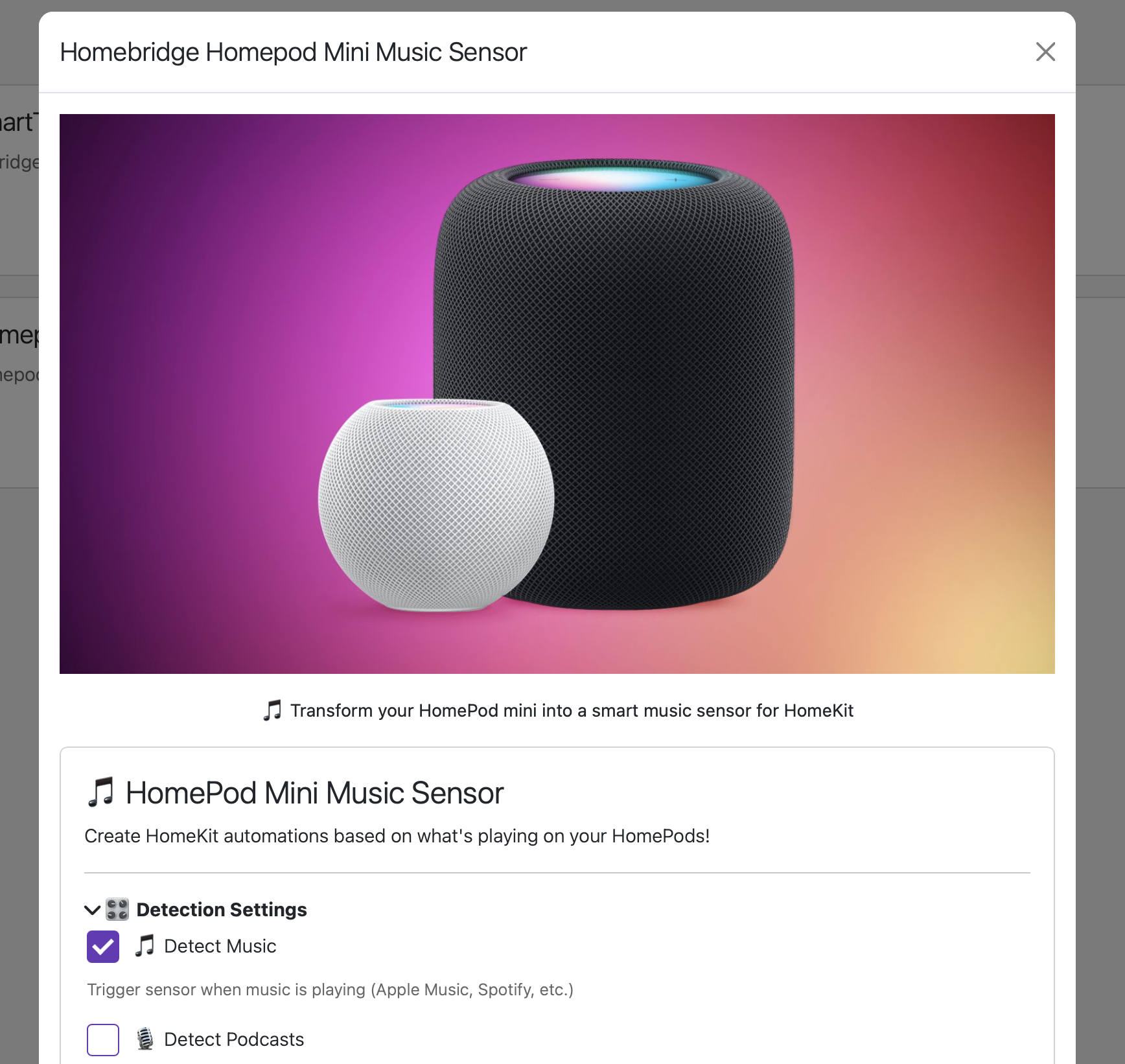
You'll see:
- 🎵 Hero Image - Beautiful HomePod visual at the top
- 🎛️ Detection Settings - Collapsible section for customizing what gets detected
- 🏠 Your HomePods - Section to add your HomePod devices
Expand the 🎛️ Detection Settings section to customize what triggers your sensors:
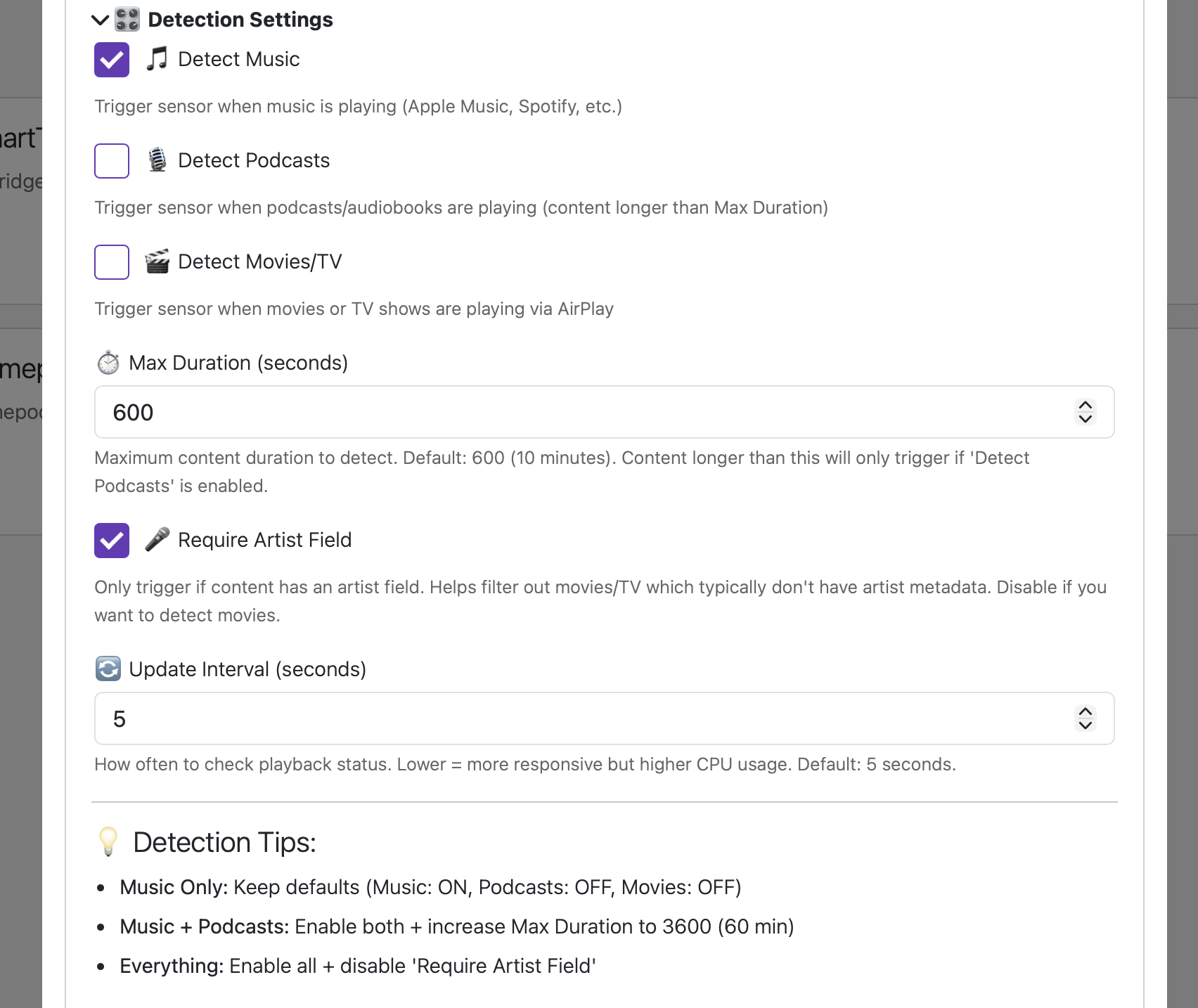
Available Options:
- ✅ 🎵 Detect Music (Default: ON) - Trigger when music plays
- ☐ 🎙️ Detect Podcasts (Default: OFF) - Trigger for podcasts/audiobooks
- ☐ 🎬 Detect Movies/TV (Default: OFF) - Trigger for AirPlay video
- ⏱️ Max Duration (Default: 600 seconds) - Filter by content length
- ✅ 🎤 Require Artist Field (Default: ON) - Filter out content without artist metadata
- 🔄 Update Interval (Default: 5 seconds) - How often to check status
💡 Detection Tips:
- Music Only: Keep defaults (Music: ON, Podcasts: OFF, Movies: OFF)
- Music + Podcasts: Enable both + increase Max Duration to 3600 (60 min)
- Everything: Enable all + disable 'Require Artist Field'
Expand the 🏠 Your HomePods section and click ➕ Add HomePod:
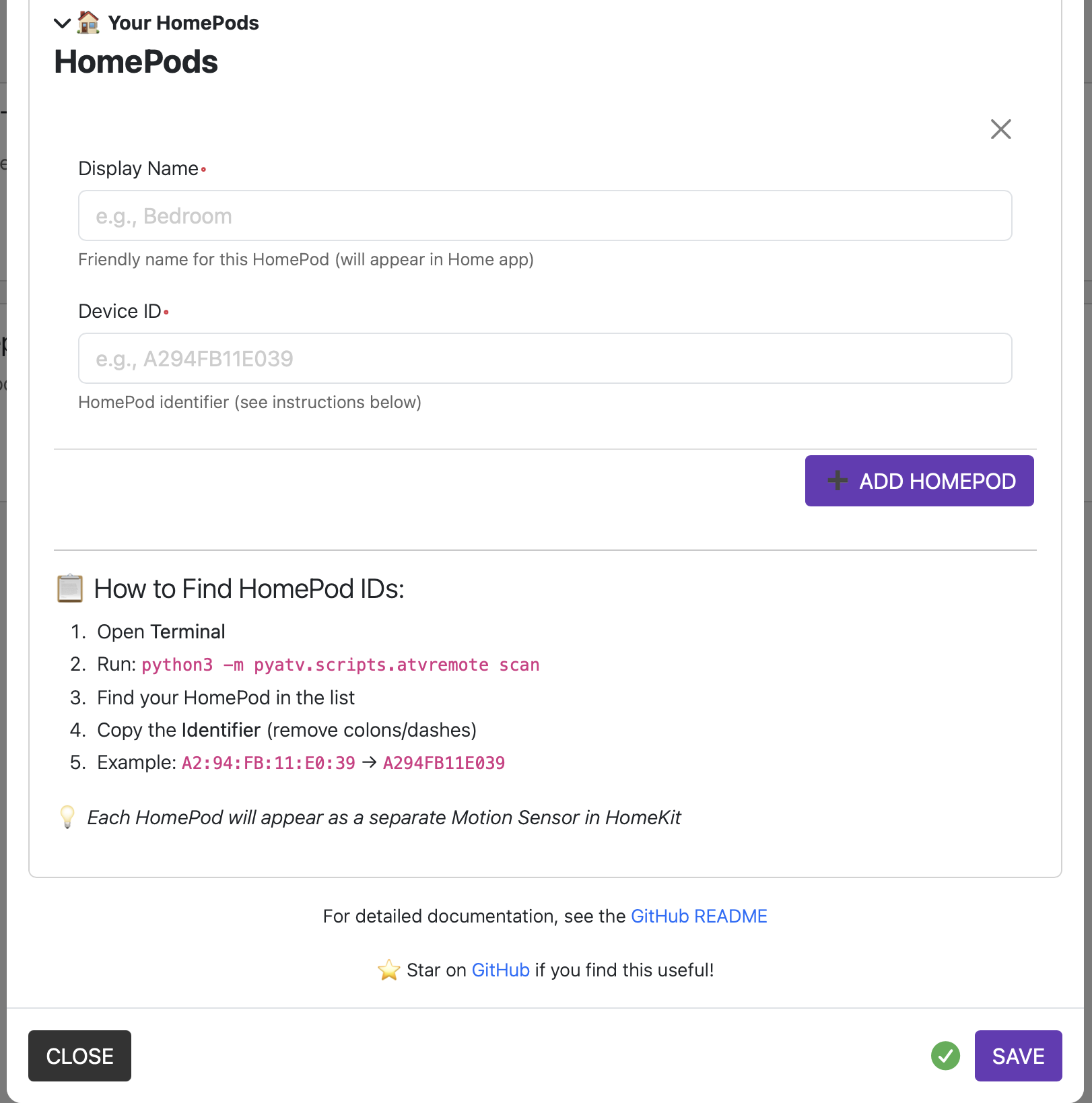
For each HomePod:
- Display Name - Enter a friendly name (e.g., "Bedroom", "Kitchen")
- Device ID - Enter the HomePod identifier (see instructions below)
📋 How to Find HomePod IDs:
- Open Terminal
- Run:
python3 -m pyatv.scripts.atvremote scan - Find your HomePod in the list
- Copy the Identifier (remove colons/dashes)
- Example:
A2:94:FB:11:E0:39→A294FB11E039
💡 Tip: Each HomePod will appear as a separate Motion Sensor in HomeKit
- Click SAVE button (bottom right)
- Restart Homebridge
- Your HomePods will now appear as motion sensors in the Home app! 🎉
Click to view manual configuration options
If you prefer to edit config.json manually:
{
  "platform": "HomePodMusicSensor",
  "name": "HomePod Music Sensor",
  "detectMusic": true,
  "detectPodcasts": false,
  "detectMovies": false,
  "maxDuration": 600,
  "requireArtist": true,
  "updateInterval": 5,
  "devices": [
    {
      "name": "Bedroom",
      "deviceId": "A294FB11E039"
    },
    {
      "name": "Living Room",
      "deviceId": "F2E8AA6E8D9C"
    }
  ]
}Once configured, each HomePod appears as a Motion Sensor in the Home app:
- ✅ Motion Detected = Content is currently playing (based on your settings)
- ❌ No Motion Detected = Nothing is playing or paused
When "Bedroom" detects motion (music starts)
→ Open bedroom blinds
→ Turn on coffee maker
→ Set living room lights to 100%
When "Living Room" detects motion
→ Dim living room lights to 30%
→ Set lights to warm white
→ Turn off TV
When "Kitchen" detects motion
→ Pause "Living Room" HomePod
→ Lower "Bedroom" HomePod volume to 20%
When "Bedroom" stops detecting motion (music stops)
→ Turn off all lights
→ Lock front door
→ Set thermostat to 68°F
→ Close blinds
When "Gym Room" detects motion
→ Turn on fan
→ Set lights to energizing blue
→ Lock gym room door
When "Kitchen" detects motion
→ Turn on under-cabinet lights
→ Display recipe on iPad
→ Pause other HomePods
| Content Type | Default Behavior | How It's Detected | Configurable? |
|---|---|---|---|
| 🎵 Music (Apple Music, Spotify) | ✅ Detected | Music type + has artist + short duration | Yes - disable if needed |
| 🎙️ Podcasts | ❌ Not Detected | Long duration (>10 min) | Yes - enable in settings |
| 📚 Audiobooks | ❌ Not Detected | Long duration (>10 min) | Yes - enable in settings |
| 🎬 Movies/TV (AirPlay) | ❌ Not Detected | No artist field | Yes - enable + disable "Require Artist" |
| 🗣️ Siri Responses | ❌ Never Detected | Not music type | No |
The plugin uses smart filtering to determine if content should trigger the sensor:
- Is anything playing? → Check playback state
- What type of content? → Check media type (music, video, etc.)
- Does it match settings? → Check if enabled (music/podcasts/movies)
- How long is it? → Check against max duration
- Has artist info? → Check artist field (if required)
Result: Sensor triggers only when ALL conditions match your settings.
❌ HomePods not appearing in HomeKit
Solutions:
- Verify IDs:
python3 -m pyatv.scripts.atvremote scan - Check HomePods are on same network as Homebridge
- Restart Homebridge
- Check Homebridge logs for errors
❌ Sensor always shows "No Motion"
Solutions:
- Ensure music is actually playing (not paused)
- Test manually:
python3 get_nowplaying.py YOUR_ID - Check detection settings (maybe podcasts/movies are disabled)
- Review Homebridge logs
- Verify pyatv is working:
python3 -m pyatv.scripts.atvremote --id YOUR_ID playing
❌ Sensor triggers for movies/videos
Solutions:
- Enable "Require Artist Field" in settings (default: ON)
- Disable "Detect Movies/TV" in settings (default: OFF)
- Lower "Max Duration" to filter longer content
❌ Python or pyatv errors
Solutions:
# Verify Python
python3 --version

# Reinstall pyatv
pip3 install --upgrade pyatv

# Test pyatv
python3 -m pyatv scan
❌ "Plugin alias could not be determined" error
Solutions:
- This usually means the plugin wasn't installed correctly
- Try reinstalling:
npm uninstall -g homebridge-homepod-mini-music-sensor && npm install -g homebridge-homepod-mini-music-sensor - Clear npm cache:
npm cache clean --force - Restart Homebridge
If you're still experiencing issues:
-
Check the logs
- Homebridge UI → Logs tab
- Look for lines containing "HomePod" or "Music Sensor"
-
Enable debug logging
- Check Homebridge debug logs for more details
-
Report an issue
- Go to: https://github.com/DM911-AI/homebridge-homepod-mini-music-sensor/issues
- Include:
- Homebridge version
- Plugin version
- Node.js version (
node --version) - Python version (
python3 --version) - pyatv version (
python3 -m pyatv --version) - Relevant log output
- What you've already tried
- ✅ HomePod mini (all colors)
- ✅ HomePod (1st generation - discontinued)
- ✅ HomePod (2nd generation - 2023)
- Network: HomePods must be on same local network as Homebridge
- tvOS: Any version supported by pyatv
- No authentication required - Works without pairing
- ❌ Apple TV - Requires authentication/pairing
- Coming in future update
- More complex setup needed
- Vote for this feature if interested!
-
Apple TV Support
- Add authentication/pairing support
- Enable same features for Apple TV
- Expected: Version 2.0
-
Song Metadata Display
- Show current song in Eve app
- Display artist, album, artwork
- Expected: Version 1.5
-
Stereo Pair Support (Added in v1.4)
- Detect HomePod stereo pairs
- Create single sensor for pair
-
Custom Webhooks
- Trigger external services when music plays
- IFTTT, Zapier integration
- Expected: Version 1.7
-
Web Dashboard
- View all HomePods at a glance
- See what's playing everywhere
- Expected: Version 2.0
Have an idea? Open a feature request on GitHub!
Contributions are welcome and appreciated!
- Fork the repository
git clone https://github.com/YOUR_USERNAME/homebridge-homepod-mini-music-sensor.git- Create a feature branch
git checkout -b feature/AmazingFeature-
Make your changes
- Follow existing code style
- Add comments for complex logic
- Test thoroughly
-
Commit your changes
git commit -m 'Add some AmazingFeature'- Push to your fork
git push origin feature/AmazingFeature- Open a Pull Request
- Describe your changes
- Link any related issues
# Clone the repo
git clone https://github.com/DM911-AI/homebridge-homepod-mini-music-sensor.git
cd homebridge-homepod-mini-music-sensor

# Install dependencies
npm install

# Link for local testing
npm link

# Make changes and testThis project is licensed under the MIT License.
What this means:
- ✅ Free to use
- ✅ Free to modify
- ✅ Free to distribute
- ✅ Can use commercially
See the LICENSE file for full details.
- pyatv - Amazing Python library for controlling Apple TV and HomePod devices
- Created by: Pierre Ståhl (@postlund)
- Without this library, this plugin wouldn't exist!
- The Homebridge community's need for better HomePod integration
- Requests for music-based HomeKit automations
- Homebridge team - For creating the platform
- Early testers - For feedback and bug reports
- 600+ users - For downloading and using this plugin! 🎉
Daniel Mazuz


📦 npm Package • 💻 GitHub Repository • 🐛 Report Bug • 💡 Request Feature
If you find this plugin useful, please consider:
- ⭐ Star this repository on GitHub
- 🐛 Report bugs and issues
- 💡 Suggest new features
- 📢 Share with friends and the community
- ☕ Buy me a coffee (coming soon!)

💙 Enjoying this plugin? Star it on GitHub and share with the community!