


Universal MCP Server for Google Stitch
Build amazing UI/UX designs instantly with AI. Works seamlessly with Cursor, Claude, Antigravity, and any MCP-compatible editor.
Created by Aakash Kargathara.
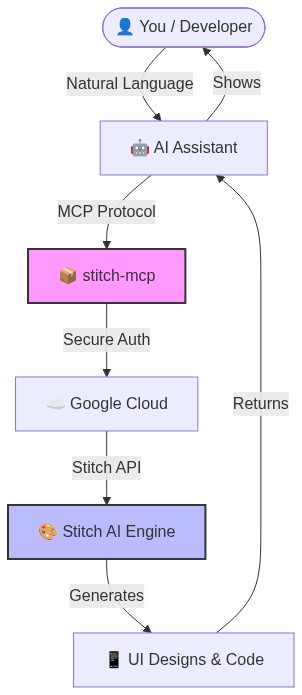
- Zero Config: Just login once and it works everywhere.
- Universal: Works on Windows, Mac, and Linux.
- Free: Google Stitch API is free to use.
You need a Google Cloud project with the Stitch API enabled.
# Login to your Google Cloud
gcloud auth login

# Set your project (replace with your actual project ID)
gcloud config set project YOUR_PROJECT_ID
gcloud auth application-default set-quota-project YOUR_PROJECT_ID

# Enable the magic
gcloud beta services mcp enable stitch.googleapis.comThis gives stitch-mcp permission to talk to Google on your behalf.
gcloud auth application-default loginCopy and paste this into your MCP config file:
For Claude Desktop:
~/Library/Application Support/Claude/claude_desktop_config.json
For Cursor: Settings > MCP > Add New Server
{
  "mcpServers": {
    "stitch": {
      "command": "npx",
      "args": ["-y", "stitch-mcp"],
      "env": {
         "GOOGLE_CLOUD_PROJECT": "YOUR_PROJECT_ID"
      }
    }
  }
}| Tool Name | What it does |
|---|---|
extract_design_context |
🧠 Scans a screen to extract "Design DNA" (Fonts, Colors, Layouts). Use this to keep style consistent. |
fetch_screen_code |
💾 Downloads the raw HTML/Frontend code of a screen. |
fetch_screen_image |
🖼️ Downloads the high-res screenshot of a screen. |
generate_screen_from_text |
✨ Generates a NEW screen based on your prompt (and context). |
create_project |
📁 Creates a new workspace/project folder. |
list_projects |
📋 Lists all your available Stitch projects. |
list_screens |
📱 Lists all screens within a specific project. |
get_project |
🔍 Retrieves details of a specific project. |
get_screen |
ℹ️ Gets metadata for a specific screen. |
To generate consistent UI, use this 2-step flow:
- Extract: "Get design context from the Home Screen..."
- Generate: "Using that context, generate a Chat Screen..."
This ensures your new screen matches your existing design system perfectly.
Apache 2.0 - Open source and free to use.
Built with ❤️ by Aakash Kargathara