
vscode 扩展 Markdown Fence 支持多列语法
The vscode extension "Markdown Fence" supports multi-column syntax
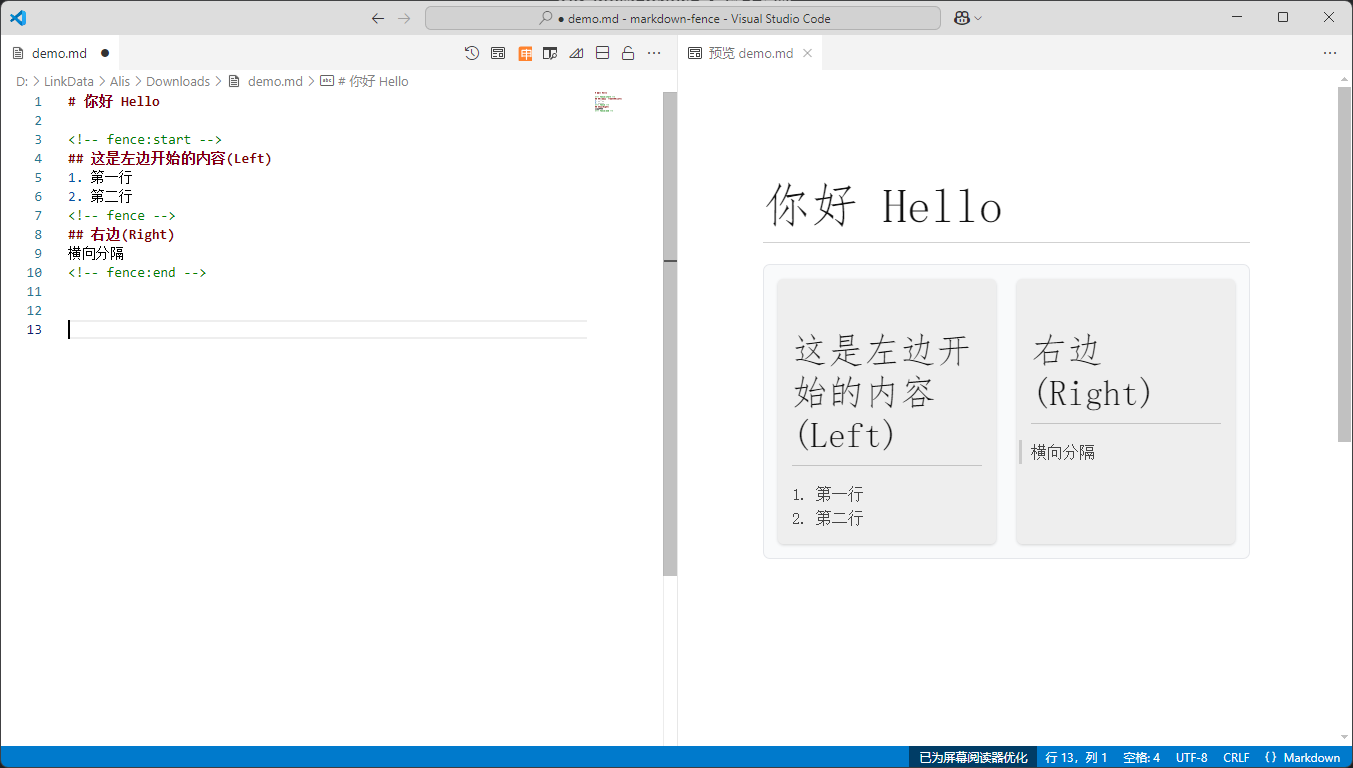
下面三种语法是等效的。根据需要选用其中一种即可。
The following three syntax are equivalent. Choose one of the options according to your needs.
标准语法 Standard syntax
在不支持的解析器会解析为注释,渲染输出时隐藏
Unsupported parsers resolve as annotations and are hidden when the output is rendered
使用下面标记进行分隔
Use markers to split into multi-column styles
<!-- fence:start --><!-- fence --><!-- fence:end -->
快速语法 Short syntax
在不支持的解析器会解析为注释,渲染输出时隐藏
Unsupported parsers resolve as annotations and are hidden when the output is rendered
使用下面标记进行分隔
Use markers to split into multi-column styles
<!-- >>> --><!-- --- --><!-- <<< -->
简写语法 Short syntax
不支持的解析器会解析为普通文本原样显示,可以在后面追加任意数量的相同符号,起到分隔线的效果
Unsupported parsers will parse the plain text as is, and any number of identical symbols can be appended to the end to play the role of a divider
使用下面标记进行分隔,后续字符三个以上至任意数量都可以
Use the following tags to separate, and any number of subsequent characters from three or more can be used.
/>>>/---/<<<
分栏标题 Column headings
在分栏第一行使用加粗的文本,并且在后续保持一个空行。这行就会解析为分栏标题。
Use bold text on the first line of the column and keep a blank line for the follow-up. This line resolves to a section header.
**标题 title**
<空行 empty row>
命令 Command
支持导出 html,pdf 两种格式
Support export of HTML and PDF formats
Markdown Fence: Export to HTMLMarkdown Fence: Export to PDF
可在 vscode 参数中设置页眉和页脚和其他相关参数
You can set the header and footer and other related parameters in the vscode parameter
markdown
markdown 内容如下
markdown content:
<!-- fence:start -->
## 这是左边开始的内容
1. 第一行
2. 第二行
<!-- fence -->
## 右边标题
横向分隔
<!-- fence:end -->
预览
预览
after render:
<div class="fence-block">
    <div class="fence-item">
        <h2 data-line="0" class="code-line" dir="auto"
            id="1">这是左边开始的内容</h2>
        <ol data-line="1" class="code-line" dir="auto">
            <li data-line="1" class="code-line" dir="auto">第一行</li>
            <li data-line="2" class="code-line code-active-line" dir="auto">第二行</li>
        </ol>
    </div>
    <div class="fence-item">
        <h2 data-line="0" class="code-line" dir="auto" id="2">右边标题</h2>
        <p data-line="1" class="code-line" dir="auto">横向分隔</p>
    </div>
</div>在行内第一个字符键入: \ 。
| Name | Description | Default | Example |
|---|---|---|---|
header |
Header to be added to the exported HTML/PDF keywords: {title},{pageNumber},{totalPages} |
<div style="color:#666666;width:100%;">{title}</div> |
|
footer |
Footer to be added to the exported HTML/PDF keywords: {title},{pageNumber},{totalPages} |
<div></div><div style="color:#666666;">{pageNumber} / {totalPages}</div> |
|
size |
Page size of the exported PDF | A4 |
A3, Letter, Legal |
margin.top |
Top margin of the exported PDF | 20mm |
|
margin.right |
Right margin of the exported PDF | 5mm |
|
margin.bottom |
Bottom margin of the exported PDF | 10mm |
|
margin.left |
Left margin of the exported PDF | 5mm |
|
autoRotate |
Enable automatic image rotation for better page utilization | true |
false |
可以根据自己的需要编写样式覆盖
You can write style overrides according to your needs
.fence-block,fence-short-block {

}

.fence-item,fence-short-item {

}除了 VS Code 全局设置外,您还可以在 Markdown 文档的 front matter 中直接配置导出选项。YAML 配置将优先于 VS Code 设置使用。 In addition to VS Code global settings, you can also directly configure export options in the front matter of your Markdown documents. YAML configuration will take priority over VS Code settings.
配置示例 Example:
---
html: true
size: A4
header: "Custom Document Header"
footer: "Page {pageNumber} of {totalPages}"
margin:
  top: "20mm"
  right: "10mm"
  bottom: "20mm"
  left: "10mm"
autoRotate: true
customCSS: |
  body {
    font-family: 'Microsoft YaHei', sans-serif;
  }
cssFiles:
  - "./styles/custom.css"
---使用 <!-- pagebreak --> 标记来强制分页,在打印或pdf时生效。
Use the <!-- pagebreak --> marker to force a page break, which is effective when printing or pdf.
可以使用yaml设置强制分页章节级别,默认不启用强制章节分页 You can use yaml to set the force page break section level, and the force page break is not enabled by default
---
pageLevel: [1,2]
---PDF 导出时,图片会自动调整大小和方向以充分利用页面空间:
功能特性:
- 智能缩放:自动检测图片尺寸,确保不超出页面边界
- 方向匹配:检测图片方向(横向/竖向)与页面方向,自动旋转不匹配的图片
- 面积利用率优化:仅当旋转能显著提高页面利用率(≥5%)时才执行旋转
- 整页显示:当图片比例与页面比例接近时,自动填满页面
- 自动分页:大图片会独立成页,避免内容截断
禁用自动旋转:
---
autoRotate: false
---
或通过 VS Code 设置:
{
  "markdown-fence.export.autoRotate": false
}Markdown Fence 也提供了docsify支持。按下面添加插件即可使用
Markdown Fence also provides docsify support. Click below to add a plug-in to use
<!DOCTYPE html>
<html lang="zh-cn">

<head>
  <meta charset="UTF-8">
  <title>Markdown Fence</title>
  <meta keyword="" />
  <meta http-equiv="X-UA-Compatible" content="IE=edge,chrome=1" />
  <meta name="description" content="Markdown Fence" />
  <meta name="viewport" content="width=device-width, initial-scale=1.0">
  <link rel="stylesheet" href="//cdn.jsdelivr.net/npm/docsify@4/themes/vue.css" />
+ <link rel="stylesheet" href="https://alislin.github.io/markdown-fence/css/fence.css" />
</head>

<body>
  <div id="app"></div>
+ <script src="https://alislin.github.io/markdown-fence/out/docsify/fence.js"></script>
  <script>
    var num = 0;
    window.$docsify = {
      name: 'Markdown Fence',
      repo: '',
+     plugins:[fence]
    }
  </script>
  <script src="//cdn.jsdelivr.net/npm/docsify@4"></script>
</body>

</html>