


A command-line tool for deploying and managing Confidential Virtual Machines (CVMs) across AWS, GCP, and Azure.
- Quick Install
- Prerequisites
- Quickstart
- Deploying the CVM with your Workload
- Live Demo
- Detailed Walkthrough
- Architecture
- Troubleshooting
Ubuntu/Debian:
# Get the latest release tag (requires jq: sudo apt-get install jq)
LATEST=$(curl -sL https://api.github.com/repos/automata-network/automata-linux/releases/latest | jq -r .tag_name)
if [[ -z "$LATEST" || "$LATEST" == "null" ]]; then echo "Failed to fetch latest release"; exit 1; fi
VERSION=${LATEST#v}

# Download and install
wget "https://github.com/automata-network/automata-linux/releases/download/${LATEST}/atakit_${VERSION}-1_all.deb"
sudo dpkg -i atakit_${VERSION}-1_all.deb
sudo apt-get install -f
macOS (Homebrew):
brew tap automata-network/automata-linux https://github.com/automata-network/automata-linux.git
brew install atakit
📖 For detailed installation instructions, see INSTALL.md
- Ensure that you have enough permissions on your account on either GCP, AWS or Azure to create virtual machines, disks, networks, firewall rules, buckets/storage accounts and service roles.
If you installed atakit via a package manager (recommended), it's already available system-wide. Just run:
atakit --helpgit clone --recurse-submodules https://github.com/automata-network/automata-linux
cd automata-linux
sudo make installThe deployment scripts automatically download pre-built disk images from GitHub Releases. By default, the latest release is used. To use a specific release, set RELEASE_TAG (e.g., export RELEASE_TAG=v1.0.0).
All disk images include SLSA Build Level 2 provenance attestations. To verify:
atakit get-disk aws
atakit download-build-provenance
atakit verify-build-provenance aws_disk.vmdk
For complete verification instructions, see docs/ATTESTATION_VERIFICATION.md.
To quickly deploy the CVM with the default workload, you can run the following command:
# Option 1. Deploy to GCP
atakit deploy-gcp

# Option 2. Deploy to AWS
atakit deploy-aws

# Option 3. Deploy to Azure
atakit deploy-azure
Note
The script will automatically download the latest disk image from GitHub Releases.
If you want to use a specific release version, set the RELEASE_TAG environment variable (see Prerequisites).
If another developer has given you a custom disk, you can use it instead by:
- Placing the custom disk file in the root of this folder.
- Making sure the file is named exactly as follows, depending on which cloud provider you plan to deploy on:
- GCP: gcp_disk.tar.gz
- AWS: aws_disk.vmdk
- Azure: azure_disk.vhd
At the end of the previous step, you should have the following output:
✅ Golden measurements saved to _artifacts/golden-measurements/gcp-cvm-test.json
✨ Deployment complete! Your VM Name: cvm-test
Using the provided VM name, you can retrieve logs from the VM like this:
# atakit get-logs <cloud-provider> <vm-name>
# <cloud-provider> = "aws" or "gcp" or "azure"
atakit get-logs gcp cvm-testFinally, when you're ready to delete the VM and remove all the components that are deployed with it, you can run the following command:
# atakit cleanup <cloud-provider> <vm-name>
# <cloud-provider> = "aws" or "gcp" or "azure"
atakit cleanup gcp cvm-testIn this folder, you will see 3 things - a file called docker-compose.yml, and 2 folders called config/ and secrets/.
docker-compose.yml: This is a standard docker compose file that can be used to specify your workload. Most standard docker compose files will work fine and you do not need to do anything special. However, as podman-compose will be used to run this file, do take note of the following caveats:- Container images that are hosted on docker's official registry must be prefixed with
docker.io/. - Podman does not support
depends_on.condition = service_completed_successfully.
- Container images that are hosted on docker's official registry must be prefixed with
config/: Use this folder to store any files that will be mounted and used by the container. All the files in this folder will be measured by the cvm-agent into the TPM PCR before the container runs.secrets/: Use this folder to store any files that will be mounted and used by the container, but should not be measured. Examples include cert private keys, or database credentials.
Caution
Remember to build your container images for X86_64, especially if you're using an ARM64 machine!
Note
If you wish to load container images that are not published to any container registry, simply put the .tar files for the container images into the workload/ directory itself. This will be automatically detected and loaded at runtime.
The CVM agent runs inside the CVM and is responsible for VM management, workload measurement, and related tasks. The tasks that it is allowed to perform depends on a security policy, which can be configured by the user.
By default, the CVM will use the default security policy found in workload/config/cvm_agent/cvm_agent_policy.json. There are 3 settings that you must configure:
firewall.allowed_ports: By default, all incoming traffic on all ports are blocked by nftables, except for CVM agent ports 7999 and 8000. If your workload requires incoming traffic on other ports (eg. you need a p2p port on 30000), please follow the given example and add the ports you require.workload_config.services.allow_update: This list specifies which services in your docker-compose.yml are allowed to be updated remotely via the cvm-agent API/update-workload. You must list the names of your services in your docker-compose.yml if you wish to allow remote updates. Otherwise, set it to an empty list[]to disallow remote updates.workload_config.services.skip_measurement: This list specifies which services the CVM agent will avoid measuring. This includes skipping its image signature checking, if it is enabled.Set it to an empty list[]to measure all services.
The other settings not mentioned can be left as its default values. If you wish to modify the other settings, a detailed description of each policy option can be found in this document.
In this example, we assume that you're deploying a workload that requires opening a peer‑to‑peer port on 30000 and attaching an additional 20 GB persistent data disk. If your workload does not need either of these resources, you can omit both --additional_ports "30000" and --attach-disk mydisk --disk-size 20.
The --additional_ports option configures the cloud provider’s firewall to allow inbound traffic on port 30000; it does not modify the nftables firewall inside the CVM, which is managed by the security policy you defined earlier.
The --attach-disk mydisk flag instructs cvm‑cli to attach (or create, if it does not already exist) a persistent data disk named mydisk to the CVM. When used with --disk-size 20, the CLI creates a 20 GB disk if mydisk is not already present. This disk is independent of the VM’s boot volume, so data written to it is preserved across reboots, redeployments, and VM replacements.
Note
After cvm is launched, the cvm will automatically detect the unmounted disk and setup the filesystem if the disk is not initialized and mount the disk at /data/datadisk-1.
# Option 1. Deploy to GCP
atakit deploy-gcp --add-workload --workload-dir /path/to/your/workload --additional_ports "30000"  --attach-disk mydisk --disk-size 20

# Option 2. Deploy to AWS
atakit deploy-aws --add-workload --workload-dir /path/to/your/workload --additional_ports "30000"  --attach-disk mydisk --disk-size 20

# Option 3. Deploy to Azure
atakit deploy-azure --add-workload --workload-dir /path/to/your/workload --additional_ports "30000"  --attach-disk mydisk --disk-size 20
Note
The --workload-dir option specifies the path to your workload directory. Use an absolute path or a path relative to your current directory. If not specified, it defaults to ./workload in the current directory.
At the end of the deployment, you should be able to see the name of the deployed CVM in the shell, and the location where the golden measurement of this CVM is stored:
✅ Golden measurements saved to _artifacts/golden-measurements/gcp-cvm-test.json
✨ Deployment complete! Your VM Name: cvm-test
Note
Please see the detailed walkthrough if you wish to do the following:
- Customise other settings, like the vm name, or where the vm is deployed.
- Check on best practices regarding the golden measurement, or how to use it in remote attestation.
- If you only want to build a disk with your workload and distribute it to others.
- If you wish to enable kernel livepatching.
We've scripted some convenience commands that you can run to manage your CVM.
Use this command to get all logs from all running containers in the CVM.
# atakit get-logs <vm-name>
atakit get-logs cvm-testIn the scenario where you have updated the your app version and made a new container image for it, you can update your workload in the workload/ folder, and upload this folder onto the existing CVM using this command:
# atakit update-workload <cloud-provider> <vm-name>
# <cloud-provider> = "aws" or "gcp" or "azure"
atakit update-workload gcp cvm-test
When the script is finished, the golden measurements will be automatically regenerated for you.
Note
If you are having troubles updating the workload, you might have forgotten to set the workload_config.services.allow_update. Please see the above section on editing the security policy.
Use this command to delete the VM once you no longer need it.
# atakit cleanup <cloud-provider> <vm-name>
# <cloud-provider> = "aws" or "gcp" or "azure"
atakit cleanup gcp cvm-testUse this command to remove all locally downloaded disk images, build provenance, and other artifacts.
atakit cleanup-localUse this command to deploy a livepatch onto the CVM. Please checkout our kernel livepatch guide for more details.
# atakit livepatch <cloud-provider> <vm-name> <path-to-livepatch>
# <cloud-provider> = "aws" or "gcp" or "azure"
atakit livepatch gcp cvm-test /path/to/livepatch.koHere is a short demo video showing how to deploy workload using our cvm-image on AZURE in action.
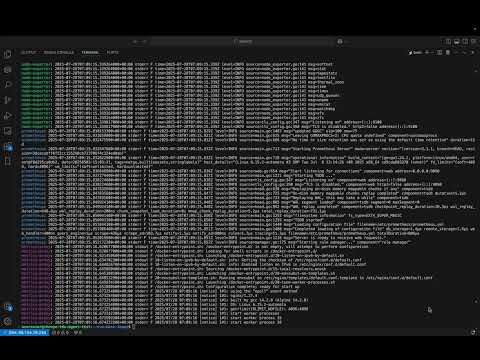
Instructions to recreate the demo setup in your own environment are available here:
git clone https://github.com/automata-network/automata-linux.git

cd automata-linux

cat workload/docker-compose.yml

cat workload/config/cvm_agent/cvm_agent_policy.json

atakit deploy-azure --add-workload --additional_ports "30000"

atakit get-logs azure cvm-test

atakit update-workload azure cvm-test

atakit cleanup azure cvm-test
A detailed walkthrough of what can be customized and any other features available can be found in this doc.
Details of our CVM trust chain and attestation architecture can be found in this doc.
Running into trouble deploying the CVM? We have some common Q&A in this doc.