


HubSpot is an AI-powered customer relationship management (CRM) platform.
The ballerinax/hubspot.crm.associations offers APIs to connect and interact with the HubSpot Association Details API endpoints, specifically based on the HubSpot REST API.
To use the HubSpot Association connector, you need a HubSpot developer account and an associated app with API access. If you don’t have one, register for a HubSpot developer account first.
If you don't have a HubSpot Developer Account you can sign up to a free account here
If you have an account already, go to the HubSpot developer portal
Within app developer accounts, you can create a developer test account under your account to test apps and integrations without affecting any real HubSpot data.
Note: These accounts are only for development and testing purposes. In production you should not use developer test accounts.
-
Go to the Test accounts section from the left sidebar.
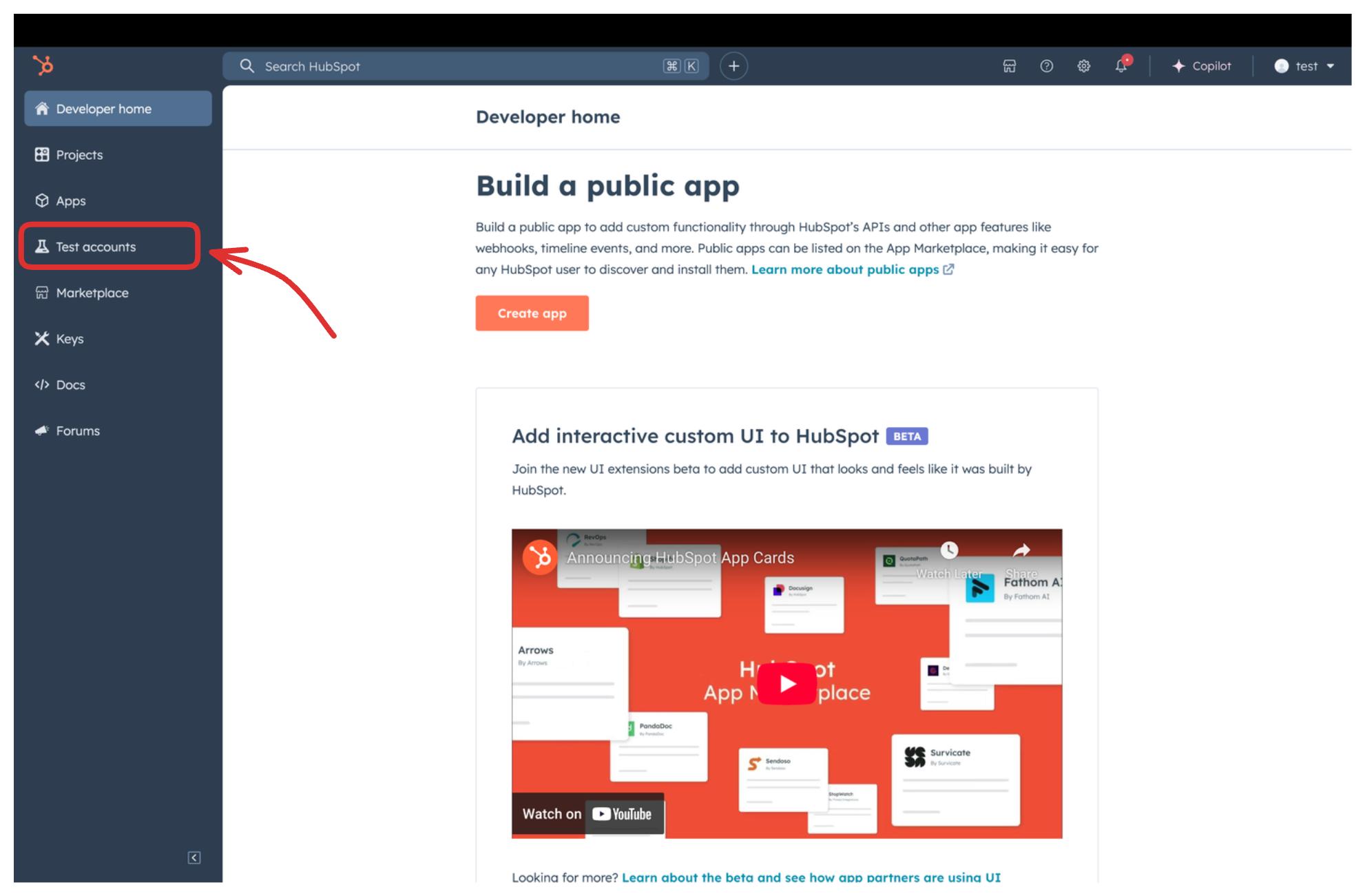
-
Click on the
Create developer test accountbutton on the top right corner.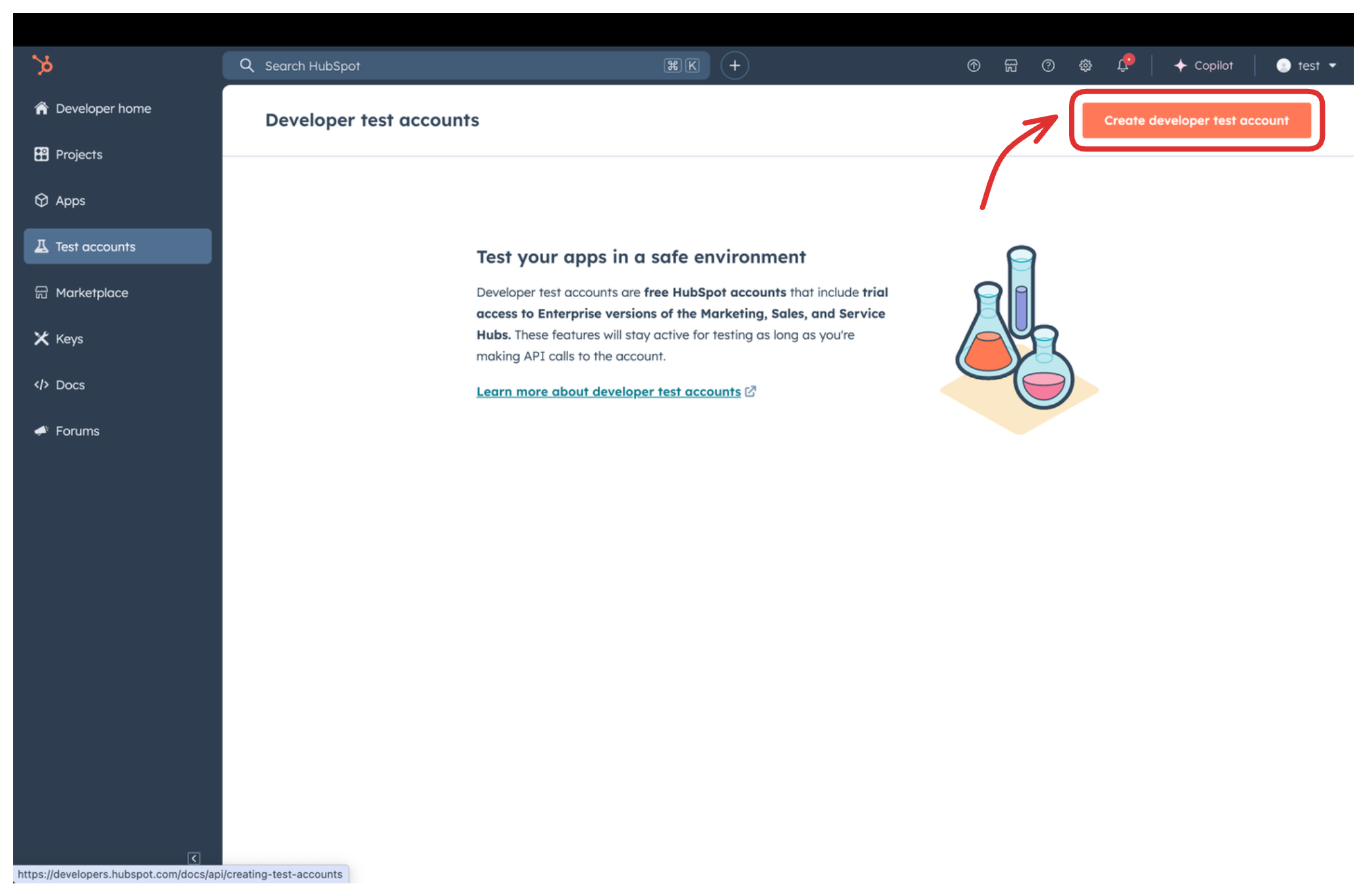
-
In the pop-up window, provide a name for the test account and click on the
Createbutton.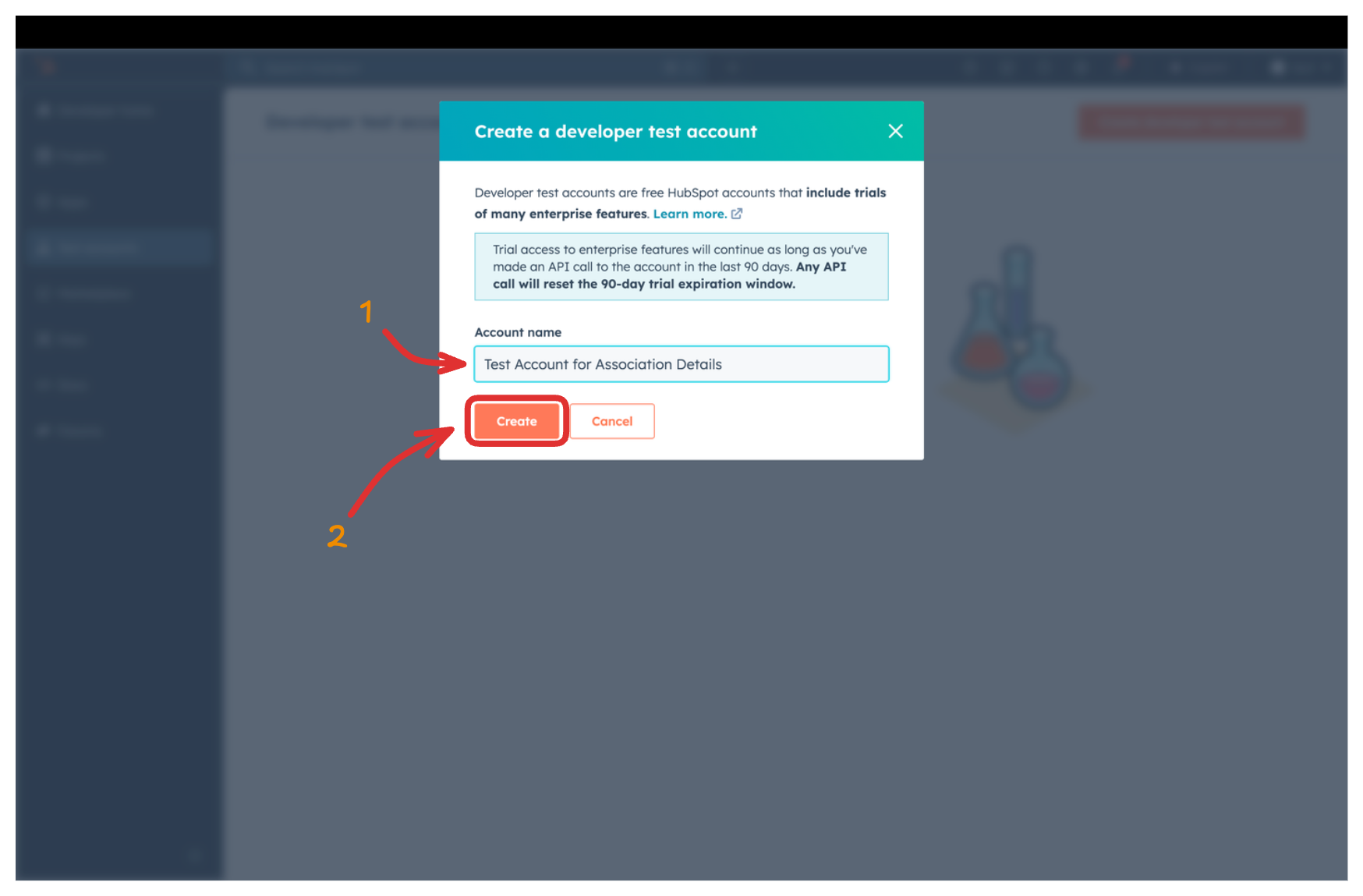 You will see the newly created test account in the list of test accounts.
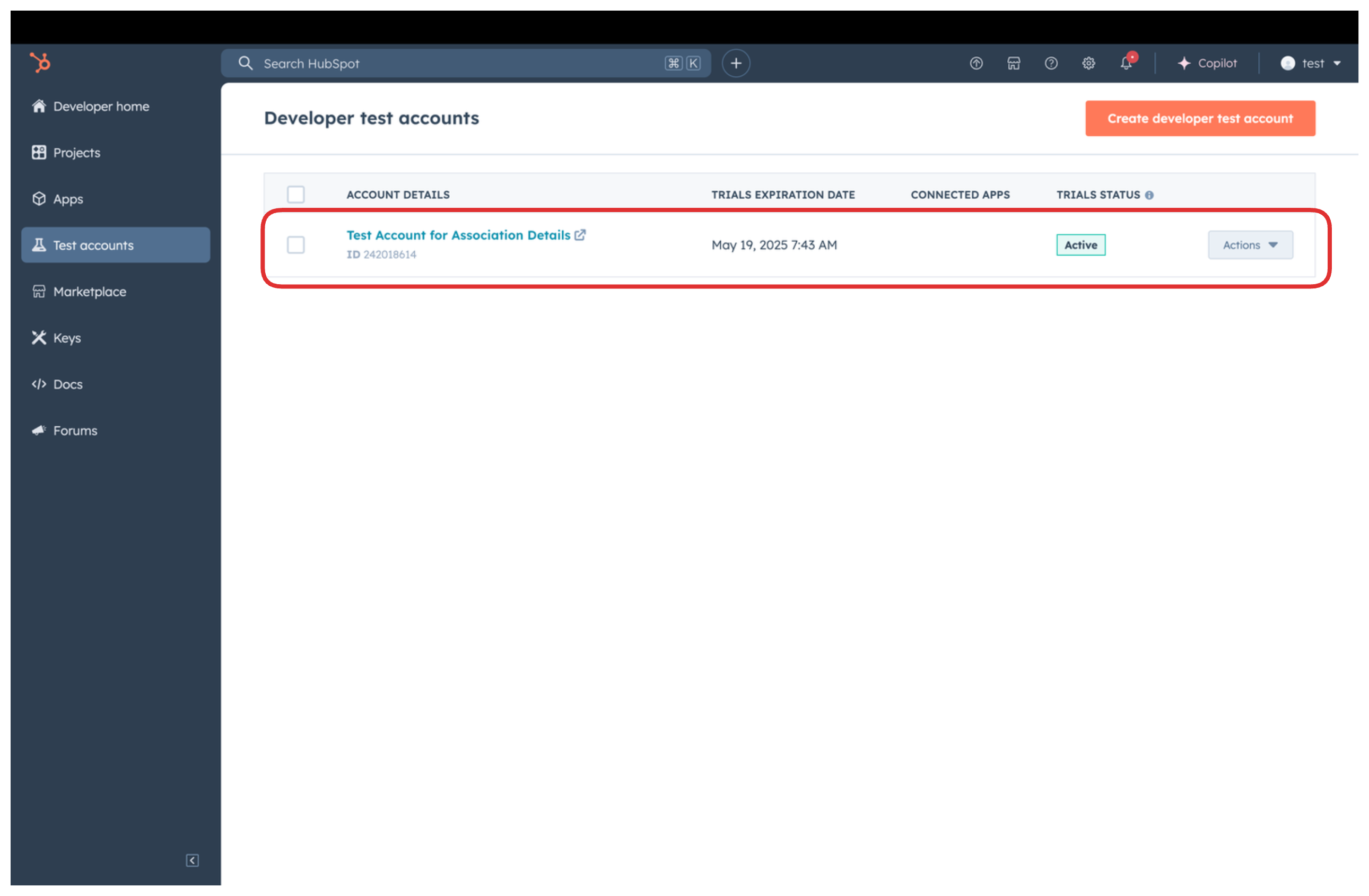
-
Now navigate to the
Appssection from the left sidebar and click on theCreate appbutton on the top right corner.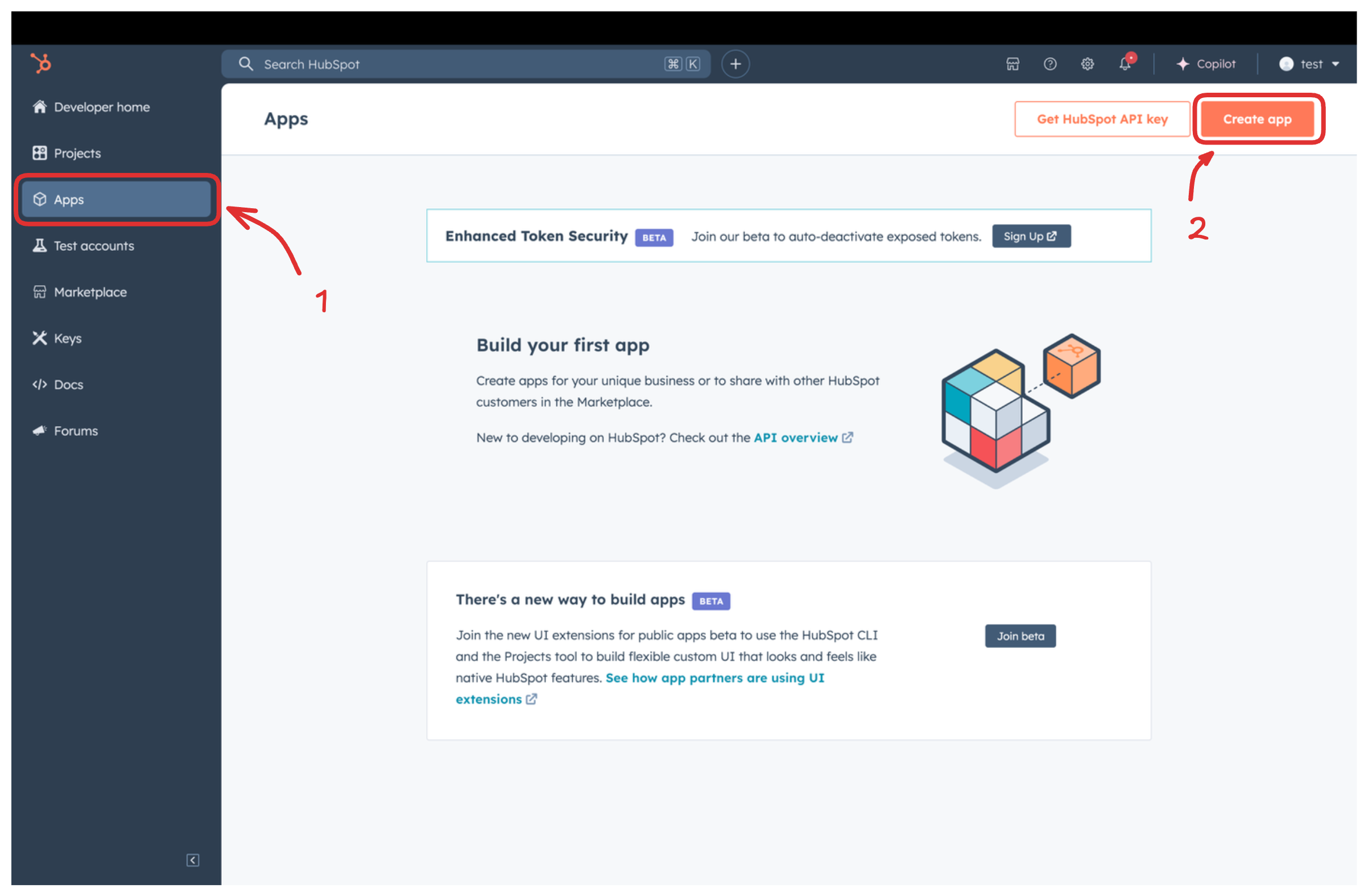
-
Provide a public app name and description for your app.
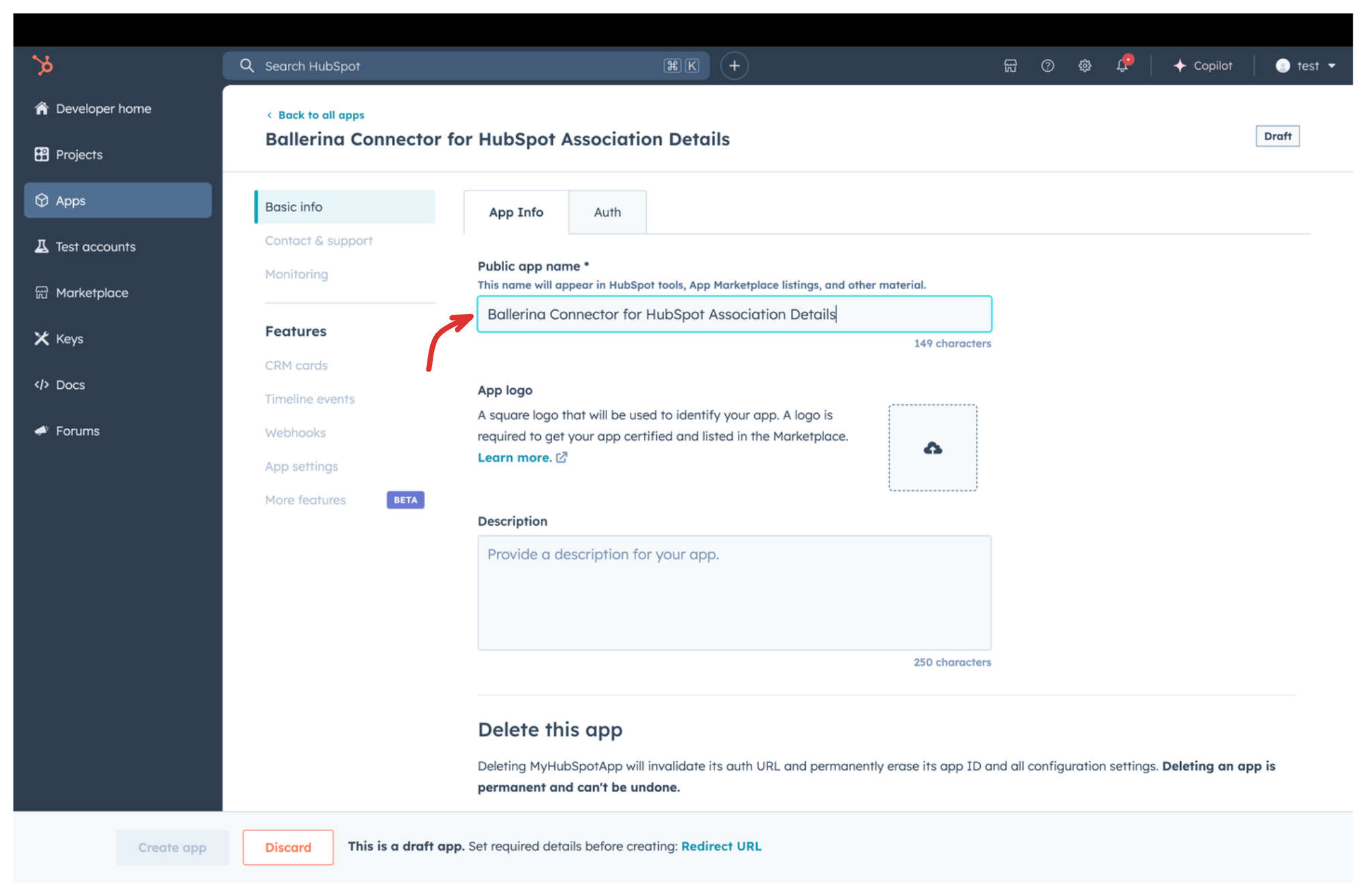
-
Move to the
Authtab.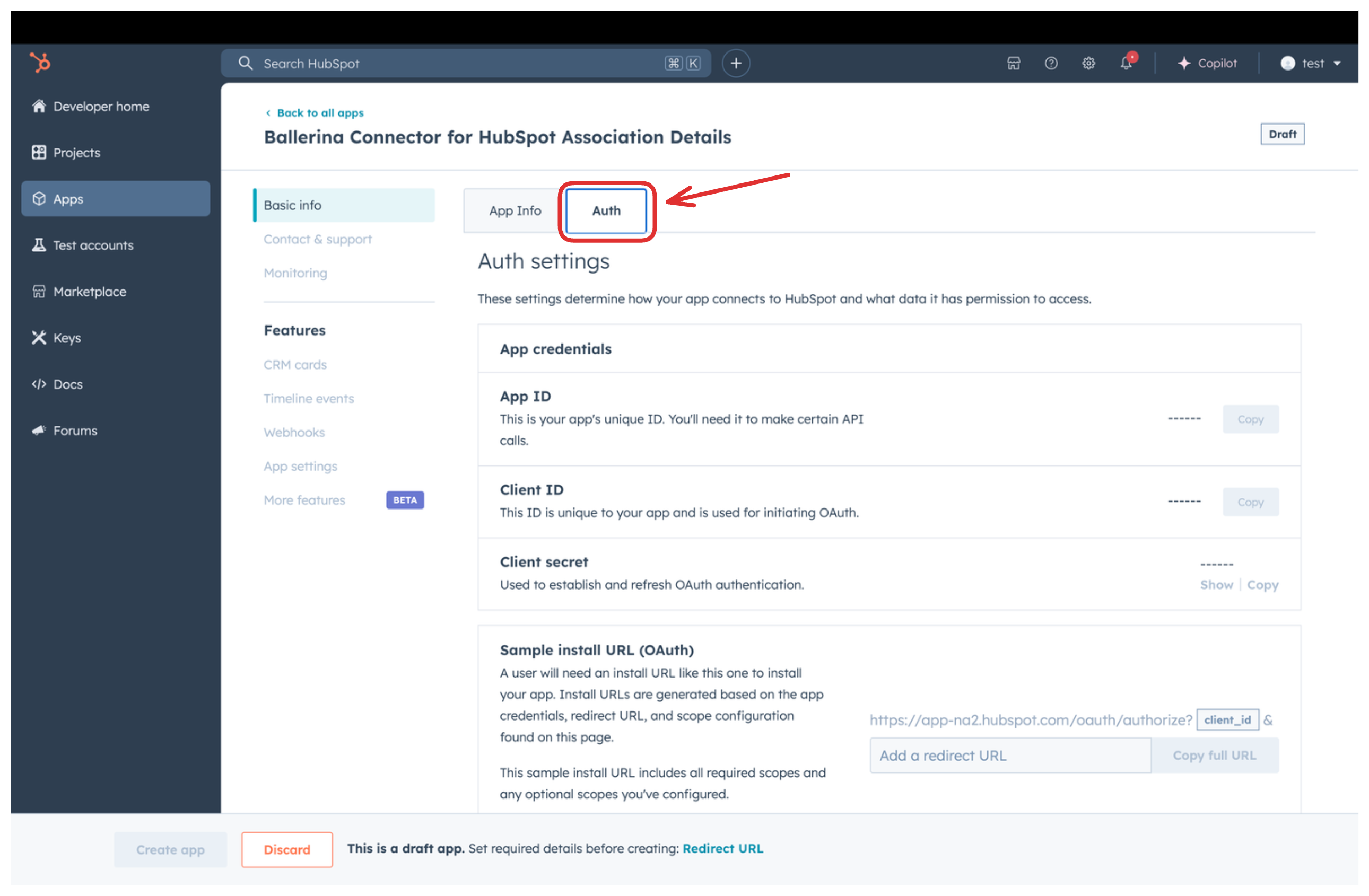
-
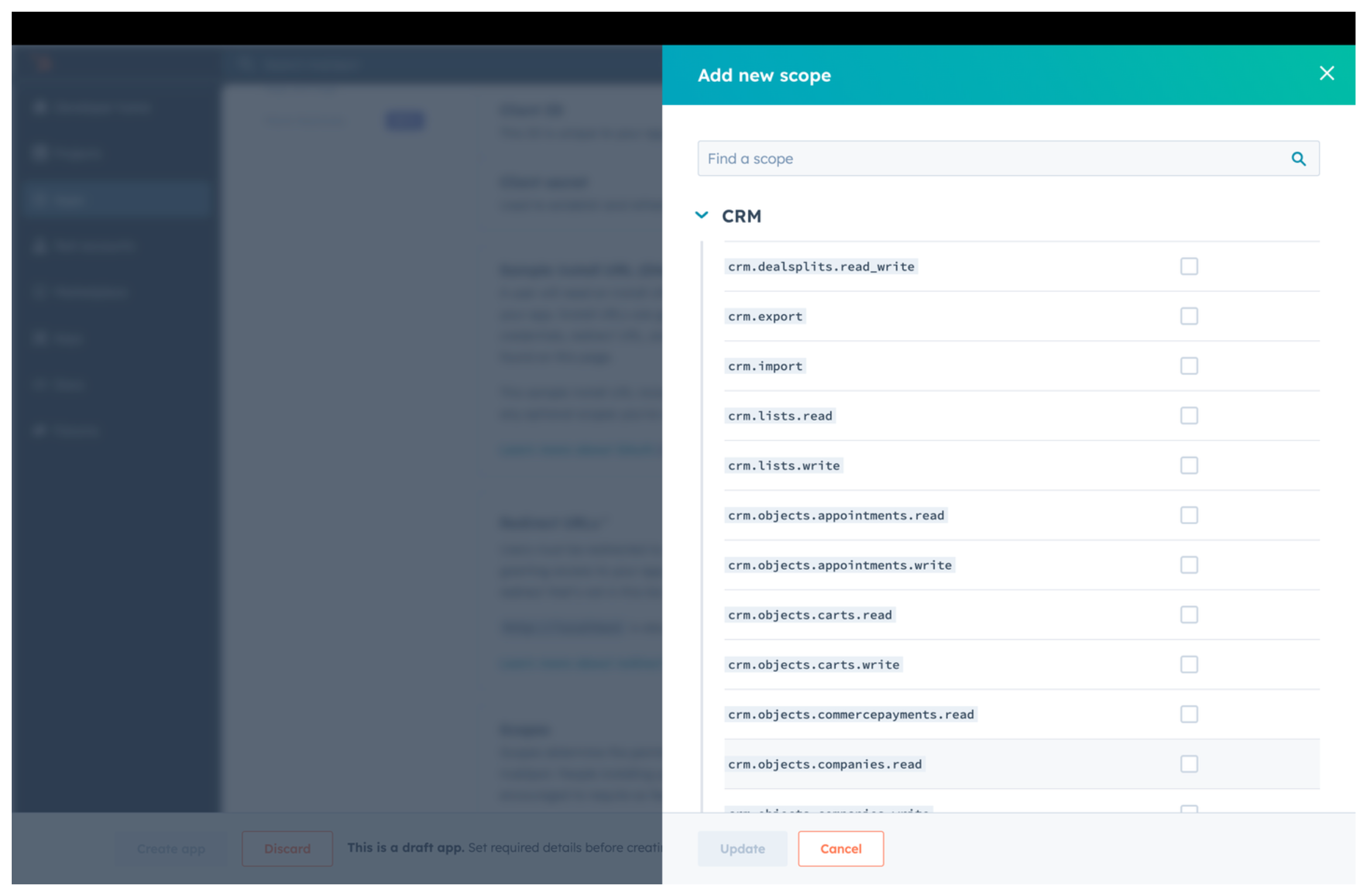
In the
Scopessection, add the following scopes for your app using theAdd new scopesbutton.media_bridge.readticketse-commercecrm.objects.goals.readcrm.objects.custom.writecrm.objects.custom.readcrm.objects.listings.writecrm.objects.orders.readcrm.objects.deals.readcrm.objects.subscriptions.readcrm.objects.companies.readcrm.objects.companies.writecrm.objects.users.readcrm.objects.users.writecrm.objects.invoices.writecrm.objects.carts.writecrm.objects.appointments.writecrm.objects.contacts.readcrm.objects.services.writecrm.objects.orders.writecrm.objects.commercepayments.readcrm.objects.deals.writecrm.objects.invoices.readcrm.objects.appointments.readcrm.objects.quotes.writecrm.objects.leads.writecrm.objects.leads.readcrm.objects.contacts.writecrm.objects.partner-clients.writecrm.objects.line_items.readcrm.objects.line_items.writecrm.objects.courses.readcrm.objects.listings.readcrm.objects.courses.writecrm.objects.quotes.readcrm.objects.partner-clients.readcrm.objects.carts.readcrm.objects.services.read
-
In the
Redirect URLsection, add the redirect URL for your app. This is the URL where the user will be redirected after the authentication process. You can uselocalhost:9090for testing purposes. Then click theCreate Appbutton.
Navigate to the Auth tab and you will see the Client ID and Client Secret for your app. Make sure to save these values.
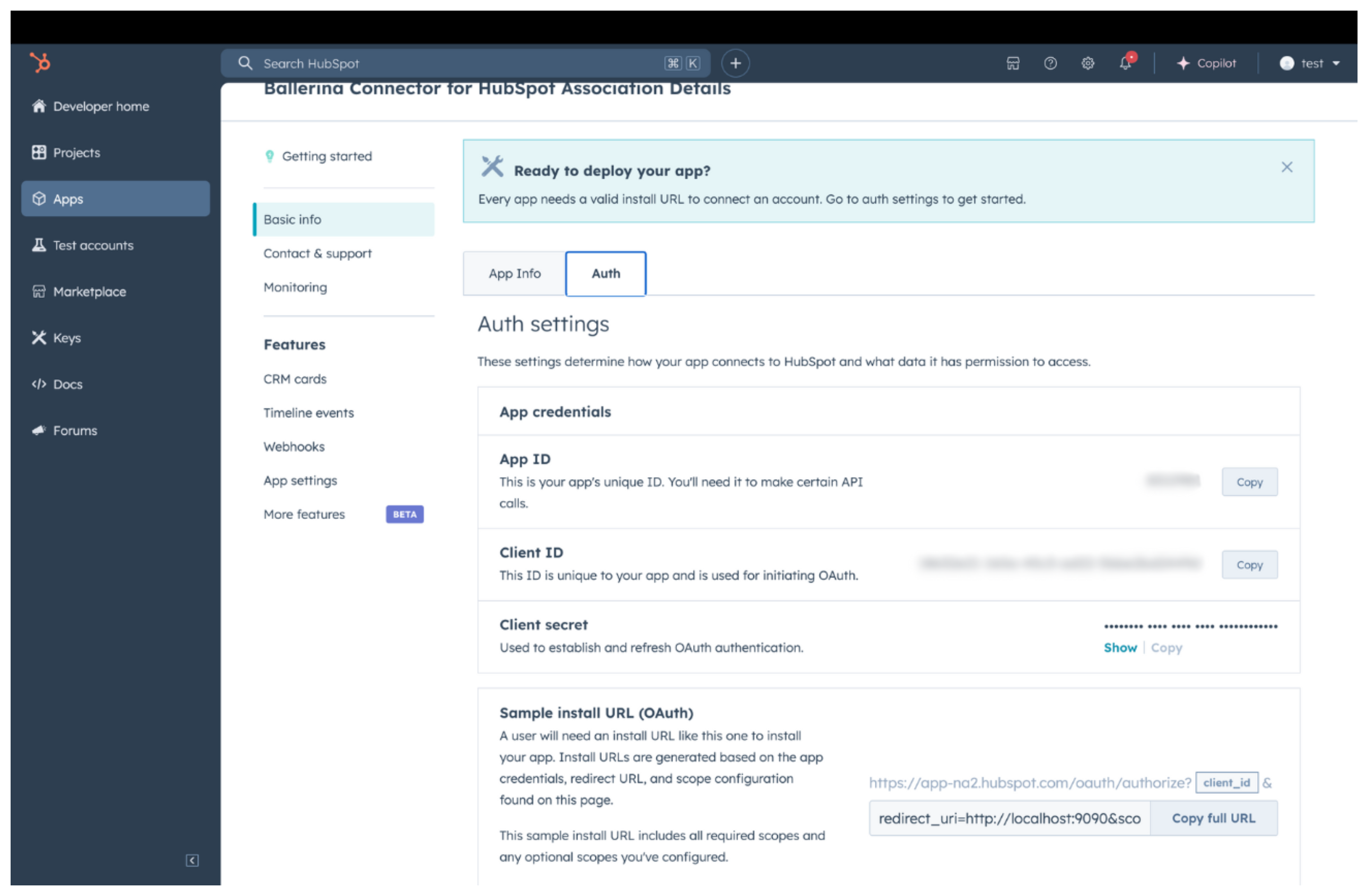
Before proceeding with the Quickstart, ensure you have obtained the Access Token or Refresh Token using the following steps:
-
Create an authorization URL using the following format:
https://app.hubspot.com/oauth/authorize?client_id=<YOUR_CLIENT_ID>&scope=<YOUR_SCOPES>&redirect_uri=<YOUR_REDIRECT_URI>Replace the
<YOUR_CLIENT_ID>,<YOUR_REDIRECT_URI>and<YOUR_SCOPES>with your specific value. -
Paste it in the browser and select your developer test account to install the app when prompted.
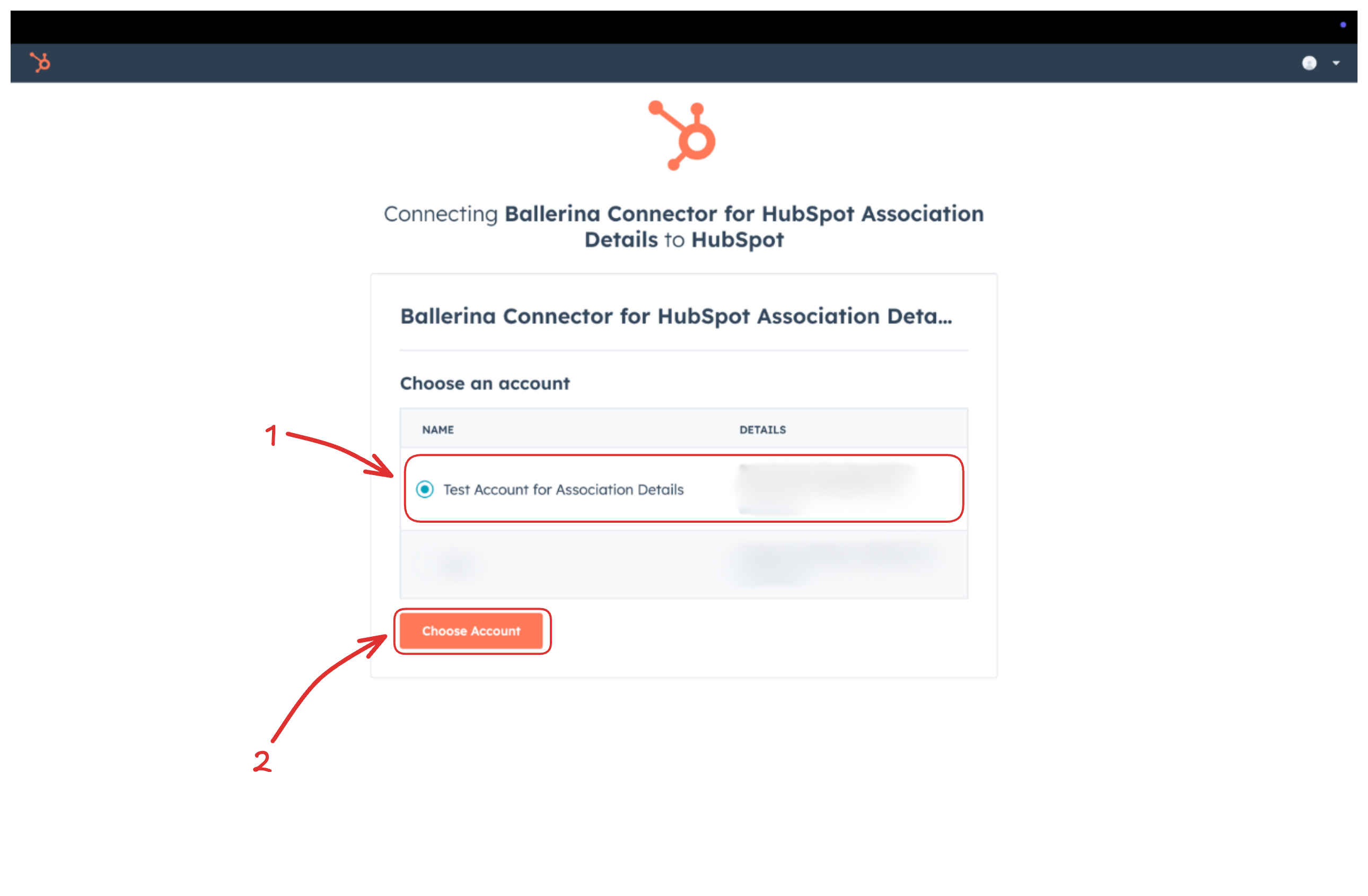
-
A code will be displayed in the browser. Copy the code.
-
Run the following curl command. Replace the
<YOUR_CLIENT_ID>,<YOUR_REDIRECT_URI> and<YOUR_CLIENT_SECRET>with your specific value. Use the code you received in the above step 3 as the<CODE>.-
Linux/macOS
curl --request POST \
--url https://api.hubapi.com/oauth/v1/token \
--header 'content-type: application/x-www-form-urlencoded' \
--data 'grant_type=authorization_code&code=<CODE>&redirect_uri=<YOUR_REDIRECT_URI>&client_id=<YOUR_CLIENT_ID>&client_secret=<YOUR_CLIENT_SECRET>'
-
Windows
curl --request POST ^
--url https://api.hubapi.com/oauth/v1/token ^
--header 'content-type: application/x-www-form-urlencoded' ^
--data 'grant_type=authorization_code&code=<CODE>&redirect_uri=<YOUR_REDIRECT_URI>&client_id=<YOUR_CLIENT_ID>&client_secret=<YOUR_CLIENT_SECRET>'
This command will return the access token and refresh token which are necessary for API calls.
{ "token_type": "bearer", "refresh_token": "<Refresh Token>", "access_token": "<Access Token>", "expires_in": 1800 } -
-
Store the refresh token securely for use in your application.
To use the HubSpot CRM Associations connector in your Ballerina application, update the .bal file as follows:
Import the hubspot.crm.associations module and oauth2 module.
import ballerina/oauth2;
import ballerinax/hubspot.crm.associations as hsassociations;-
Create a
Config.tomlfile and, configure the obtained credentials in the above steps as follows:clientId = <Client Id> clientSecret = <Client Secret> refreshToken = <Refresh Token>
-
Instantiate a
hsassociations:ConnectionConfigwith the obtained credentials and initialize the connector with it.configurable string clientId = ?; configurable string clientSecret = ?; configurable string refreshToken = ?; hsassociations:ConnectionConfig config = { auth: { clientId, clientSecret, refreshToken, credentialBearer: oauth2:POST_BODY_BEARER } }; final hsassociations:Client hubspot = check new (config);
Now, utilize the available connector operations. A sample usecase is shown below.
public function main() returns error? {
    hsassociations:CollectionResponseMultiAssociatedObjectWithLabelForwardPaging readResponse
    = check hubspot->/objects/["fromObjectType"]/["fromObjectId"]/associations/["toObjectType"];
}The HubSpot CRM Associations connector provides practical examples illustrating usage in various scenarios. Explore these examples, covering the following use cases:
- Create and read associations – This example demonstrates how to use the HubSpot CRM Associations connector to batch-create default and custom-labeled associations between deals and companies, as well as retrieve existing associations for a given deal.
- Create and delete associations - This example demonstrates how to use the HubSpot CRM Associations connector to create individual default associations with and without labels between deals and companies. It then shows how to delete a specific association label between them, followed by deleting all associations between the two objects.
-
Download and install Java SE Development Kit (JDK) version 21. You can download it from either of the following sources:
Note: After installation, remember to set the
JAVA_HOMEenvironment variable to the directory where JDK was installed. -
Download and install Ballerina Swan Lake.
-
Download and install Docker.
Note: Ensure that the Docker daemon is running before executing any tests.
-
Export Github Personal access token with read package permissions as follows,
export packageUser=<Username>
export packagePAT=<Personal access token>
Execute the commands below to build from the source.
-
To build the package:
./gradlew clean build
-
To run the tests:
./gradlew clean test -
To build the without the tests:
./gradlew clean build -x test -
To run tests against different environments:
./gradlew clean test -Pgroups=<Comma separated groups/test cases>
-
To debug the package with a remote debugger:
./gradlew clean build -Pdebug=<port>
-
To debug with the Ballerina language:
./gradlew clean build -PbalJavaDebug=<port>
-
Publish the generated artifacts to the local Ballerina Central repository:
./gradlew clean build -PpublishToLocalCentral=true
-
Publish the generated artifacts to the Ballerina Central repository:
./gradlew clean build -PpublishToCentral=true
As an open-source project, Ballerina welcomes contributions from the community.
For more information, go to the contribution guidelines.
All the contributors are encouraged to read the Ballerina Code of Conduct.
- For more information go to the
hubspot.crm.associationspackage. - For example demonstrations of the usage, go to Ballerina By Examples.
- Chat live with us via our Discord server.
- Post all technical questions on Stack Overflow with the #ballerina tag.