


Mailchimp Transactional Email is a reliable and scalable email delivery service provided by Intuit Mailchimp, designed for sending data-driven transactional emails such as password resets, order confirmations, and notifications.
The ballerinax/mailchimp.transactional package provides APIs to connect and interact with the Mailchimp Transactional API, enabling seamless integration with applications to manage transactional email sending, templates, messages, and more.
To use the Mailchimp Transactional Email connector, you need to have a Mailchimp account and access to a Mandrill API key. Follow the steps below to set up your account and generate the required API key.
-
Go to the Mailchimp Sign Up Page and create a Mailchimp account.
-
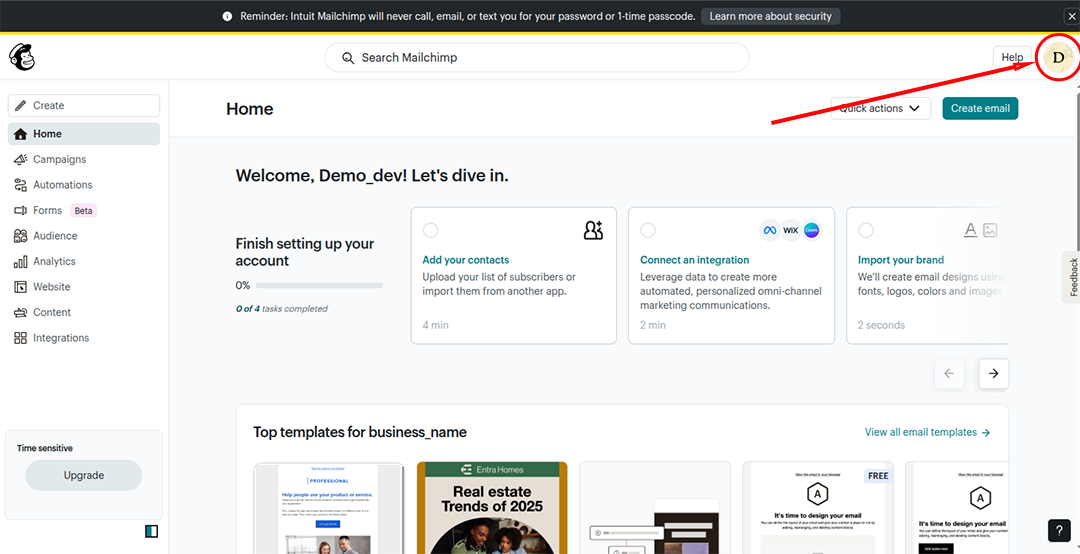
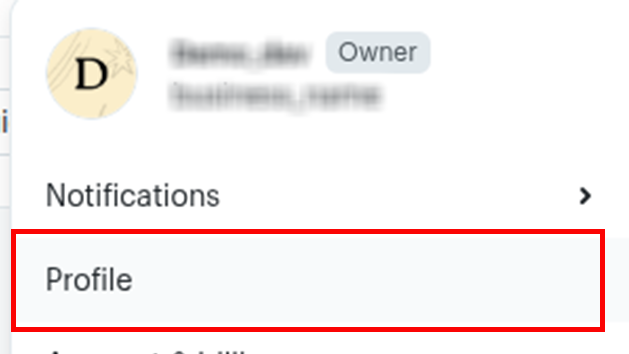
Once signed in, click on your profile icon in the top-right corner to access the account menu.
-
In the menu, go to Billing.

-
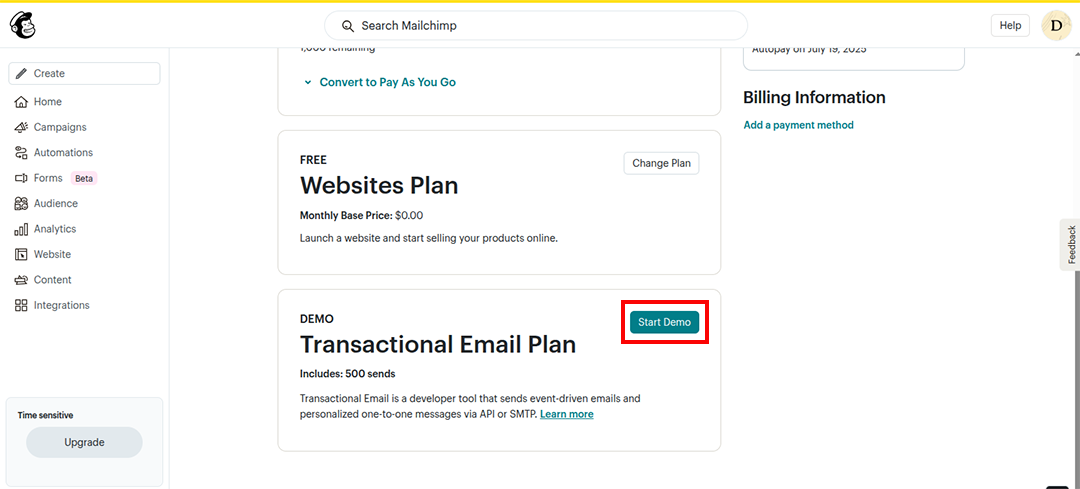
Under Monthly plans or credits, select the Transactional Email Plan (you can start with the demo plan).
-
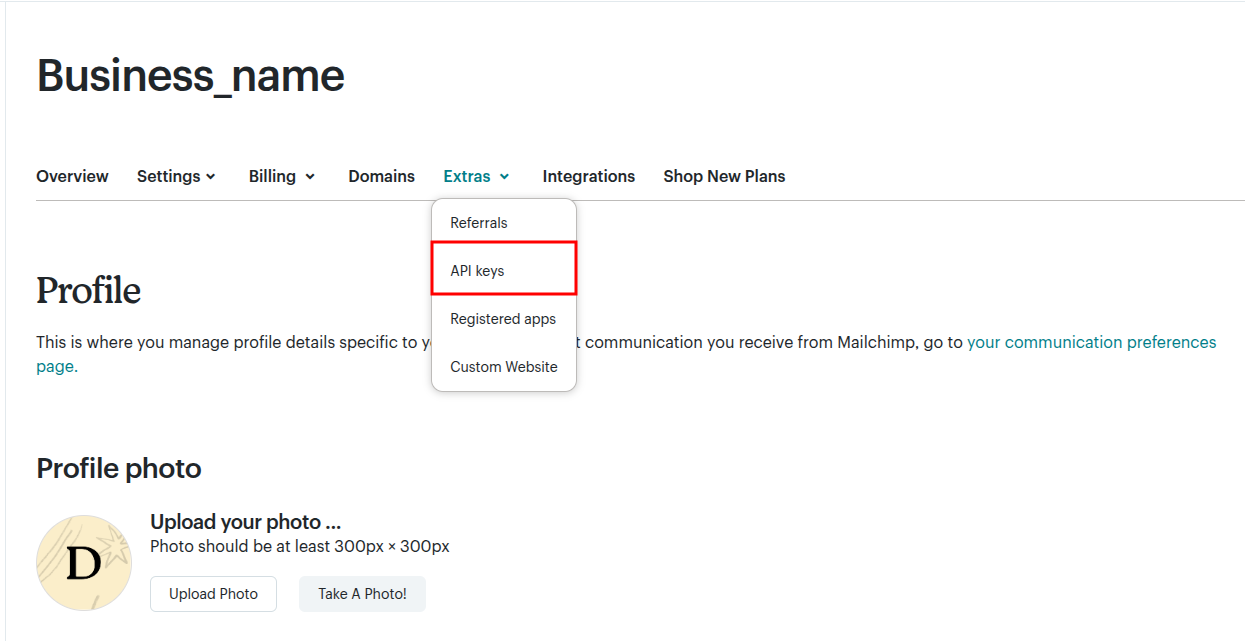
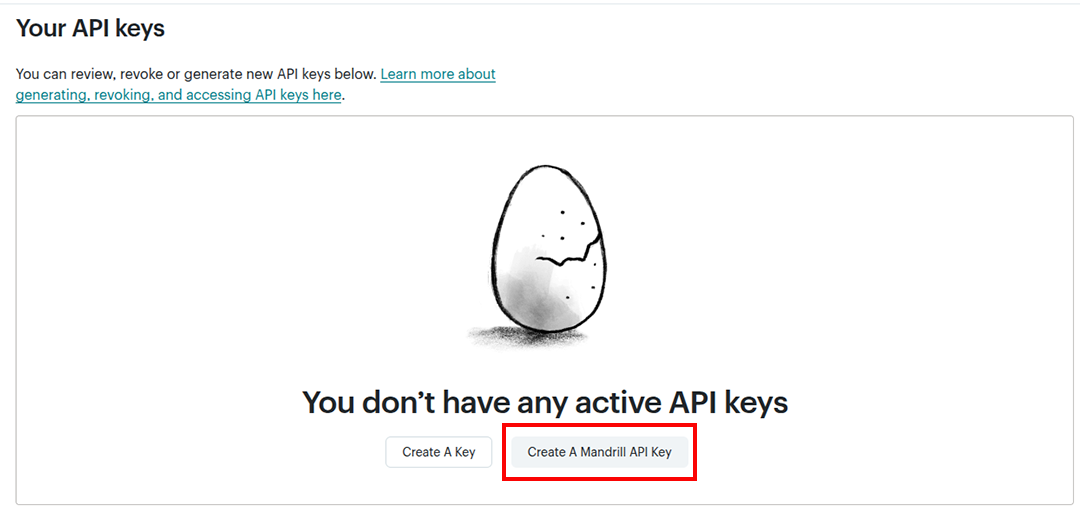
After enabling the transactional email feature, navigate to the Extras section and click on API keys.
-
Choose Create A Mandrill API Key (not the regular API key). You will be redirected to the MandrillApp Dashboard.
-
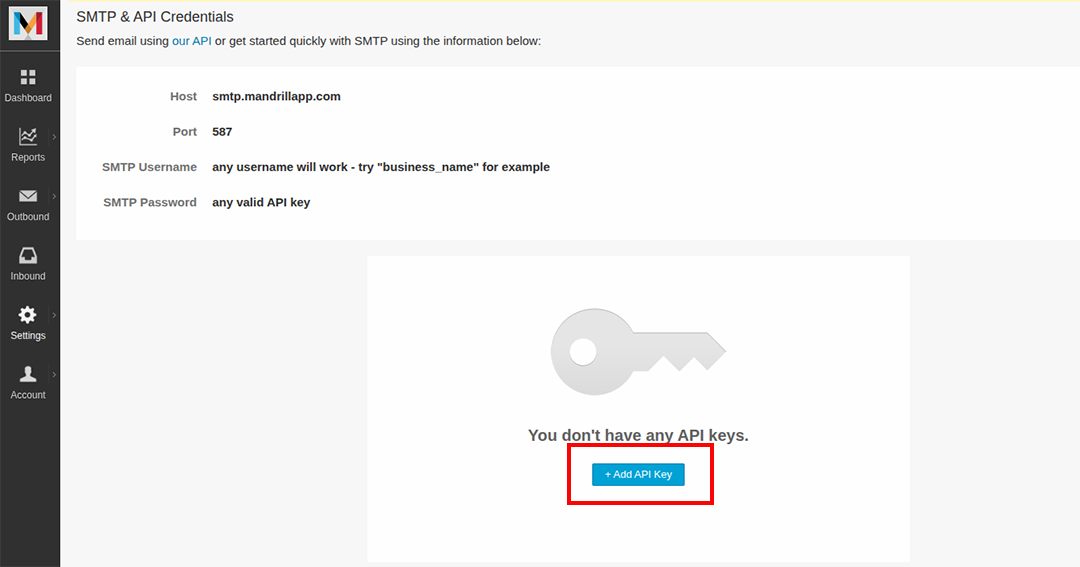
In the MandrillApp dashboard, click + Add API Key to generate your key.
-
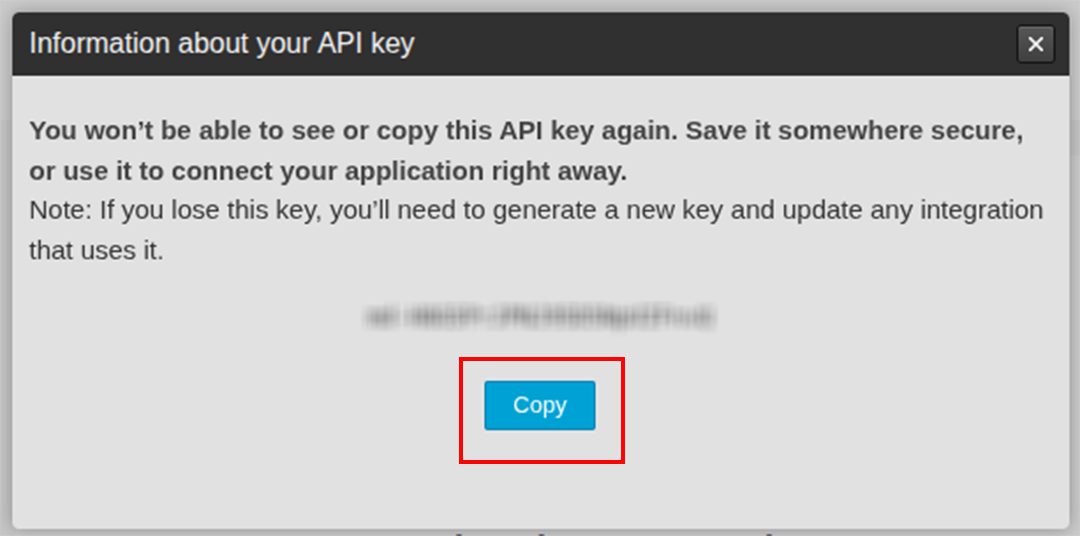
Copy the generated API key. You will need this to authenticate your connector.
To use the Mailchimp Transactional connector in your Ballerina application, update the .bal file as follows:
Import the mailchimp.transactional module.
import ballerinax/mailchimp.'transactional as mailchimp;- Create a
Config.tomlfile and add your Mandrill API key obtained from the setup process:
key = "<Access Token>"- Declare the key as a configurable variable and create a
mailchimp.transactional:Clientinstance:
configurable string key = ?;
const string SERVER_URL = "server-url";

final mailchimp:Client mailchimp = check new ({}, SERVER_URL);Here’s how you can send a simple transactional email using the connector:
public function main() returns error? {
    mailchimp:MessagesSendBody payload = {
        key,
        message: {
            fromEmail: "noreply@yourdomain.com",
            to: [{ email: "customer@example.com"}],
            subject: "Your Order Confirmation",
            text: "Text",
            autoText: true

        }
    };
    mailchimp:InlineResponse20028[] sendResponse = check mailchimp->/messages/send.post(payload);
    if sendResponse.length() == 0 {
        io:println("No responses received.");
        return error("Empty response from Mailchimp API");
    }

    foreach var response in sendResponse {
        io:println("Email sent successfully: ", response.toBalString());
    }
}
bal runThe MailChimp Transactional Emails connector provides practical examples illustrating usage in various scenarios. Explore these examples, covering the following use cases:
- Transactional Template Flow: Shows how to create, publish, render, list, and delete templates.
- Webhook Lifecyle: Demonstrates creating, retrieving, updating, and deleting webhooks.
-
Download and install Java SE Development Kit (JDK) version 21. You can download it from either of the following sources:
Note: After installation, remember to set the
JAVA_HOMEenvironment variable to the directory where JDK was installed. -
Download and install Ballerina Swan Lake.
-
Download and install Docker.
Note: Ensure that the Docker daemon is running before executing any tests.
-
Export Github Personal access token with read package permissions as follows,
export packageUser=<Username>
export packagePAT=<Personal access token>
Execute the commands below to build from the source.
-
To build the package:
./gradlew clean build
-
To run the tests:
./gradlew clean test -
To build the without the tests:
./gradlew clean build -x test -
To run tests against different environments:
./gradlew clean test -Pgroups=<Comma separated groups/test cases>
-
To debug the package with a remote debugger:
./gradlew clean build -Pdebug=<port>
-
To debug with the Ballerina language:
./gradlew clean build -PbalJavaDebug=<port>
-
Publish the generated artifacts to the local Ballerina Central repository:
./gradlew clean build -PpublishToLocalCentral=true
-
Publish the generated artifacts to the Ballerina Central repository:
./gradlew clean build -PpublishToCentral=true
As an open-source project, Ballerina welcomes contributions from the community.
For more information, go to the contribution guidelines.
All the contributors are encouraged to read the Ballerina Code of Conduct.
- For more information go to the
mailchimp.transactionalpackage. - For example demonstrations of the usage, go to Ballerina By Examples.
- Chat live with us via our Discord server.
- Post all technical questions on Stack Overflow with the #ballerina tag.