


Salesforce Marketing Cloud is a leading digital marketing platform that enables businesses to manage and automate customer journeys, email campaigns, and personalized messaging.
The ballerinax/salesforce.marketingcloud package provides APIs to connect and interact with Salesforce Marketing Cloud API endpoints, supporting a wide range of marketing automation and journey management
This guide explains how to generate an access token in Salesforce Marketing Cloud using an Installed Package.
-
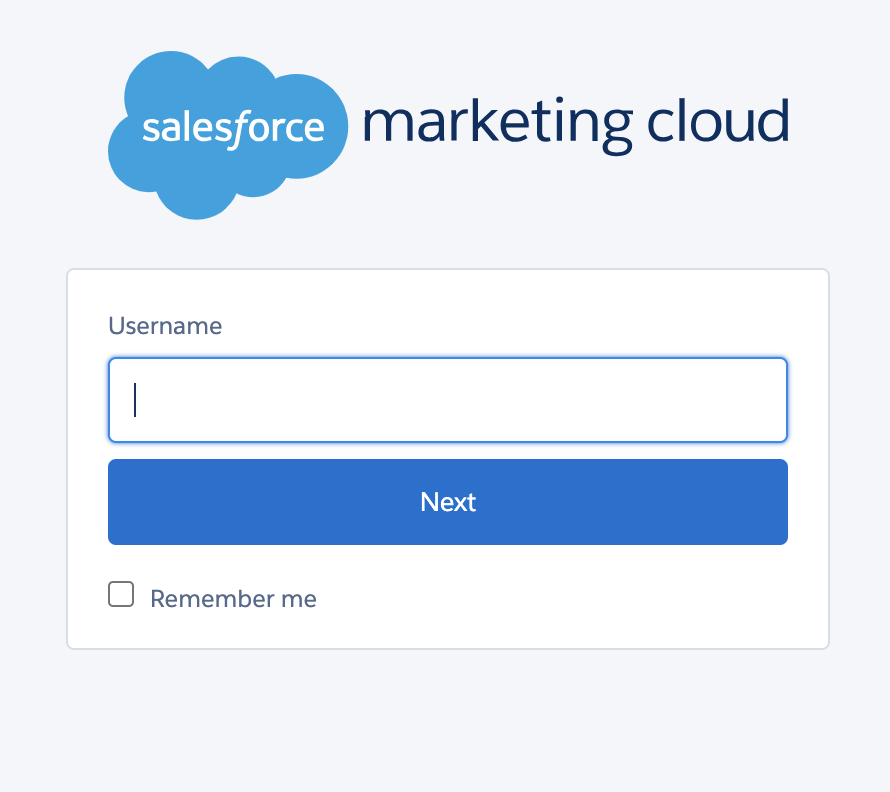
Navigate to your Salesforce Marketing Cloud login page and log in with your credentials.
-
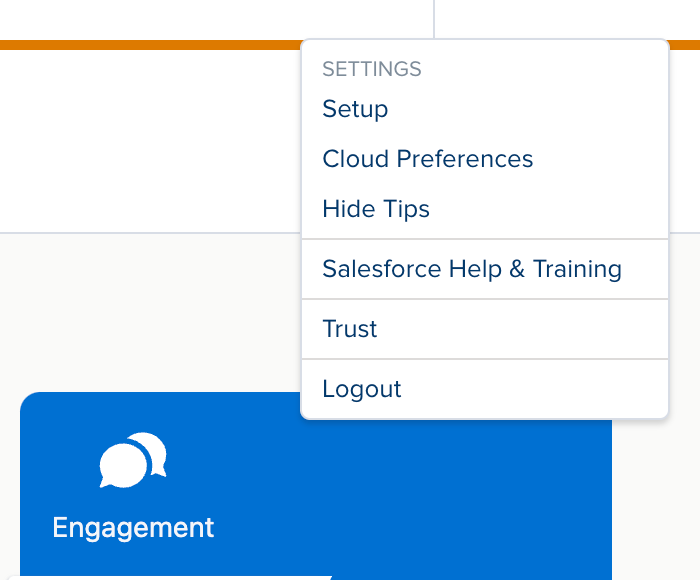
Once logged in, click on your username in the top right corner and select Setup from the dropdown menu.
-
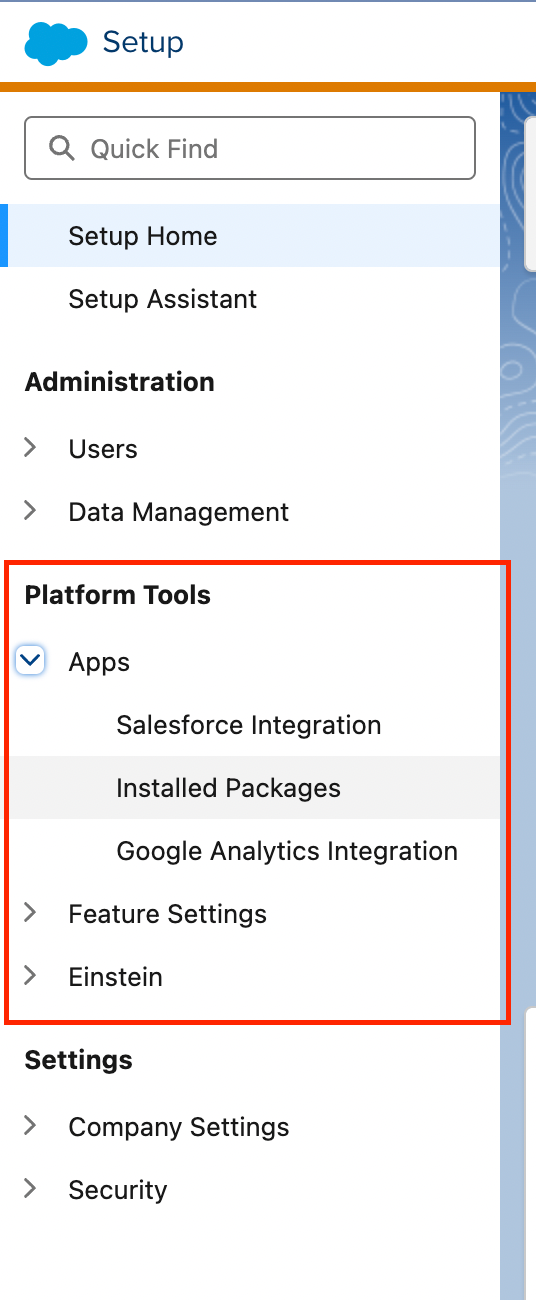
In the Setup menu, scroll down to the Platform Tools section.
-
Click on Apps and then select Installed Packages.
-
Click the New button.
-
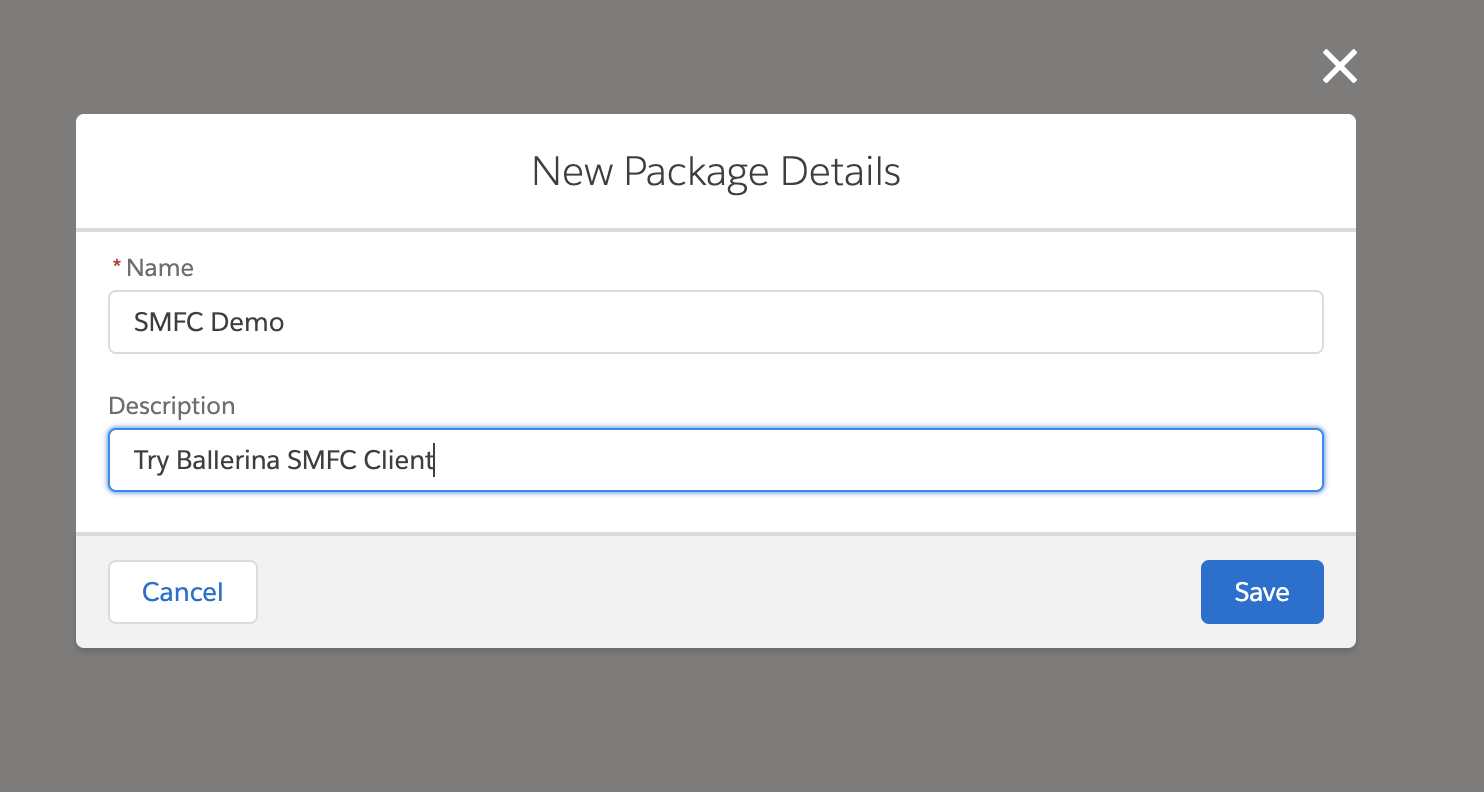
Enter a Name and Description for your package (for example,
API Integration Package). -
Click Save.
-
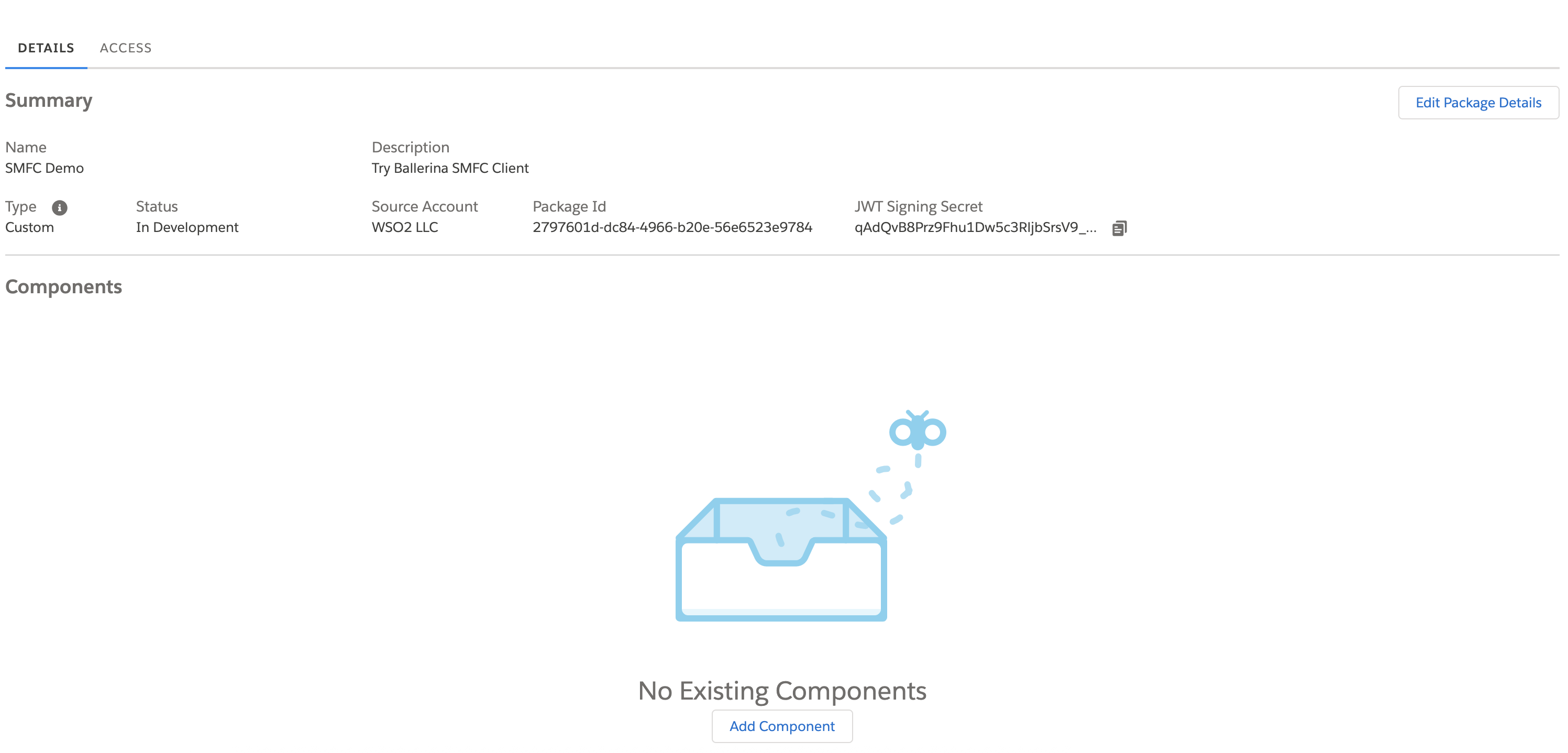
After saving, click on the package you just created to view its details.
-
Click on Add Component.
-
Choose API Integration as the component type.

-
Select Server-to-Server as the integration type.

-
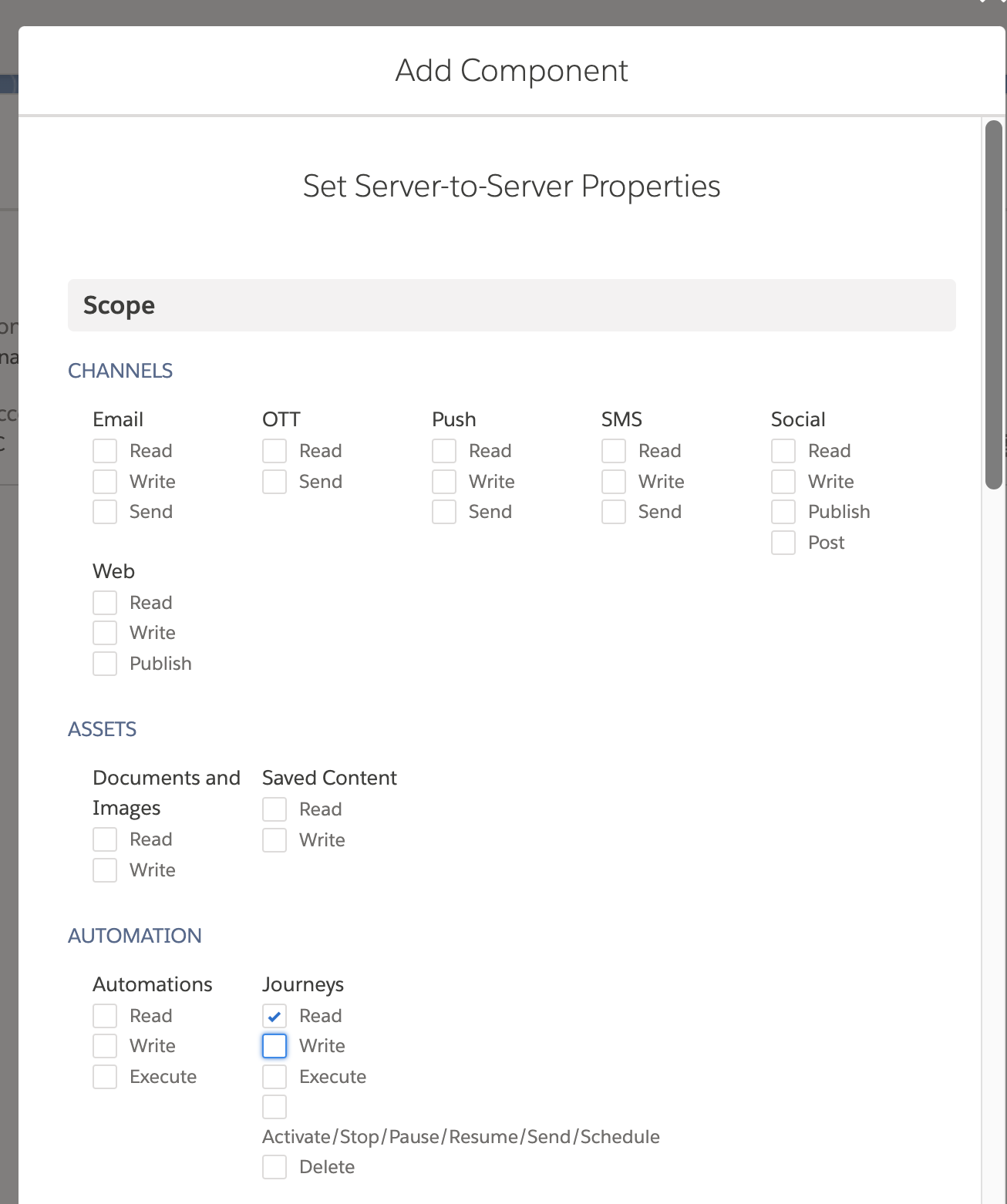
In the list of available scopes, check the required permissions for your integration. For most token generation and API calls, you might need:
- Read and Write access to Email Studio
- Access to the REST API
- Any additional scopes based on your specific use case
-
Click Save to add the component.
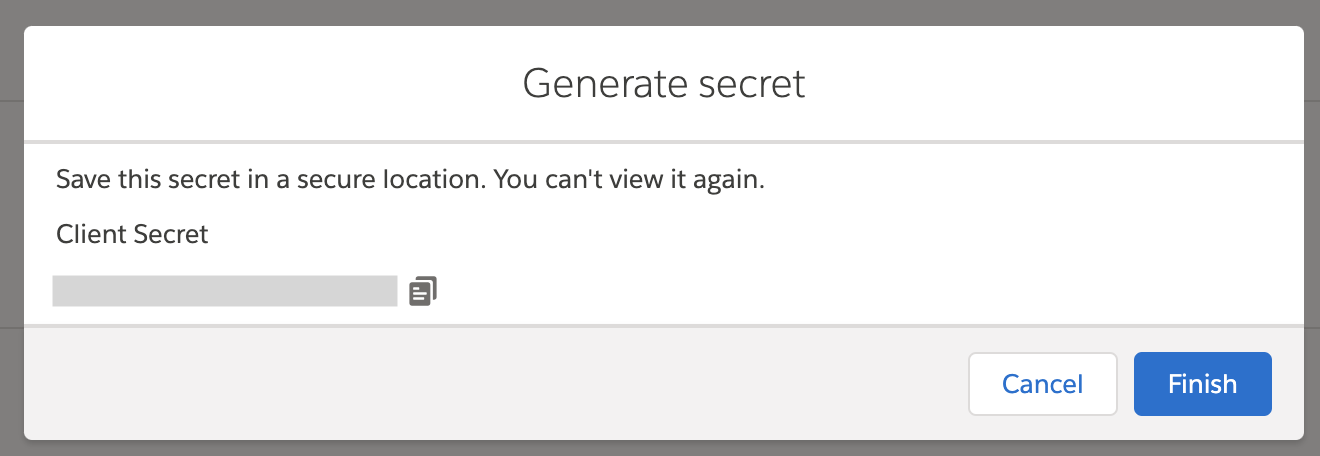
On the package detail page, note down the Base URIs, Client ID and Client Secret generated for your integration. These credentials are required to authenticate API calls. If necessary, click on Edit to update any integration details or to add further scopes.
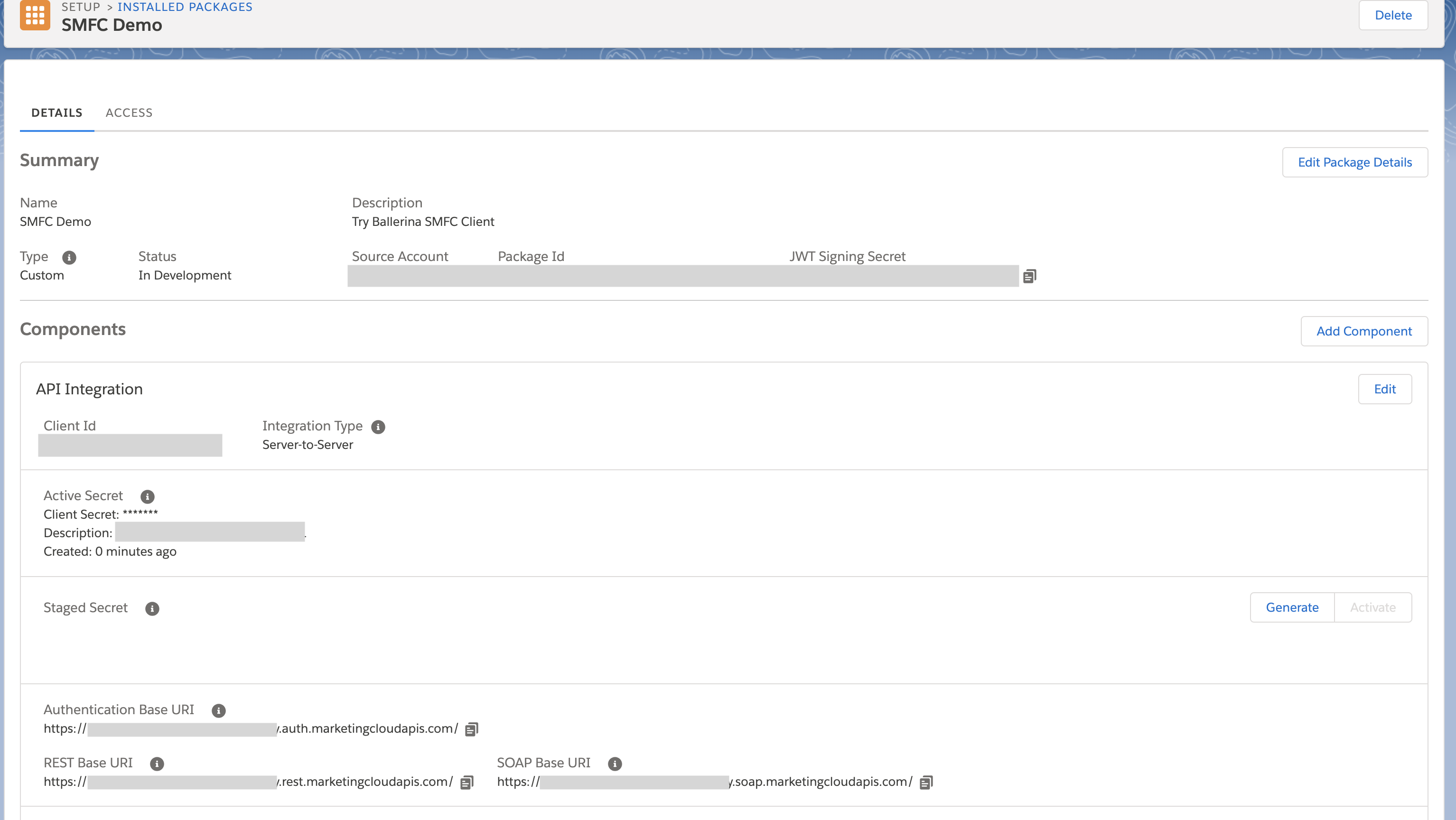
Extract the subdomain by taking the portion between https:// and .auth.marketingcloudapis.com in your base URI. For example, from https://mc123456gkz1x4p5b9m4gzx5b9.auth.marketingcloudapis.com/, the subdomain is mc123456gkz1x4p5b9m4gzx5b9.
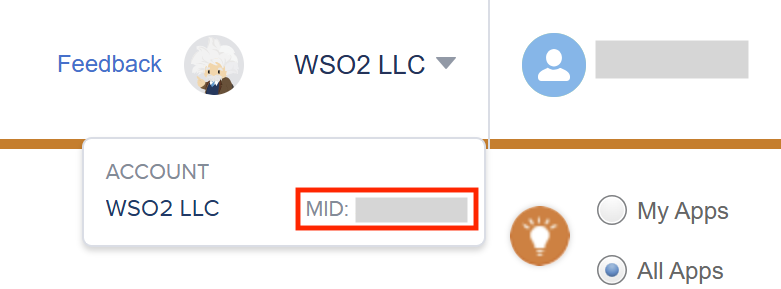
Navigate to the top right corner of your SFMC account interface, hover over your account name, and the MID will be displayed.
Note: This is only needed if the cloud account has more than one business units.
To use the salesforce.marketingcloud connector in your Ballerina application, modify the .bal file as follows:
Import the salesforce.marketingcloud module.
import ballerinax/salesforce.marketingcloud;Create a marketingcloud:ConnectionConfig with the obtained OAuth2.0 tokens and initialize the connector with it.
configurable string clientId = ?;
configurable string clientSecret = ?;
configurable string subDomain = ?;
configurable string accountId = ?;

marketingcloud:Client marketingCloudClient = check new (
    subDomain,
    config = {
        auth: {
            clientId,
            clientSecret,
            accountId
        }
    }
);Now, utilize the available connector operations.
marketingcloud:ContactMembershipResponse res =
        check marketingCloudClient->getContactMembership({
            contactKeyList: ["test@example.com"]
});The ballerinax/salesforce.marketingcloud connector provides practical examples illustrating usage in various scenarios. Explore these examples to understand how to capture and process database change events effectively.
- Seasonal Journey – Shows how to enroll new users into the Seasonal Journey by adding a row to a Data Extension, with checks to prevent enrolling users who are already part of the Rewin Journey.
- Sync Images - demonstrates how to synchronize images from Digital Asset Management (DAM) systems to Salesforce Marketing Cloud Content Builder using the Ballerina client. It retrieves images from external URLs, encodes them in base64, and uploads them to a specified category (folder) in Content Builder.
-
Download and install Java SE Development Kit (JDK) version 21. You can download it from either of the following sources:
Note: After installation, remember to set the
JAVA_HOMEenvironment variable to the directory where JDK was installed. -
Download and install Ballerina Swan Lake.
-
Download and install Docker.
Note: Ensure that the Docker daemon is running before executing any tests.
-
Export Github Personal access token with read package permissions as follows,
export packageUser=<Username>
export packagePAT=<Personal access token>
Execute the commands below to build from the source.
-
To build the package:
./gradlew clean build
-
To run the tests:
./gradlew clean test -
To build the without the tests:
./gradlew clean build -x test -
To run tests against different environments:
./gradlew clean test -Pgroups=<Comma separated groups/test cases>
-
To debug the package with a remote debugger:
./gradlew clean build -Pdebug=<port>
-
To debug with the Ballerina language:
./gradlew clean build -PbalJavaDebug=<port>
-
Publish the generated artifacts to the local Ballerina Central repository:
./gradlew clean build -PpublishToLocalCentral=true
-
Publish the generated artifacts to the Ballerina Central repository:
./gradlew clean build -PpublishToCentral=true
As an open-source project, Ballerina welcomes contributions from the community.
For more information, go to the contribution guidelines.
All the contributors are encouraged to read the Ballerina Code of Conduct.
- For more information go to the
salesforce.marketingcloudpackage. - For example demonstrations of the usage, go to Ballerina By Examples.
- Chat live with us via our Discord server.
- Post all technical questions on Stack Overflow with the #ballerina tag.