



GitHub repo: https://github.com/cafeTechne/antigravity-link-extension
Open VSX: https://open-vsx.org/extension/cafetechne/antigravity-link-extension
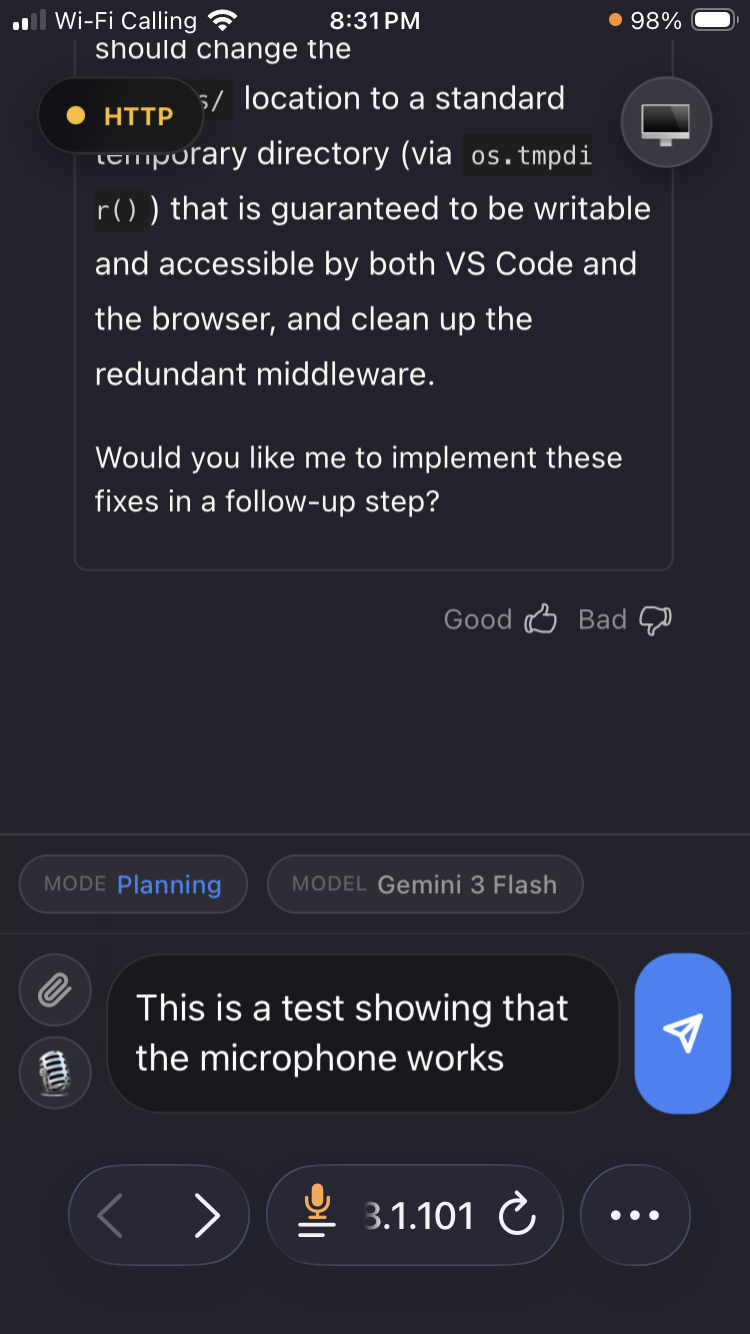
Bring your Antigravity sessions to your phone. Upload files, dictate prompts, and control multiple active Antigravity chats from a mobile-friendly interface.
- Teams who want a simple, secure mobile companion for Google's Antigravity IDE.
- Power users who want fast uploads and voice-to-text on the go.
- New developers who want a zero-config way to interact with a running Antigravity session.
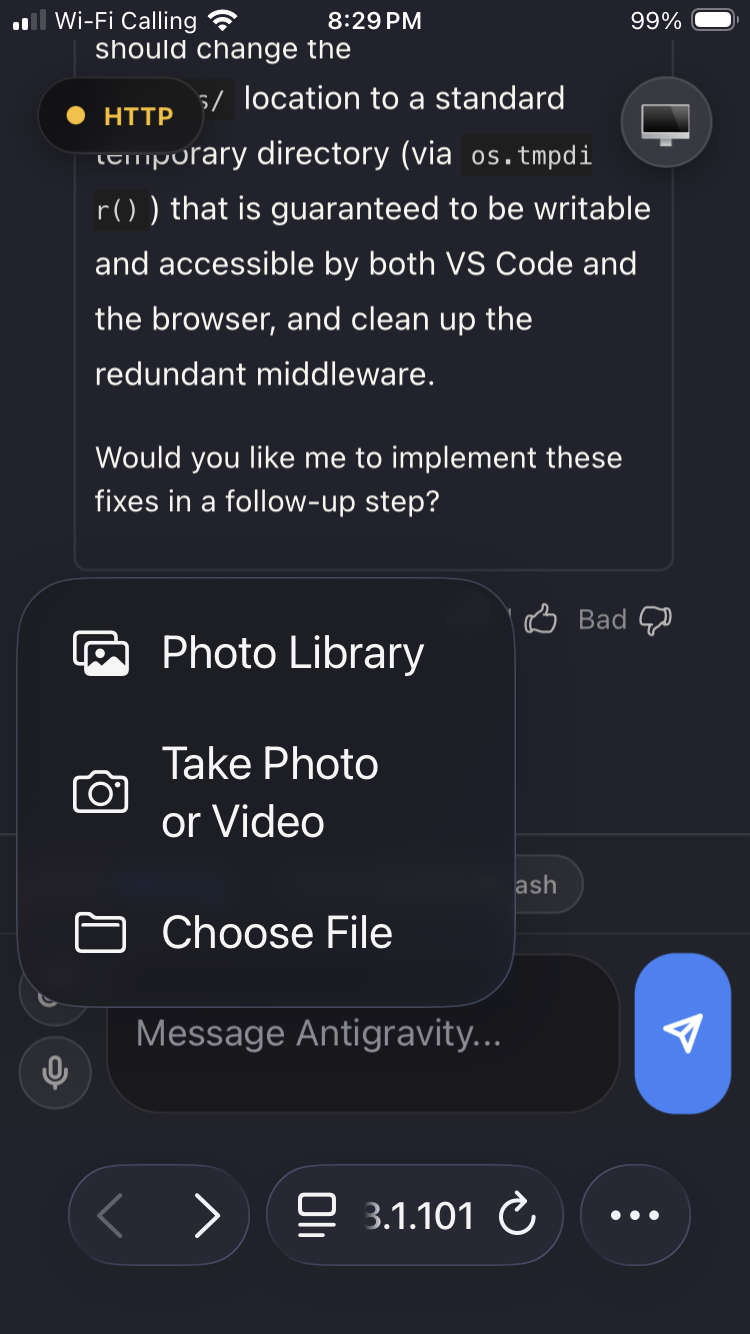
- File upload into the active Antigravity chat.
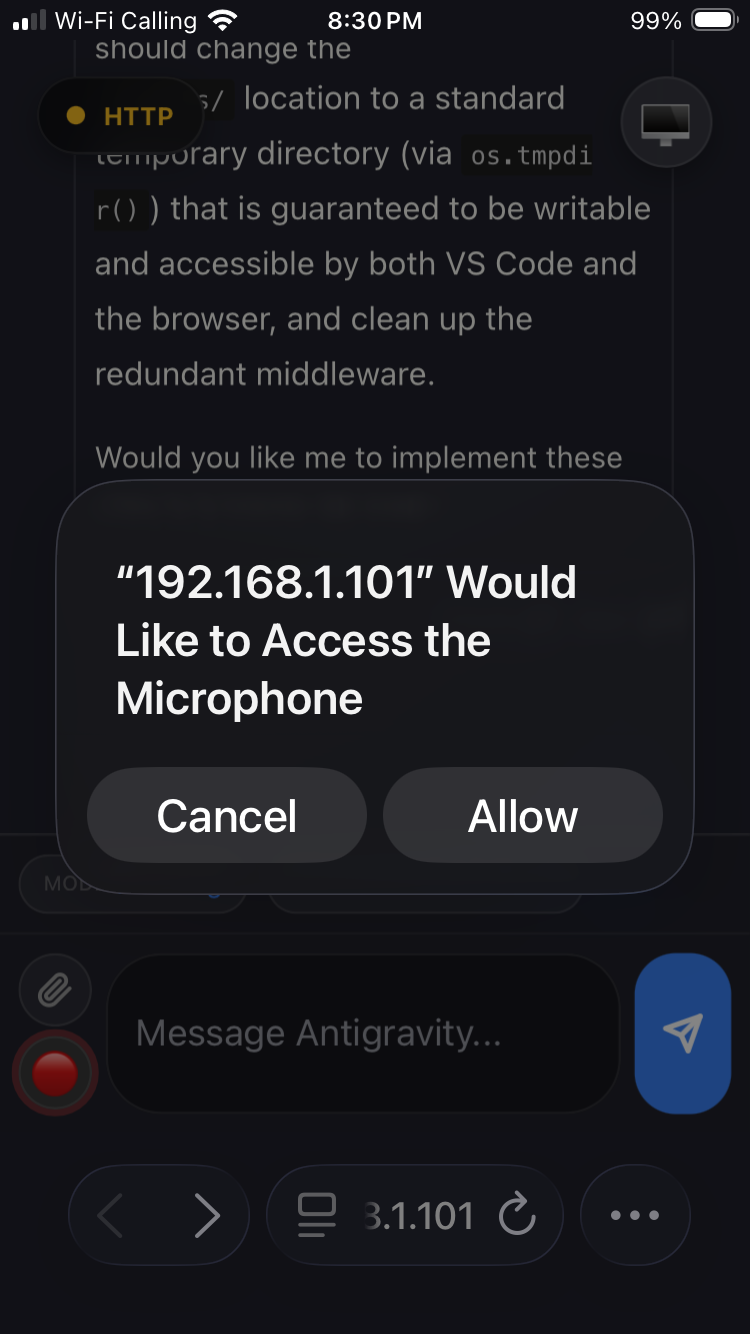
- Voice-to-text input from mobile (HTTPS required for mic permissions).
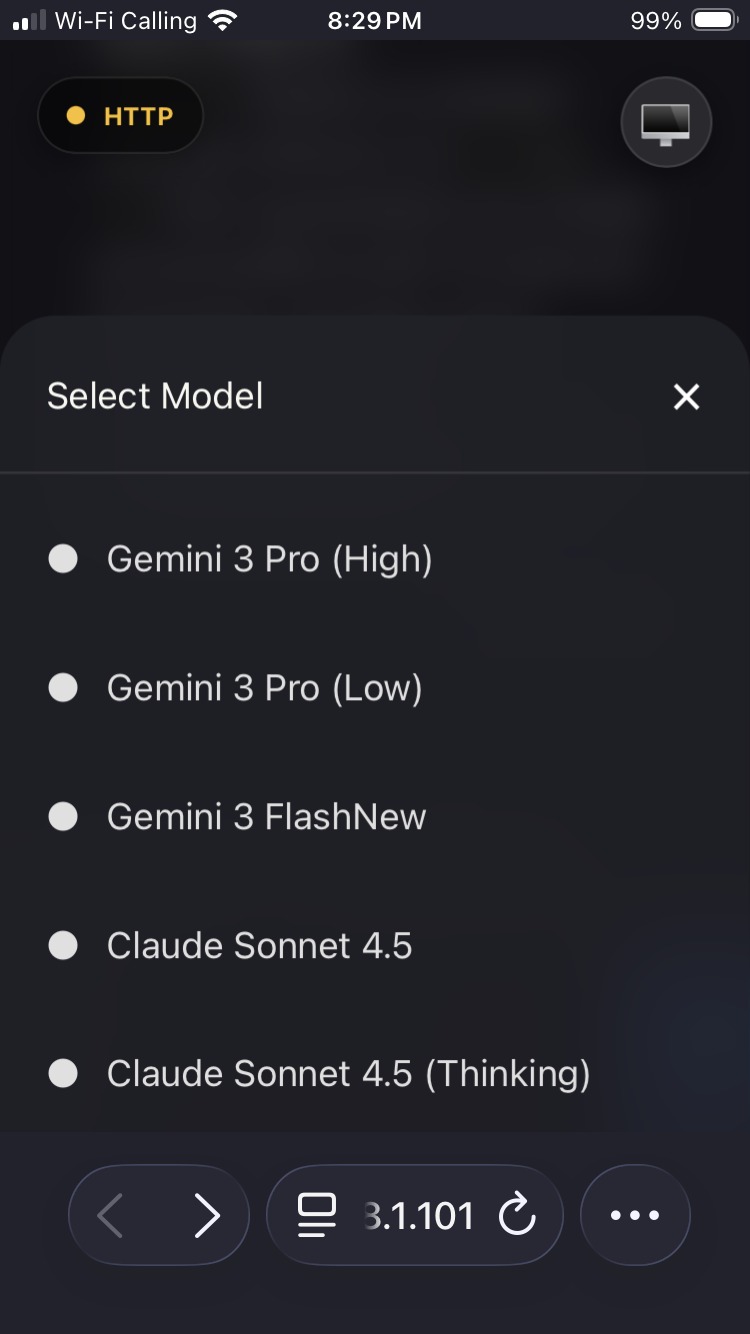
- Active instance switching for multiple Antigravity windows.
- Local-only server with token authentication.
 |
 |
 |
 |
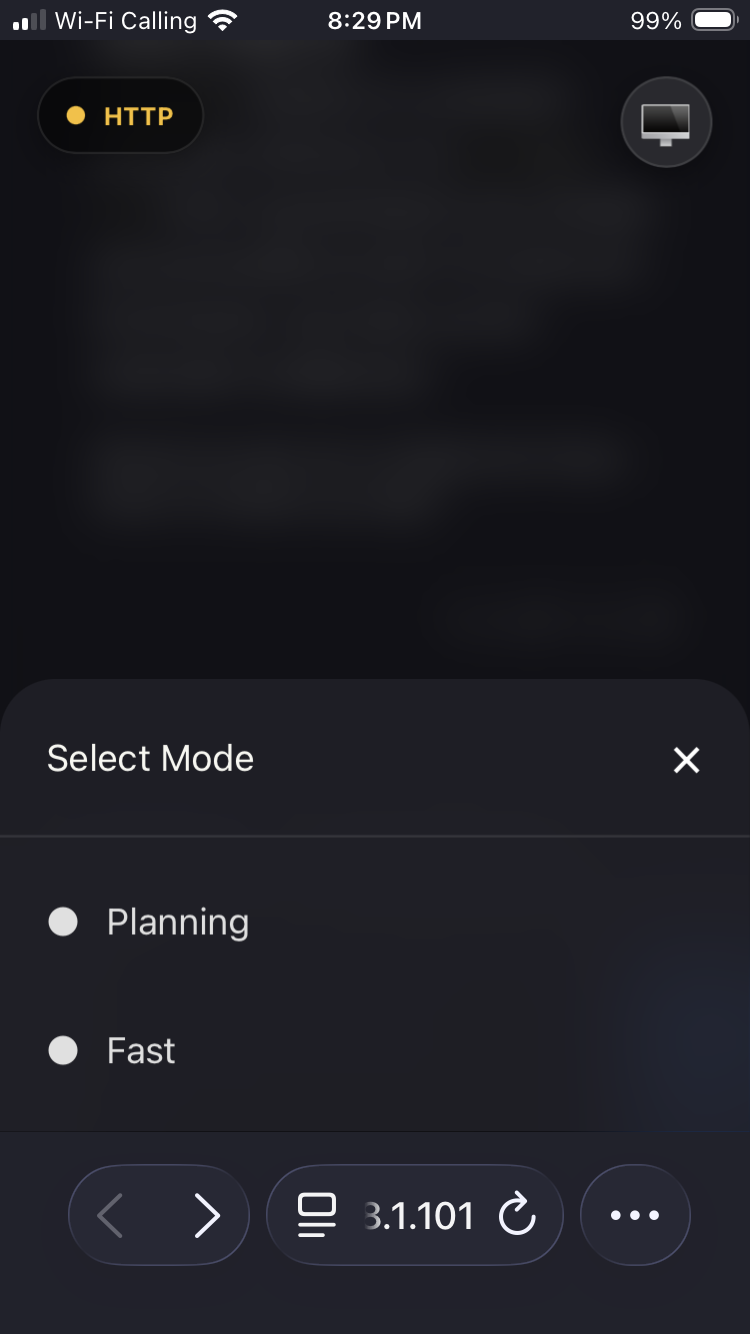 |
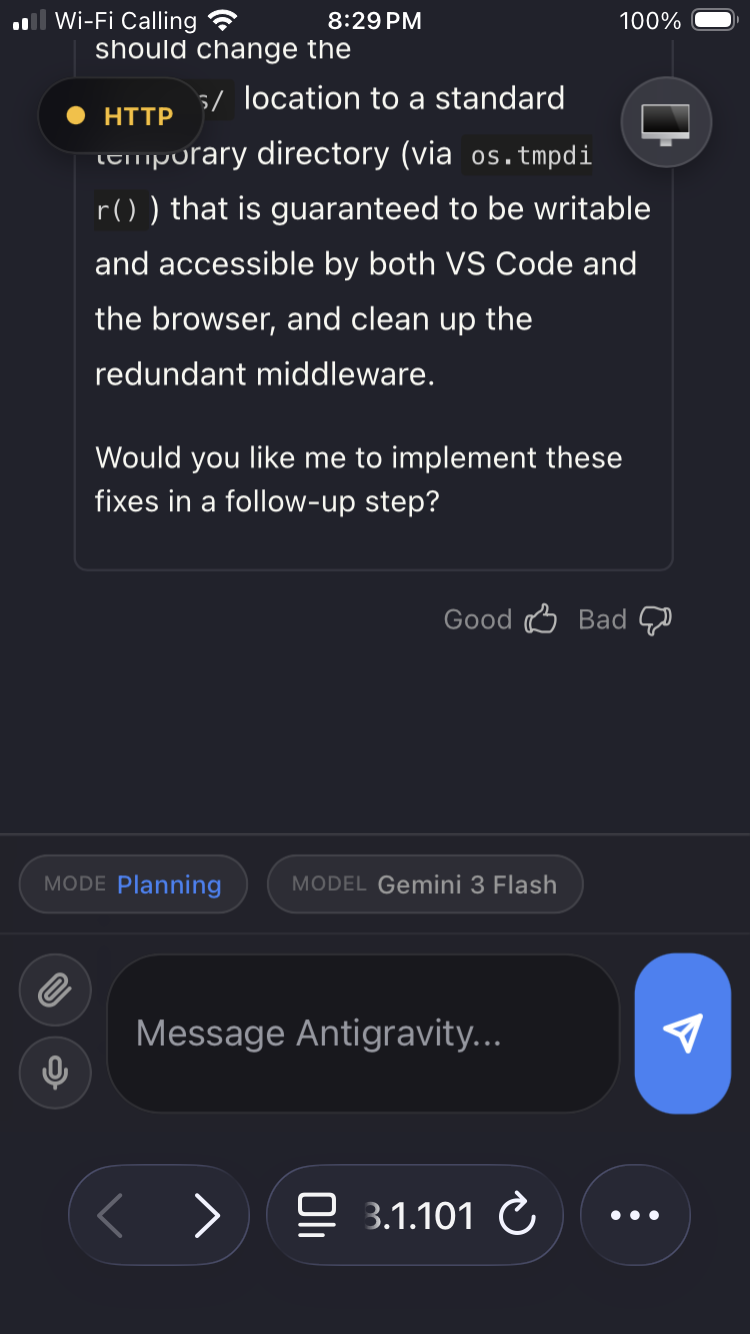 |
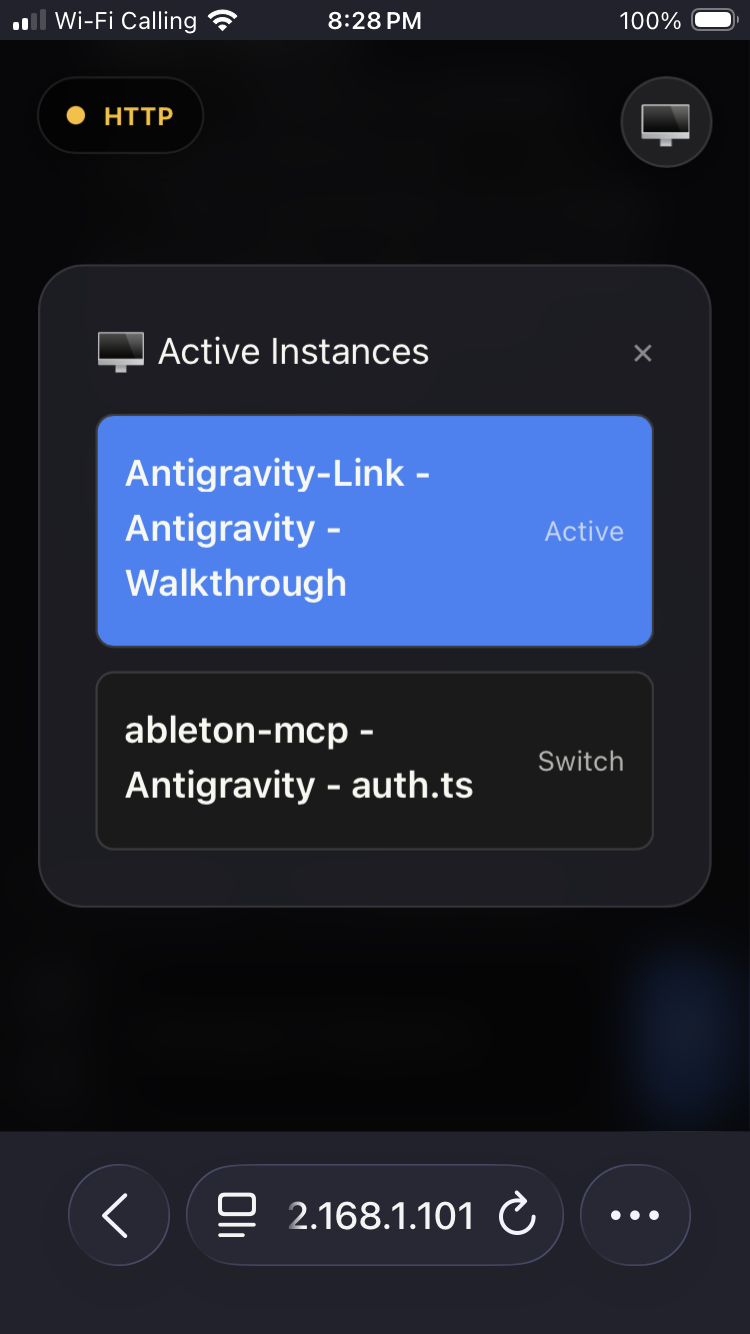 |
- Start Antigravity with remote debugging enabled. This is required; sessions launched without this flag are not discoverable by the extension.
Example (Windows, Start Menu shortcut path):
& "C:\Users\<username>\AppData\Roaming\Microsoft\Windows\Start Menu\Programs\Antigravity\Antigravity.lnk" --remote-debugging-port=9000Replace <username> with your Windows username. Multiple Antigravity sessions are supported, but every window must be launched with this command.
-
In VS Code, run:
Antigravity Link: Start Server -
Then run:
Antigravity Link: Show QR Code -
Scan the QR code with your phone. Your mobile UI is ready.
-
Your phone may warn that the connection is unsafe because the certificate is self-signed. This is expected for local HTTPS. Use your browser's "Advanced" or similar option to proceed (wording differs between Safari/Chrome/Firefox).
| Command | Description |
|---|---|
| Antigravity Link: Start Server | Starts the local bridge server. |
| Antigravity Link: Stop Server | Stops the server. |
| Antigravity Link: Show QR Code | Displays the connection QR code. |
| Setting | Default | Description |
|---|---|---|
antigravityLink.port |
3000 |
Port for the local bridge server. |
antigravityLink.autoStart |
false |
Start the server on VS Code launch. |
antigravityLink.useHttps |
true |
Serve over HTTPS for mic access. |
This extension is self-contained. It ships its own public/ assets and uploads/ folder and does not require the parent npm run dev build.
If your workspace contains public/ or uploads/, the extension will prefer those paths automatically. This makes it easy to customize the mobile UI or keep uploads in your project root, but it also means behavior can differ between workspaces.
- The extension starts a local server (HTTP or HTTPS).
- It discovers Antigravity targets via the Chrome DevTools Protocol (CDP).
- Your phone connects to the mobile UI and sends upload/command requests.
- The extension injects into the selected chat target and saves files to
uploads/.
- The server runs locally and is authenticated with a token.
- HTTPS is enabled by default to allow microphone access on mobile.
- No data is sent to third-party services by this extension.
- No instances found: Make sure every Antigravity window was launched with the
--remote-debugging-portcommand shown above. - Can't connect from mobile: Ensure your phone and computer are on the same network.
- Uploads save but don't appear in chat: Switch to the correct Active Instance in the mobile UI.
-
It does not work unless Antigravity is launched with the debug port. Use the exact launch command shown in the Quick start section. Any Antigravity window started without
--remote-debugging-portcannot be discovered or controlled. -
Can I run multiple sessions? Yes. Multiple Antigravity windows are supported as long as each one is launched with the command shown above.
We are accepting pull requests and actively looking for contributors. If you want to help, check the TODOs in the codebase or open an issue to discuss ideas.
See CONTRIBUTING.md for setup and PR notes.
MIT. See LICENSE.
Inspired by early community projects including:


