


Your media, now live on Discord. Minimalist integration for VLC Media Player to display what you're watching or listening to with rich details.
Display rich presence data directly from VLC to your Discord profile.
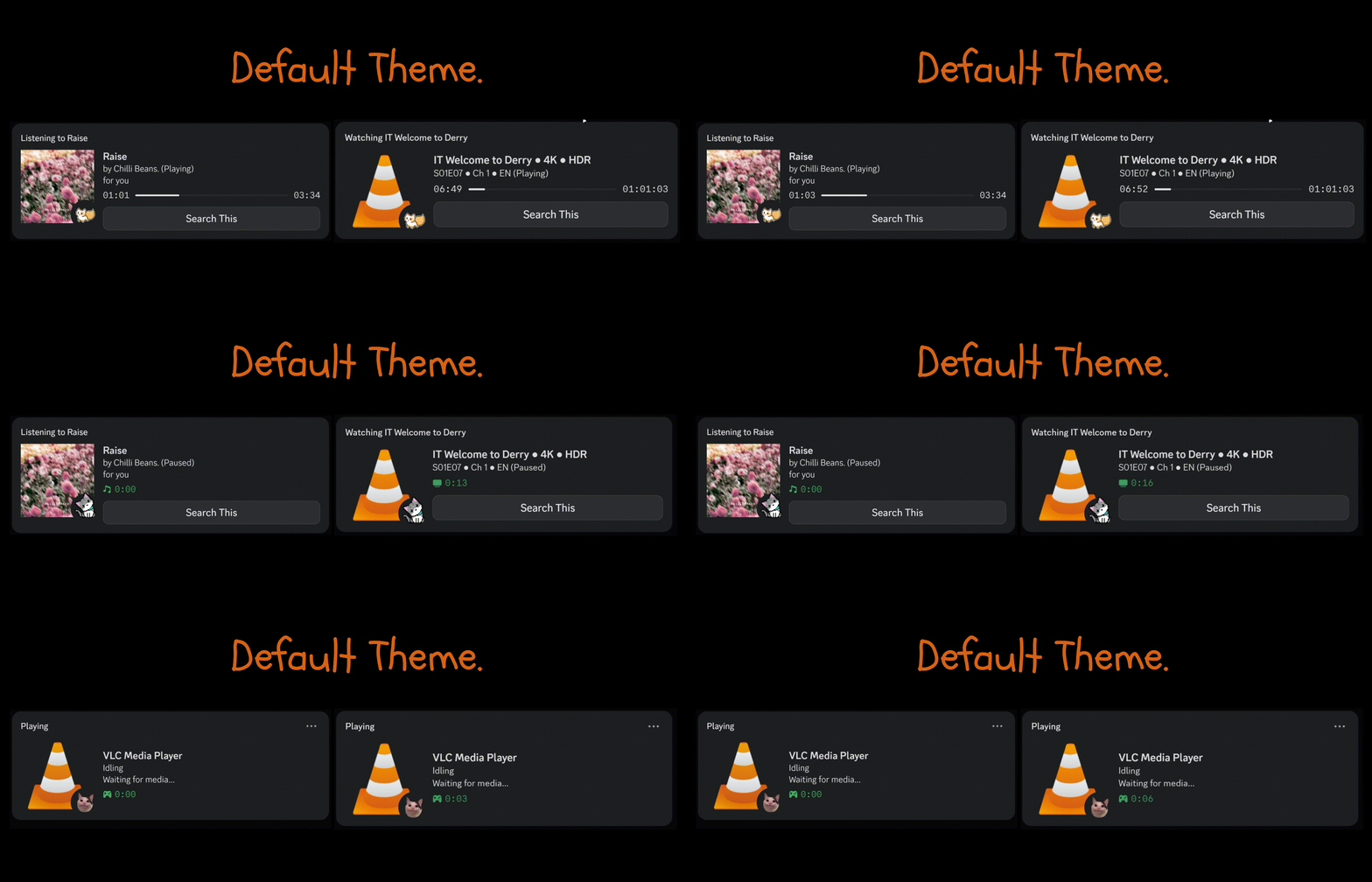
- 🆕 Cover Art Integration: Automatically fetches and displays album art and movie posters.
- 🎧 Smart Status: Context-aware status updates ("Listening to...", "Watching...").
- 📊 Live Progress: Functional progress bar tracking your media playback.
- 🏷️ rich Metadata: Displays resolution (4K, 1080p), HDR, and audio languages.
- 🔍 "Search This" Button: One-click search on Google, IMDb, or YouTube directly from your profile.
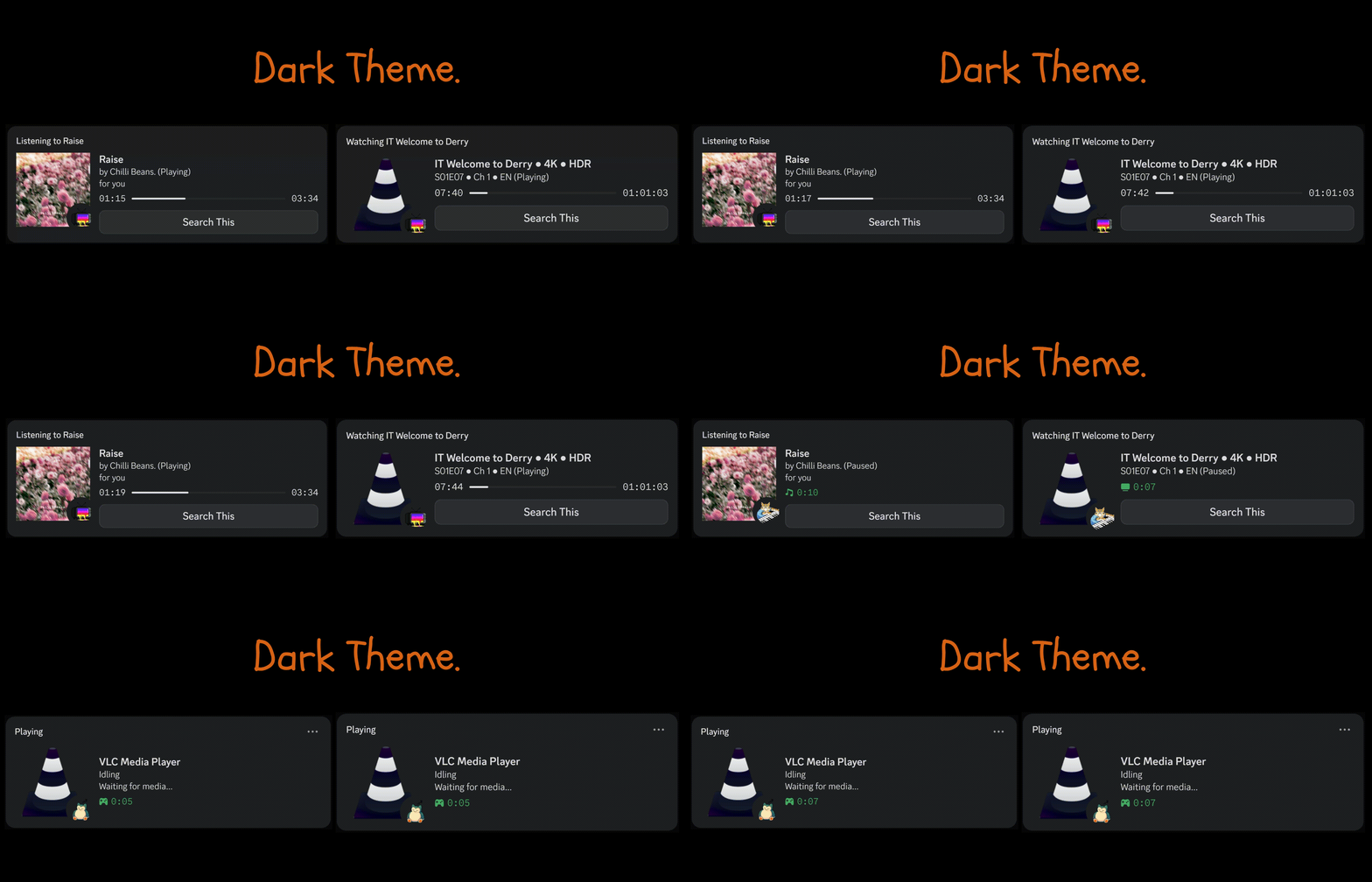
- 🎨 Theme Support: Light and Dark mode icons available.
- 🛡️ Privacy Controls: Option to hide cover art if preferred.
- Node.js (v14+)
- VLC Media Player (v3.0+)
- Discord Desktop App
-
Clone the repository:
git clone https://github.com/ciizerr/vlc-discord-rpc-archive.git cd vlc-discord-rpc-archive/node-source/v1.0.0 -
Install dependencies:
npm ci
-
Enable VLC HTTP Interface:
- Open VLC ->
Tools->Preferences->All(bottom left) ->Interface->Main interfaces. - Check
Web(orHTTP remote control interfaceon older versions). - Go to
Main interfaces->Lua(in the left sidebar). - Set Lua HTTP Password to
1234(or your preferred password).
- Open VLC ->
-
Run the Client:
npm start
Customize the behavior by editing index.js or setting environment variables.
| Variable | Description | Default |
|---|---|---|
CLIENT_ID |
Discord Application ID | 1465711556418474148 |
VLC_PASSWORD |
VLC HTTP Password | 1234 |
VLC_PORT |
VLC Web Interface Port | 8080 |
THEME_PREFIX |
Icon theme prefix ('' or 'dark_') |
'' |
PROVIDER |
Search button target (Google, YouTube, IMDb) |
Google |
POLL_INTERVAL |
Updates frequency (ms) | 1000 |
Windows (PowerShell):
$env:VLC_PASSWORD = "1234"
$env:PROVIDER = "YouTube"
npm startLinux/macOS:
export VLC_PASSWORD="1234"
export PROVIDER="YouTube"
npm startNo presence appearing on Discord?
- Ensure Discord is installed & running.
- Verify VLC HTTP interface is enabled and password matches
1234. - Check if
CLIENT_IDis correct. - Restart both VLC and the script.
"Authentication failed" error?
Double-check the password set in VLC Preferences -> All -> Interface -> Main interfaces -> Lua -> Lua HTTP Password.
Cover art not showing?
Cover art works for local files with embedded metadata. Ensure your media files have tagged artwork.
Made with ❤️ by ciizerr
Based on discord-rpc and axios. Licensed under MIT.