Production-ready SSL certificate pinning for React Native and Expo apps. This library provides seamless SSL certificate pinning integration for enhanced network security, protecting applications against man-in-the-middle (MITM) attacks. With dynamic configuration options and the ability to toggle SSL pinning, it's perfect for both development and production environments.
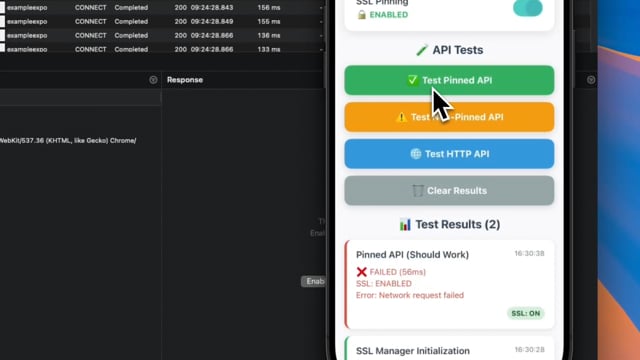
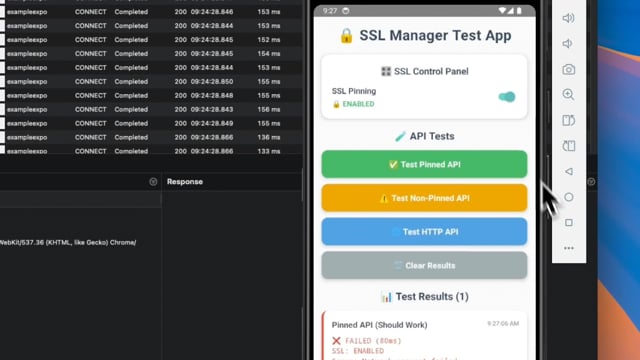
📱 Interactive Features Shown:
- Toggle SSL pinning on/off
- Real-time API testing with visual feedback
- Certificate validation results
- Performance metrics display
🎬 Watch Full Demo Videos:
- iOS Demo - Complete iOS SSL pinning demonstration
- Android Demo - Complete Android SSL pinning demonstration
- 🔒 Easy SSL certificate pinning - Simple setup with JSON configuration
- 🔄 Dynamic SSL control - Enable/disable SSL pinning at runtime
- 🏗️ New Architecture Ready - Full support for React Native's New Architecture (Fabric/TurboModules)
- 🏛️ Legacy Compatible - Works with both New and Legacy Architecture
- 📱 Cross-platform - Native support for iOS & Android
- 🚀 Expo Compatible - Built-in Expo plugin with auto-configuration
- ⚡ Zero Configuration - Auto-setup with smart fallbacks
- 🧪 Developer Friendly - Perfect for development and testing workflows
- 🎯 Production Ready - Optimized performance, no debug logs
# Using npm
npm install react-native-ssl-manager

# Using yarn
yarn add react-native-ssl-manager

# Using bun
bun add react-native-ssl-manager
For iOS, run pod install:
cd ios && pod install# Using expo CLI
npx expo install react-native-ssl-manager
# Using bun with expo
bunx expo install react-native-ssl-managerAdd the plugin to your app.json or app.config.js:
{
  "expo": {
    "plugins": [
      [
        "react-native-ssl-manager",
        {
          "sslConfigPath": "./ssl_config.json"
        }
      ]
    ]
  }
}This library supports both React Native architectures:
- ✅ New Architecture (Fabric/TurboModules) - React Native 0.68+
- ✅ Legacy Architecture - All React Native versions
The library automatically detects and uses the appropriate architecture at runtime.
Create a ssl_config.json file in your project root:
{
  "sha256Keys": {
    "api.example.com": [
      "sha256/AAAAAAAAAAAAAAAAAAAAAAAAAAAAAAAAAAAAAAAAAAA=",
      "sha256/BBBBBBBBBBBBBBBBBBBBBBBBBBBBBBBBBBBBBBBBBBB="
    ],
    "api.dev.example.com": [
      "sha256/CCCCCCCCCCCCCCCCCCCCCCCCCCCCCCCCCCCCCCCCCCC=",
      "sha256/DDDDDDDDDDDDDDDDDDDDDDDDDDDDDDDDDDDDDDDDDDD="
    ]
  }
}import { setUseSSLPinning, getUseSSLPinning } from 'react-native-ssl-manager';
// Enable SSL pinning
await setUseSSLPinning(true);
// Check if SSL pinning is enabled
const isEnabled = await getUseSSLPinning();
console.log('SSL Pinning enabled:', isEnabled);
// Disable SSL pinning (for development/testing)
await setUseSSLPinning(false);// Test with SSL pinning enabled
await setUseSSLPinning(true);
try {
const response = await fetch('https://api.example.com/data');
console.log('✅ SSL Pinning working - request succeeded');
} catch (error) {
console.log('⚠️ Check your SSL configuration');
}
// Test without SSL pinning
await setUseSSLPinning(false);
const response = await fetch('https://api.example.com/data');
console.log('🔓 Request without SSL pinning');Create a configuration file with your domain certificates. Example structure:
{
  "domains": {
    "development": "api.dev.example.com",
    "production": "api.example.com"
  },
  "sha256Keys": {
    "api.dev.example.com": [
      "sha256/certificate-hash-1=",
      "sha256/certificate-hash-2="
    ],
    "api.example.com": [
      "sha256/certificate-hash-3=",
      "sha256/certificate-hash-4="
    ]
  }
}Enables or disables SSL pinning dynamically.
// Enable SSL pinning
await setUseSSLPinning(true);

// Disable SSL pinning
await setUseSSLPinning(false);
Parameters:
usePinning(boolean): Whether to enable SSL pinning
Returns: Promise
Retrieves the current state of SSL pinning.
const isEnabled = await getUseSSLPinning();
console.log('SSL Pinning enabled:', isEnabled);
Returns: Promise - Current SSL pinning status
ssl_config.json and placed in your project root directory.
Your ssl_config.json should follow this structure:
{
  "sha256Keys": {
    "your-api-domain.com": [
      "sha256/primary-certificate-hash=",
      "sha256/backup-certificate-hash="
    ],
    "another-domain.com": [
      "sha256/another-certificate-hash="
    ]
  }
}
📁 File Location Requirements:
- ✅ React Native CLI: Place
ssl_config.jsonin project root - ✅ Expo: Place
ssl_config.jsonin project root (same level asapp.json) - ❌ Don't rename the file - it must be exactly
ssl_config.json - ❌ Don't place in subdirectories - must be in project root
When using setUseSSLPinning, a restart of the application is required for changes to take effect. This is because SSL pinning is implemented at the native level.
First, install react-native-restart:
# Using npm
npm install react-native-restart

# Using yarn
yarn add react-native-restart
For iOS, run pod install:
cd ios && pod installThen use it in your code:
import RNRestart from 'react-native-restart';

const toggleSSLPinning = async (enabled: boolean) => {
  await setUseSSLPinning(enabled);
  // Restart the app to apply changes
  RNRestart.Restart();
};

// Example with user confirmation
const handleSSLToggle = async (enabled: boolean) => {
  // Save any necessary state
  await saveAppState();

  // Update SSL pinning
  await setUseSSLPinning(enabled);

  // Show user message
  Alert.alert(
    'Restart Required',
    'The app needs to restart to apply security changes.',
    [
      {
        text: 'Restart Now',
        onPress: () => RNRestart.Restart()
      }
    ]
  );
};- Quick Toggling: Easily switch SSL pinning on/off during development
- Performance Optimization: Minimize SSL verification overhead during development
- Flexible Configuration: Support multiple environments with different certificates
- Efficient Testing: Quickly verify API behavior with and without SSL pinning
- Issue Investigation: Easily isolate SSL-related issues
- Environment Switching: Seamlessly test across different environments
-
Environment Management
- Keep separate configurations for development and production
- Store production certificates securely
-
Performance Optimization
- Enable SSL pinning only when necessary during development
- Use development certificates for testing environments
-
Security Considerations
- Always enable SSL pinning in production
- Regularly update certificates before expiration
- Maintain multiple backup certificates
-
✅ Expo Plugin Integration - COMPLETED!
- ✅ Native SSL pinning support for Expo projects
- ✅ Seamless configuration through expo-config-plugin
- ✅ Auto-linking capabilities for Expo development builds
- ✅ Support for Expo's development client
-
✅ New Architecture Support - COMPLETED!
- ✅ Full TurboModule implementation
- ✅ Fabric renderer compatibility
- ✅ Automatic architecture detection
- ✅ Backward compatibility with Legacy Architecture
-
✅ Production Optimizations - COMPLETED!
- ✅ Removed debug logs for production builds
- ✅ Performance optimizations
- ✅ Clean codebase ready for release
-
🔄 Advanced Certificate Management
- Certificate rotation support
- Automatic certificate validation
- Certificate expiry notifications
-
📊 Enhanced Developer Experience
- SSL pinning analytics and monitoring
- Better error reporting and debugging tools
- Integration with popular development tools
-
🔧 Extended Platform Support
- Web support for React Native Web
- Additional certificate formats support
This library comes with a comprehensive test app that demonstrates SSL pinning functionality:
# Clone the repository
git clone https://github.com/huytdps13400/react-native-ssl-manager.git

# Test with React Native CLI
cd react-native-ssl-manager/example
npm install
npm run ios # or npm run android

# Test with Expo
cd ../example-expo
npm install
npx expo run:ios # or npx expo run:android
The example app provides:
- 🎛️ SSL Control Panel - Toggle SSL pinning on/off
- 🧪 Multiple Test Scenarios - Test different API endpoints
- 📊 Real-time Results - See detailed test results with timing
- 🔍 Visual Feedback - Color-coded success/failure indicators
-
🔓 Test without SSL Pinning:
await setUseSSLPinning(false);
// All API calls should work normally
-
🔒 Test with SSL Pinning (Correct Certificate):
await setUseSSLPinning(true);
// Calls to pinned domains should work
const response = await fetch('https://your-pinned-domain.com/api');
-
⚠️ Test with SSL Pinning (Wrong Certificate):await setUseSSLPinning(true); // Calls to non-pinned domains should fail try { await fetch('https://unpinned-domain.com/api'); } catch (error) { console.log('✅ SSL Pinning working - blocked untrusted certificate'); }
Proxyman is a powerful tool for testing SSL pinning implementation. Here's how you can verify your SSL pinning configuration:
-
Install Proxyman
- Download and install Proxyman
- Install Proxyman's SSL certificate on your device/simulator
-
Testing SSL Pinning
// Enable SSL Pinning
await setUseSSLPinning(true);

// Make API requests through your app
// If SSL pinning is working correctly:
// - Requests will fail when Proxyman tries to intercept them
// - You'll see SSL/TLS handshake errors

// Disable SSL Pinning for debugging
await setUseSSLPinning(false);
// Now you can intercept and inspect API calls with Proxyman
-
Verify SSL Pinning is Active
- Enable SSL pinning
- Attempt to intercept traffic with Proxyman
- Requests should fail with SSL handshake errors
-
Debug API Calls
- Disable SSL pinning temporarily
- Use Proxyman to inspect API requests/responses
- Helpful for QA testing and development
-
Certificate Validation
- Verify your SSL configuration matches the certificates in ssl_config.json
- Test against both development and production endpoints
- If requests succeed with Proxyman while SSL pinning is enabled, check your configuration
- Verify that the SHA256 hashes in your config match your server certificates
- Test both development and production environments separately
This integration with Proxyman makes it easy to:
- Verify SSL pinning implementation
- Debug API communications
- Validate security configurations
- Speed up development and testing workflows
- ✅ React Native 0.60+ (AutoLinking support)
- ✅ React Native 0.68+ (New Architecture support)
- ✅ Expo SDK 47+ (Expo plugin support)
- ✅ iOS 13.0+
- ✅ Android API 21+ (Android 5.0)
- ✅ New Architecture (Fabric/TurboModules)
- ✅ Legacy Architecture (Bridge-based)
- ✅ React Native CLI
- ✅ Expo CLI
- ✅ Expo Development Build
- ✅ Flipper (debugging support)
- ✅ Bun (package manager support)
We welcome contributions! See the contributing guide to learn how to contribute to the repository and the development workflow.
# Clone the repository
git clone https://github.com/huytdps13400/react-native-ssl-manager.git
cd react-native-ssl-manager

# Install dependencies (choose your package manager)
npm install
# or
yarn install
# or
bun install

# Build the library
npm run build
# or
bun run build

# Run tests
npm test
# or
bun test

# Test with example apps
npm run example:ios
npm run example:android
npm run example-expo:ios
npm run example-expo:android

# Test Bun compatibility
bun run bun:test-compatibilityMIT License - see the LICENSE file for details.
- Built with create-react-native-library
- SSL pinning implementation inspired by industry best practices
- Special thanks to the React Native community
Made with ❤️ for the React Native community