One-stop doc to setup Evotars in your stream!
Evotars Admin Panel | Evotars Wiki | OBS Project Link | OBS Forum Link | Github Readme
- Evotars are free browser-based avatars in Twitch streams, where viewers and chatters will turn into interactive game-like characters that react to chat and perform commands.
- It’s lightweight and easy to set up, perfect for small streamers who want to engage with their audience and grow their channel.
- Active Commands: Chatters can make evotar
!jump,!dash,!grow,!color, and more. - Channel Rewards: Chatters can use channel points to do actions like jump or change skin.
- Chat Bubble and Emotes: Evotars will show show bubble speeches and emotes, with 7TV emote support.
- Customization: Chatters can customize their avatar’s appearance — from color to skin.
- Raid Support: Raiders' evotars will 'fall' from the top to welcome the incoming community.
- Easy to Use: Web-based, so no downloads or complicated setup needed for OBS.
Reference: Create a new OBS browser source
- Log into Evotars Admin Panel using your Twitch account.
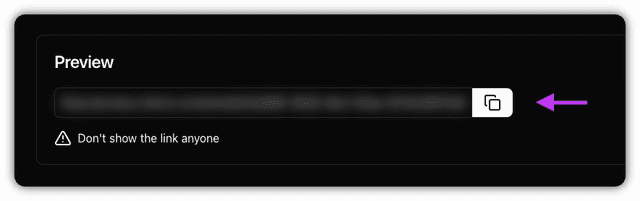
- Copy Your Overlay URL
Under Evotar Admin Panel > Preview, click on the icon next to the blurred out link copy your stream's unique Evotars Overlay URL.\
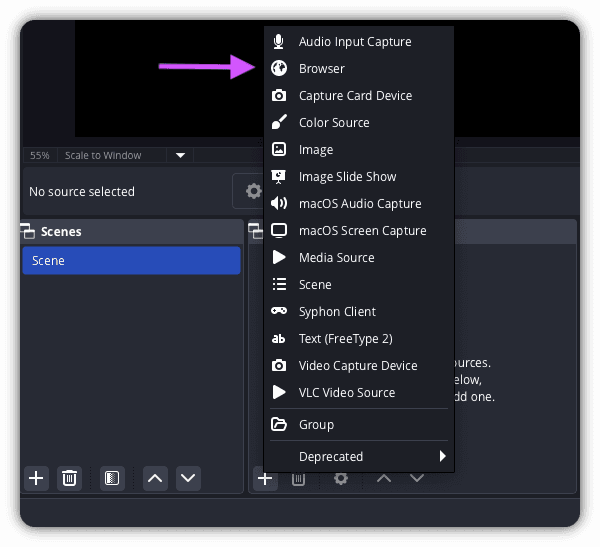
- Add Evotars overlay in OBS:
a. In OBS, create a new browser source
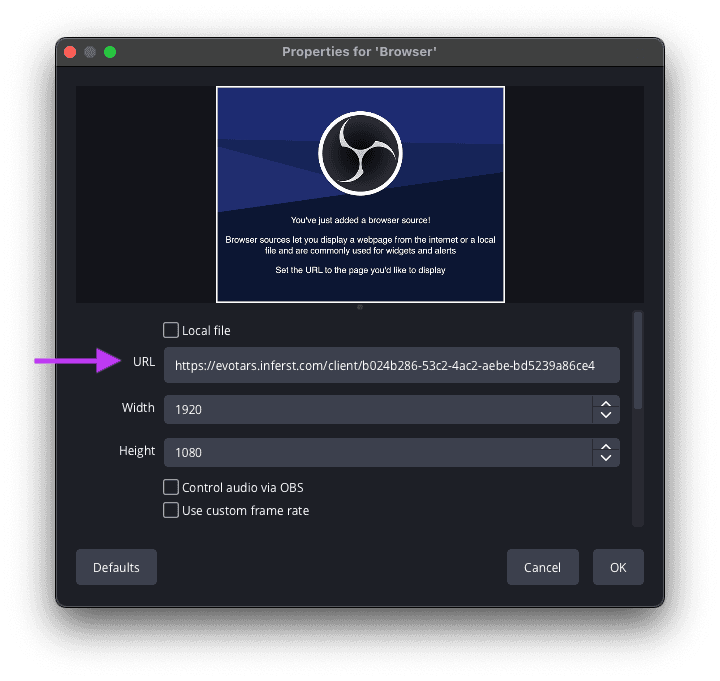
b. Paste the Evotars Overlay URL.
d. Set your desired width/height.
e. Set the source setting FPS to 60 for smoother animation (optional).
Enable Twitch chat commands for evotars via the Evotar Admin Panel here: Commands
-
In Evotar Admin Panel > Commands, ensure that !jump is enabled as ✅ Active.
-
In Twitch stream chat, type
!jumpto make the evotar jump. 🆙
-
In Evotar Admin Panel > Commands, ensure that !dash is enabled as ✅ Active.
-
In Twitch stream chat, type
_!dash_to make the evotar dash. 🏃
-
In Evotar Admin Panel > Commands, ensure that !skin is enabled as ✅ Active.
-
In Twitch stream chat, type !skin and skin name to change evotar skin. 🎭 Example:
!skin agent
- You can set which skins can be used in the Skins section. Currently, these skins are available: agent, cat, duck, duck_evil, dude, girl, nerd, nyan, owl, senior, sith, sponge.
-
In Evotar Admin Panel > Commands, ensure that !color is enabled as ✅ Active.
-
In Twitch stream chat, type !color and a color code to change the evotar color. 🌈 Example:
!color redor!color #00ffcc
- Suggested colors: white gray black brown olive green lime yellow cyan blue purple maroon pink red orange
Enable Twitch channel redeems for evotars via the Evotar Admin Panel here: Twitch Rewards.
- Action: Select from the pull-down menu
- Title: Name of the reward (this will be displayed in the Twitch channel)
- Cost: How many channel points is needed to redeem this reward
Note: After these are enabled, ensure the channel point redemptions are also set up in Twitch Custom Rewards.
-
In Evotars Admin Panel > Twitch Rewards, click on 'Add Custom Reward' button.
-
In the form, select action 'Jump', fill in the blanks, and click on 'Add reward'.
- Velocity X and Y are optional.
- Ensure the reward is enabled as ✅ Active.
-
In Evotar Admin Panel > Twitch Rewards, click on 'Add Custom Reward' button.
-
In the form, select action 'Dash', fill in the blanks, and click on 'Add reward'.
- Force is optional.
- Ensure the reward is enabled as ✅ Active.
-
In Evotar Admin Panel > Twitch Rewards, click on 'Add Custom Reward' button.
-
In the form, select action 'Sprite', fill in the blanks, and click on 'Add reward'.
- User argument = redeemer can choose their own.
- Value = streamer can limit redeens to certain skins. Use space in between skin names. Example:
cat duck nyan. - You can set which skins can be used in the Skins section. Currently, these skins are available: agent, cat, duck, duck_evil, dude, girl, nerd, nyan, owl, senior, sith, sponge.
- Ensure the reward is enabled as ✅ Active.
-
In Evotar Admin Panel > Twitch Rewards, click on 'Add Custom Reward' button.
-
In the form, select action 'Sprite', fill in the blanks, and click on 'Add reward'.
- User argument = the redeemer can choose their own.
- Value = the streamer can limit redeems to specific colors. Use spaces in between colors (name or HEX code). Example:
red yellow green - Suggested colors: white gray black brown olive green lime yellow cyan blue purple maroon pink red orange
- Ensure the reward is enabled as ✅ Active.
You can hide specific users (e.g. bots) from having an evotar to avoid cluttering up the overlay.
-
In Evotar > Settings, under 'Users', type in Twitch username(s) you don't want evotars for. Use space to separate the usernames, e.g. user1 user2 user3
-
Refresh OBS browser source for the changes to take effect. This will reset the overlay.