
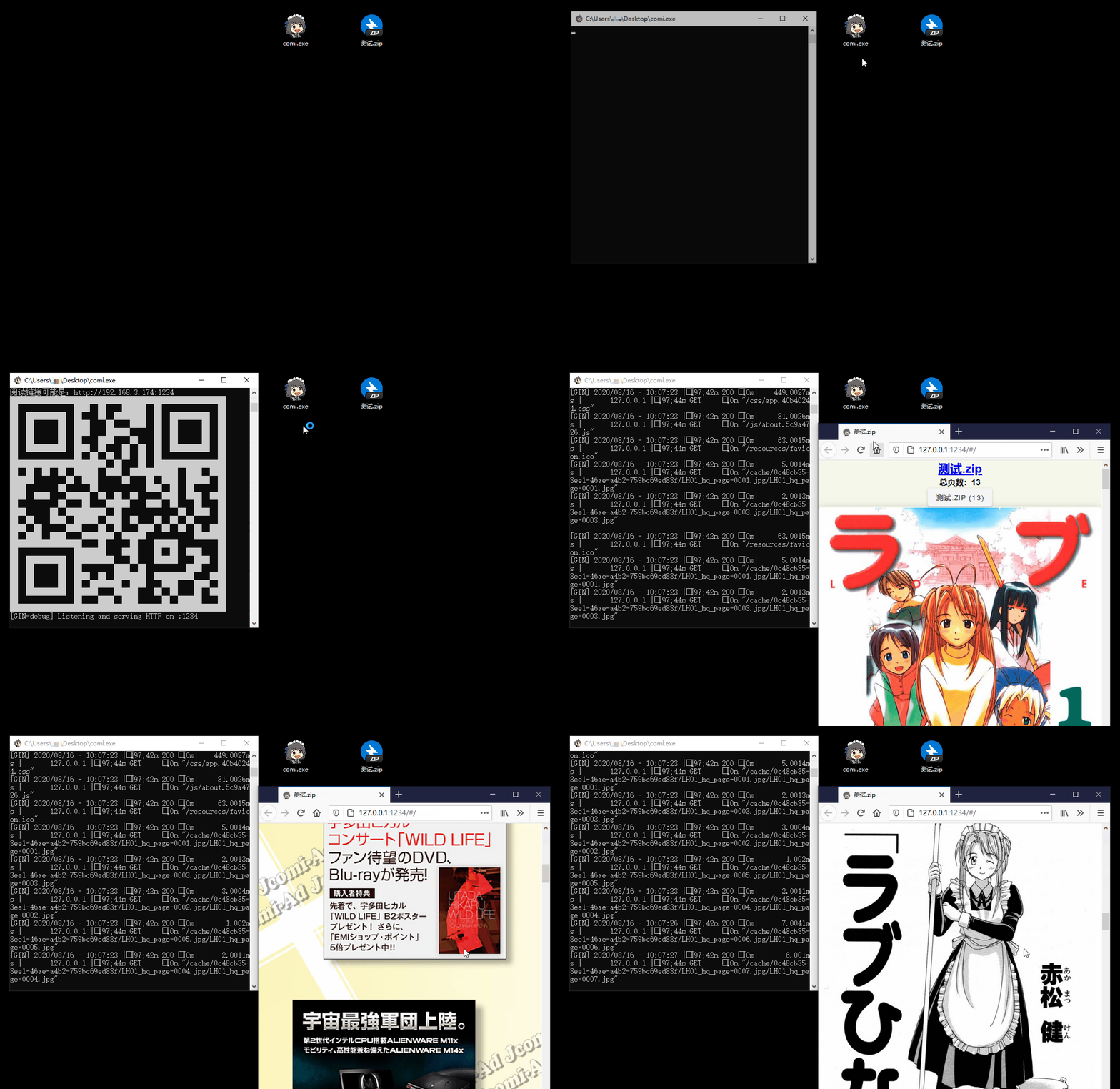
- 📚 Multiple Format Support: Supports image folders and compressed files like
.rar,.zip,.tar,.cbz,.cbr,.epub - 📱 Easy Access: QR code scanning for mobile/tablet devices, drag-and-drop support for Windows
- 🐧 Cross-Platform: Compatibility with Windows, Linux, and macOS
- 📖 Diverse Reading Modes: Offers scroll, and page-turning modes
- ⚙️ Flexible Configuration: Command-line operation with
config.tomllibrary settings - 🖼️ Modern Image Formats: In addition to
jpgandpng, it also supports next-gen formats likeheicandavif - ✂️ Smart Optimization: Automatic image cropping and compression for bandwidth saving
- 🔄 Sync Reading: Synchronized page-turning across different devices
- 🔌 Plugin System: Built-in plugins like auto page-turn and clock, with custom plugin support
- 🎬 Media Playback: Built-in audio and video player
- 📥 Flexible Download: Batch download image folders, convert and download as EPUB format
- 📜 Reading History: Automatic reading history tracking for easy continuation
| System | Download |
|---|---|
| Windows 64-bit | comigo_latest_Windows_x86_64_full.zip |
| macOS (Intel/Apple Silicon) | Comigo.app.zip |
💡 Note: GUI version provides system tray icon, can run minimized in background. Windows: Double-click to run; macOS: Drag to Applications folder.
# Recommended:
bash <(curl -s https://raw.githubusercontent.com/yumenaka/comigo/master/get.sh)

# For users in Mainland China:
bash <(curl -s https://comigo.xyz/get.sh) --cn

# If you have Golang (go 1.23 or higher):
go install github.com/yumenaka/comigo/cmd/comi@latest| System | Download |
|---|---|
| Windows 64-bit | comi_latest_Windows_x86_64.zip |
| Windows ARM | comi_latest_Windows_arm64.zip |
| macOS Intel | comi_latest_MacOS_x86_64.tar.gz |
| macOS Apple Silicon | comi_latest_MacOS_arm64.tar.gz |
| Linux 64-bit | comi_latest_Linux_x86_64.tar.gz |
| Linux ARM64 | comi_latest_Linux_arm64.tar.gz |
| Linux ARM32 | comi_latest_Linux_armv7.tar.gz |
| Debian/Ubuntu 64-bit | comi_latest_amd64.deb |
| Debian/Ubuntu ARM64 | comi_latest_arm64.deb |
💡 Note: CLI version suitable for server deployment and advanced users. Manual PATH configuration required after download.
Download the latest version from the Releases page and add the executable to your system's PATH environment variable.
# Pull and run the latest image
docker run -d \
  --name comigo \
  -p 1234:1234 \
  -v /path/to/your/books:/data \
  yumenaka/comigo:latest
Visit http://localhost:1234 to access your library.
- Download the
docker-compose.ymlfile - Edit the configuration as needed
- Start the service:
docker-compose up -dlinux/amd64- Standard x86_64 serverslinux/arm64- ARM64 servers (Raspberry Pi 4/5)linux/arm/v7- ARMv7 devices (Raspberry Pi 2-4)
| Variable | Description | Default |
|---|---|---|
COMIGO_PORT |
Service port | 1234 |
COMIGO_USERNAME |
Login username (optional) | - |
COMIGO_PASSWORD |
Login password (optional) | - |
COMIGO_ENABLE_UPLOAD |
Enable file upload | true |
For more details, see the complete Docker documentation.
comi [flags] file_or_dir| Option | Short | Default | Description |
|---|---|---|---|
--config |
-c |
- | Specify config file path |
--port |
-p |
1234 | Service port |
--host |
- | - | Custom hostname/domain |
--local |
- | false | Local access only |
--max-depth |
-m |
5 | Max scan depth |
--open-browser |
-o |
false | Open browser on start |
--enable-upload |
- | true | Enable file upload |
--read-only |
- | false | Read-only mode |
--username |
- | - | Login username |
--password |
- | - | Login password |
--debug |
- | false | Debug mode |
# Open current directory
comi .

# Specify port and path
comi -p 8080 /path/to/manga

# Local only with login protection
comi --local --username admin --password 123456 /path/to/mangaComigo supports configuration file locations:
-
User Home Directory
- Windows:
C:\Users\username\.config\comigo.toml - Linux/MacOS:
/home/username/.config/comigo.toml - Default location read at startup
- Windows:
-
Program Directory
- Place
comigo.tomlin the same directory as the executable - Suitable for portable usage
- Place
-
Current Working Directory
- Searches for configuration file in the current directory when running commands
-
Custom Location
- Specify configuration file path using the
--configparameter
- Specify configuration file path using the
If you have any suggestions or encounter issues, feel free to:
Thanks to the following open-source projects and their contributors:
- mholt
- spf13
- disintegration
- Baozisoftware
- And many more contributors
This software is released under the MIT license.