Pop up Menus UI Display and Action Handling
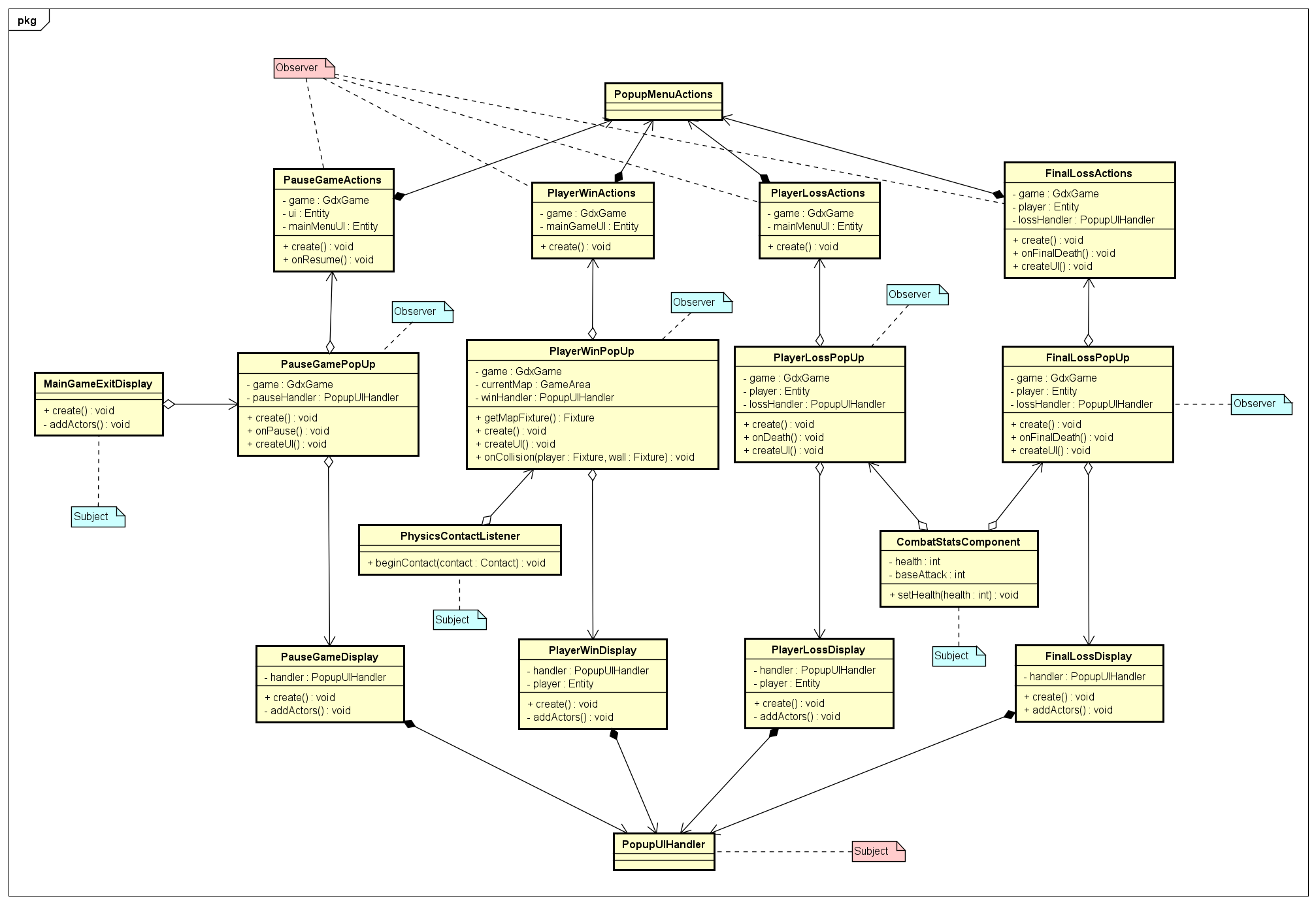
Pop-up menus throughout the game function similarly regardless of their reason for appearing. To minimise duplicate code and encourage modularity, two classes were built to manage creating the UI elements and on-click actions common to all, or many menus.
The display of the UI and control of actions common to all menus is handled by the UIPopupHandler and PopupMenuActions classes. The UIPopupHandler class controls the setting up of the menu background, buttons and triggers on the buttons. The PopupMenuActions class controls actions common to all menus (such as returning to the Main Menu and Replaying the level).
When a new PopupMenu is added to a UI (eg, the UI in the MainGameScreens createUI method), it should be passed a new PopupUIHandler. The PopupUIHandler takes a String[] (textures) as an argument which contains the filepaths of the menu's background and buttons to be placed onto the pop-up menu. This textures object must have been loaded by the resource service (ServiceLocator.getResourceService()) prior to being passed to the PopupUIHandler. textures must be ordered as:
- the background image for the menu
- the button(s) you would like to place onto the menu.
For example: static final String[] textures = {"backgroundPath.png", "button1Path.png", "button2Path.png"};
Once the pop-up menu is triggered, the pop-up menu's createUI method should add a _Display.java class to the pop-up menus UI. This _Display.java class should be passed a reference to the PopupUIHandler given to the PopupMenu. This _Display class will call on methods from the PopupUIHandler in creating the visuals for the pop-up menu. For example, in the PlayerWinDisplay addActors method:
// Set up the background image
Table background = new Table();
handler.setupBackground(background);

// Place the buttons onto the UI.
Table buttonHolder = new Table();
ArrayList<Image> button = handler.setupButtons(buttonHolder, 125, 15);

// Set up the on-click triggers for the buttons.
final String[] actions = {"replayLevel", "homeMenu", "continue"};
handler.setupButtonClicks(buttons, actions, entity);

// Add to the stage to display the pop-up menu
stage.addActor(backgroundFrame);
stage.addActor(buttonHolder);
PopupMenuActions must be added as a Component to the over-arching UI (the same UI that the pop-up menus are Components of). As the pop-up menus are also Components of the UI, they are able to access the same Entity object. For example, in the MainGameScreen createUI method:
Entity ui = new Entity();
ui.addComponent(new PopUpMenu(this.game, new PopupUIHandler));
  .addComponent(new PopupMenuActions(this.game));
When the pop-up menu's UI is created, an _Actions.java class should be added as a Component to the UI. This _Actions.java class is passed a reference to the over-arching UI. For example, in the PlayerWinPopup createUI method:
Entity ui = new Entity();
ui.addComponent(new PlayerWinActions(game, upperUI))
  .addCompoonent(new PlayerWinDisplay(handler));
For common functionality, these Action classes will call on the PopupMenuActions class. For example, in the PlayerWinActions create() method:
// Functionality which is common to all pop-up menus
entity.getEvents().addListener("replayLevel", this.mainGameUI.getComponent(PopupMenuActions.class)::onReplay);

// Functionality on this menu only
entity.getEvents().addListener("continue", this::onContinue);
Creating Handler classes allows for the implementation of functions to be abstracted away from the caller. This method allows for functions common to all callers to be centralised and identical, which can:
- Help remove duplicate code
- Speed up debugging related to the action functions
- Encourage modularity, as code needs only to change in one class